Participant
February 17, 2017
Answered

Illustrator: How do I get my color picker again?

  • February 17, 2017
  • 2 replies
  • 1028 views

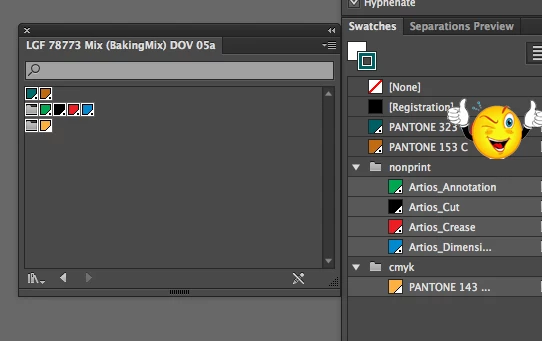
In Illustrator: when I click on either of these:

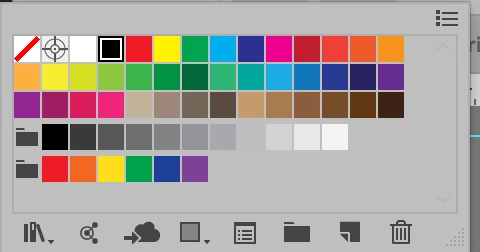
I get this: (below):

Can you tell me what I did that I got this? (what did I do wrong?)

And how do I get back to this again? (below):
Thank you for your help.
    This topic has been closed for replies.
    Correct answer Mike_Gondek10189183

    Swatches Flyout menu >> open swatch library >> other swatch library >> choose any .ai file or .ase file that contains the swatches.

    Then select the swatches from the new swatches palette, and drag them into your swatches palette.

    2 replies

    Victor Duron
    Participating Frequently
    February 17, 2017

    Are you working in a new artboard or is a template? Do you have removed the color from the swatches window or these appear in the swatches window but not in the top bar options for fill and stroke options?

    GARRogersAuthor
    Participant
    February 17, 2017

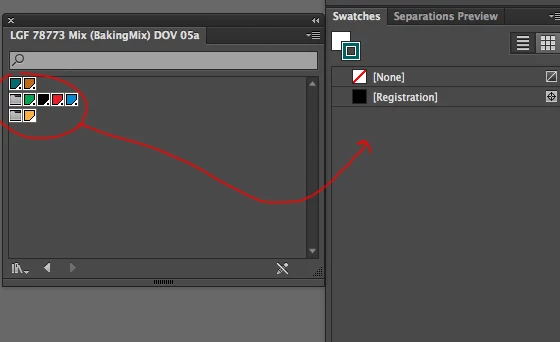
    Yes, new artboard that begins with a template for layer 1. I just checked the template and the color swatches are on the template; somehow I must have deleted them from my project -- I have no idea what I did, but I would like to keep from doing it again.

    They're here (see below) but the only way I was able to make the stroke blue was to use the eyedropper.

    Otherwise the color won't register.

    Mike_Gondek10189183
    Community Expert
    Community Expert
    February 17, 2017

    Those colors are stored in the new document profiles files located here:

    NEW DOCUMENT PROFILES

    HD\Users\(user name)\Library\Application Support\Adobe\Adobe Illustrator CS#\en_US\New Document Profiles

    Unless you removed them manually or someone like myself did (because we leek to keep our swatches clean of only colors used in document).

    You can choose Open Swatch Library and open one of those presets, or pewit that to any .ai file that has the preset swatches (e.g.: the print .ai file inside the doc profiles folder)

    GARRogersAuthor
    Participant
    February 17, 2017

    Yes, I found the swatches, but is there a way to open them again in this?

    Monika Gause
    Community Expert
    Community Expert
    February 17, 2017

    Here's how to use swatches, please read it:

    https://helpx.adobe.com/illustrator/using/using-creating-swatches.html

    To prevent htis from happening in the future:

    don't open raster images in Illustrator instead place them in a newly created document.

    You won't be able to prevent this from happening when opening templates or files created by others, because the creators of those files might have deleted the swatches.