

Matthew D Bayfield
Participating Frequently
March 28, 2020
Answered

Illustrator Pattern Join Lines

  • March 28, 2020
  • 7 replies
  • 3966 views

Hi all. Have stumbled onto a massively frustrating glitch on the Illustrator pattern tool.

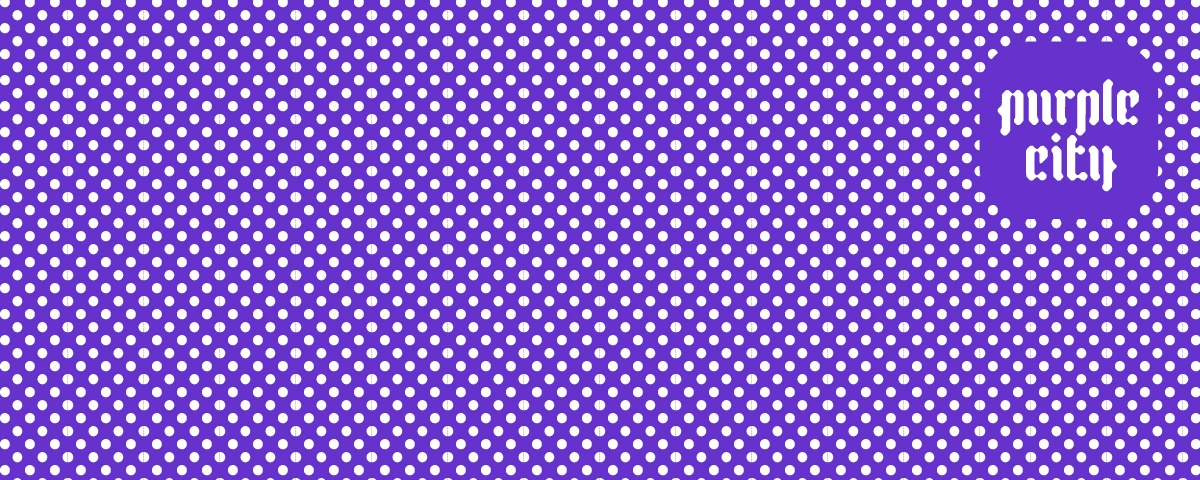
I've made a seamless repeating pattern which I'm using for a series of banners. The pattern tiles seamlessly on Illustrator, but when I export as a JPEG (for my client's social media banners) a tiny joinline becomes visible on the edges of the pattern.

I've zoomed right in on the pattern on Illustrator and join lines definitely aren't there. They only show up in the exports. Anyone had any experience with this? It's a polka dot pattern so don't really have the time to manually paint the join line out every time I need to use the pattern.

Jpeg attached so you can see the issue.
Correct answer Ton Frederiks

I believe there is a problem with export for screens / selection in 2020.

I created a dot pattern 21 X 11 pixels, filled a rectangle and exported it as a selection as png.

Anti aliasing was set to type optimized (which i believe is the default).

There should not be a problem with lines appearing, but they do.

Export As... > PNG looks fine, Export for Screens shows the problem.

Doing the same in CC 2019 does not show these lines.

I know there are workarounds (as mentioned above) and it is better to use art optimized, but there is a difference between 2020 and 2019 that should not be there.

If you'd like to try it yourself:

https://adobe.ly/2ULkwqG

7 replies

pixxxelschubser
Community Expert
Community Expert
March 30, 2020

Please help me to understand.

Go to my first post in this thread. I uploaded an exported PNG file from that AI file. I cannot see any lines or other stranges things. All was done with Illustrator CC 2020 (24.0.2)


Can you see any lines in this uploaded image?

Ton Frederiks
Community Expert
Community Expert
March 30, 2020

You were probably lucky. You probably exported with Art Optimized  anti-aliasing at 300ppi

Type optimized shows the lines.


pixxxelschubser
Community Expert
Community Expert
March 30, 2020

Yes, indeed.

Why I should use Type optimized?

pixxxelschubser
Community Expert
Community Expert
March 30, 2020

You can also try that way (like I mentioned before):

here is the file:

https://www.dropbox.com/s/vc0k42jqek2f21s/Muster_Punktmuster-mit-Aussparung_exportiert.ai?dl=0

Ton Frederiks
Community Expert
Community Expert
March 30, 2020

Your file still has the lines when exporting the selection as png.

But it is caused by another problem, your pattern was originally made in mm and that does not convert to whole pixels. Fractional pixels in pattern dimensions cause these anti-aliasing artifacts (lines).

Ton Frederiks
Community Expert
Ton FrederiksCommunity ExpertCorrect answer
Community Expert
March 30, 2020

I believe there is a problem with export for screens / selection in 2020.

I created a dot pattern 21 X 11 pixels, filled a rectangle and exported it as a selection as png.

Anti aliasing was set to type optimized (which i believe is the default).

There should not be a problem with lines appearing, but they do.

Export As... > PNG looks fine, Export for Screens shows the problem.

Doing the same in CC 2019 does not show these lines.

I know there are workarounds (as mentioned above) and it is better to use art optimized, but there is a difference between 2020 and 2019 that should not be there.

If you'd like to try it yourself:

https://adobe.ly/2ULkwqG

Matthew D Bayfield
Participating Frequently
March 30, 2020

That's mad. So if I export as a JPEG with Art Optimized and 300dpi the join lines in the pattern are clearly visible. If I export a PNG with the exact same settings the join lines are not visible.

The Export As trick works.

Adobe really need to iron out these simple bugs. Constant time wasting!

Thanks so much for the help @federico_platon & @Ton_Frederiks.

Ton Frederiks
Community Expert
Community Expert
March 30, 2020

That could be caused by a conversion from mm, inches or point to pixels.

Illustrator is vector based and the artwork can (in theory) scaled to any size.

Images have their limitations, you cannot use a fractional pixel size, there is no such thing as half or a quarter of a pixel. Only whole pixels exist. When Illustrator has to export a fractional pixel it will generate a new pixel which can cause a visible line.

You may check the size of your pattern in pixels, and work in pixels (or points) when you want to export later to an image format.

Legend
March 29, 2020

Yes it's a common problem.

But yoy can try the following.

Fill your rectangle with the pattern you carefully made. 

(Optionally expand the pattern)

Place behind the pattern (maybe as a new fill in Appearances panel works too, easier) a copy of your object filled with the background color.


Select both and export selection, as jpg.

In my case those hair white lines disappear.


pixxxelschubser
Community Expert
Community Expert
March 29, 2020

In which way do you have your pattern created?

For me - there is no problem with.

Ton Frederiks
Community Expert
Community Expert
March 28, 2020

Make sure that the export settings for ant-aliasing are set to Art Optimized, or you can try to use Object > Rasterize (or use the Effect > Rasterize) at 72 or 144 ppi in Illustrator

Matthew D Bayfield
Participating Frequently
March 29, 2020

Thanks man! So this worked(ish) but even at 300dpi the edges of the polka dots are a little fuzzy. Plus it seems insane that a program apparently as "industry standard" as Illustrator requires you to rasterize every repeat pattern in a design before you can export something for use.

Is this just a permanent flaw in the pattern tool you reckon? Be great if I didn't have to rasterize multiple layers every time I export and image / banner whatever.

Matthew D Bayfield
Participating Frequently
March 28, 2020

Alright for whatever reason this forum has made that banner so small you can't see the error.. Not sure what I can about that.

Another classic bit of Adobe service.