

doreenj73653781
Participant
October 29, 2020
Answered

Illustrator Pie charts don't show numbers inside wedges after data is entered

  • October 29, 2020
  • 3 replies
  • 6422 views

I'm in AI 2020. Creating pie charts. Enter data along rows. Make sure style says Legends in Wedges and First Column in Front. When I apply the data, the wedges conform to the data, but the numbers aren't showing inside the wedges? Why not? Where are they? What am I doing wrong? Please help!!


This topic has been closed for replies.
Correct answer michelew83603738

What @Myra Ferguson said is correct, but only part of the story. You must put the top row in quote marks as shown:
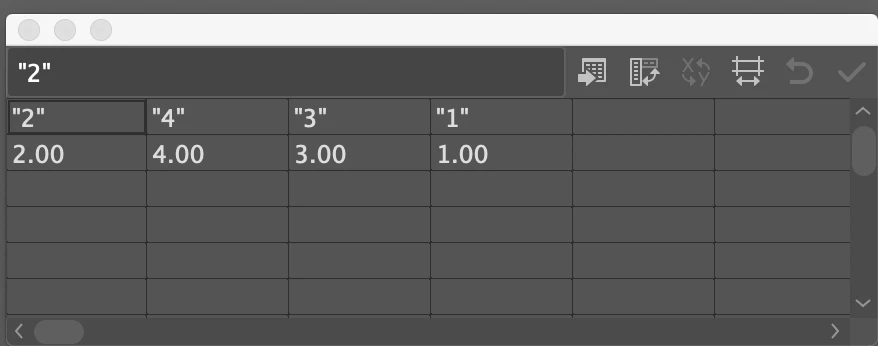
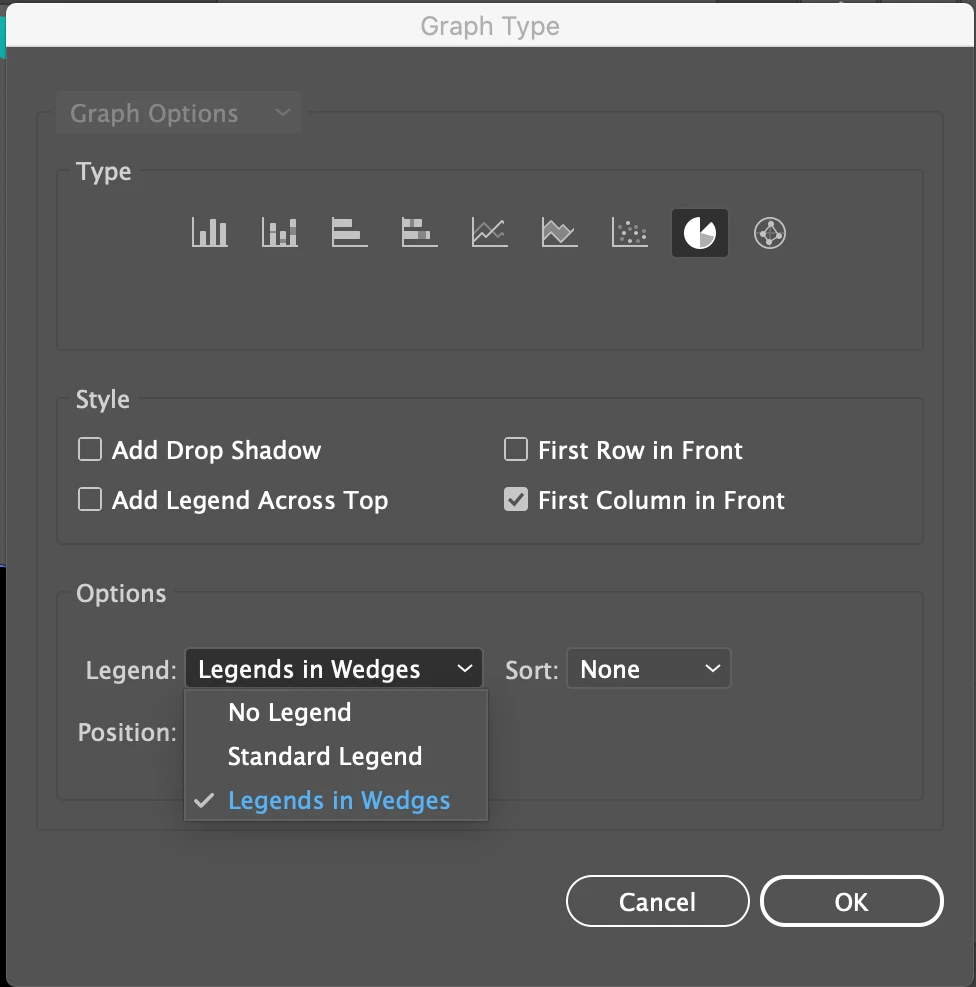
Then you need to double click on the graph tool to get the pop up menu, so that you can change the preference from Standard Legend to put it inside the wedge. Once you do that, you can change the size of the type of that number if you need to.
 

3 replies

Known Participant
October 5, 2021

thanks for this topic! Adobe should really do something about this! It's poorly thought and designed and totally counter intuitive…

Participating Frequently
March 15, 2022

I 100% agree.. the grpahs panel definitely needs an upgrade as it's such an important tool.. I design reports and sometimes prefer illustrator over indesign because of all the vectors and graphics I have.. but the graph tool isn't making my life much easier.. sigh

michelew83603738
Community Expert
michelew83603738Community ExpertCorrect answer
Community Expert
November 3, 2020

What @Myra Ferguson said is correct, but only part of the story. You must put the top row in quote marks as shown:

Then you need to double click on the graph tool to get the pop up menu, so that you can change the preference from Standard Legend to put it inside the wedge. Once you do that, you can change the size of the type of that number if you need to.


doreenj73653781
Participant
November 3, 2020

Thank you!!

doreenj73653781
Participant
November 4, 2020

Now that I've tried it, I see that it works great, but now, after I've made color and font changes, when I edit the data, the point size of the numbers go back to their default. I'm happy to say that the colors hold when editing at least, but does anyone know how to make the numbers remain the desired size–not the default?


And while I'm talking about AI secret fixes, can you also tell me how to place a percentage sign after the numbers in the pie chart? If I do it manually, after editing the data, the % signs disappear.

Myra Ferguson
Community Expert
Community Expert
November 3, 2020

Try putting each number inside quotation marks in the top row for the labels and have the data as numbers in the 2nd row.

doreenj73653781
Participant
November 3, 2020

Thanks!