Known Participant
December 17, 2017
Answered

Illustrator trim marks don't add up.

  • December 17, 2017
  • 2 replies
  • 5052 views

Hi fellow forum members,

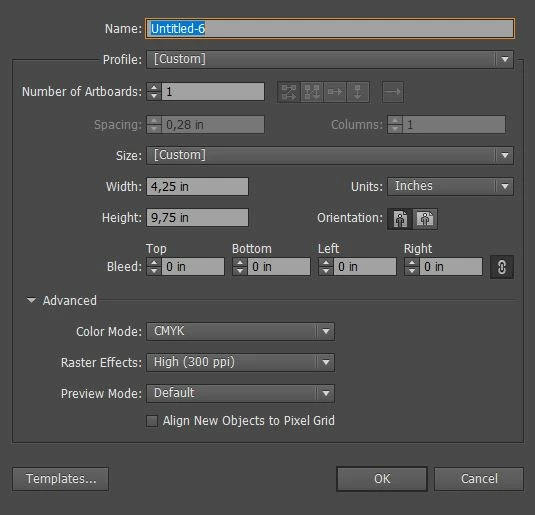
I am creating a document which needs to have trim marks. The final trimmed document size needs to be 4"x 9.25". Now when I create the new document by adding 0.25'' onto both sides ie. 4,25'' x 9,50'' when this document actually prints it actually measures 4''X 9''.

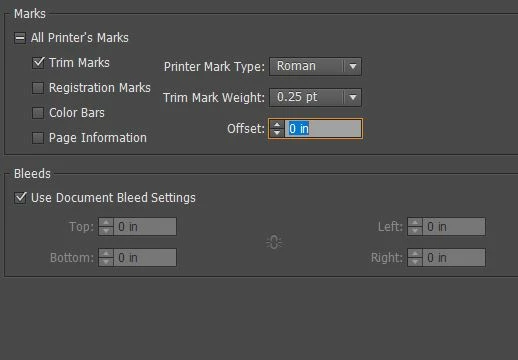
So I then created a new doc 4,25'' x 9,75'' and when this is printed out it prints to the size I want 4'' X 9,25''. So by adding 0.25'' to one side but 0.75'' to the other side I then get the correct print size. This doesn't quite add up so just wondering what I am doing wrong.  I am measuring the actual document with a ruler. Settings attached.

Thanks!
    This topic has been closed for replies.
    Correct answer barbara_a7746676

    Great! I dont have any bleed on the invitation, most of the objects are far from the edge of the sheet.

    Trim marks are required simply as a cutting guide.


    Illustrator can create trim marks, but there isn't as much control as with bleed marks.

    I would do everything in Illustrator.

    1. Create a new 8 1/2 x 11 document, the same size as the sheet that the printer will be using.
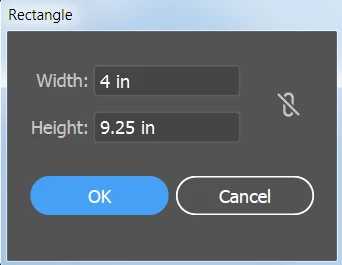
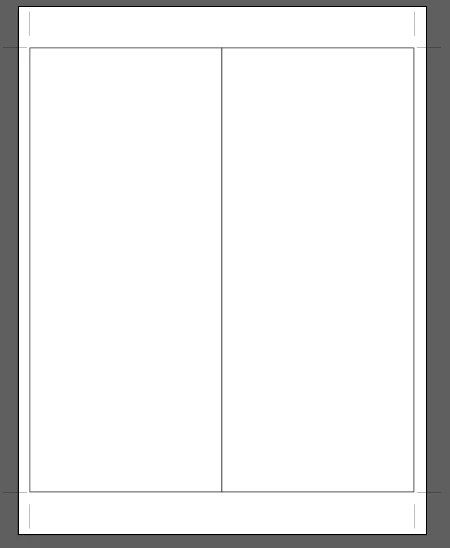
    2. With the Rectangle tool, click on the artboard, and type in 4 wide, 9.25 high.
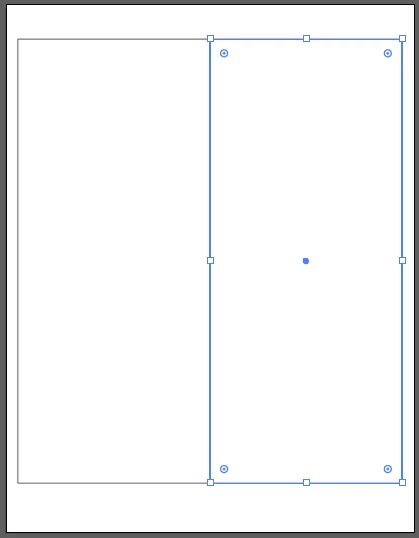
    3. Duplicate the rectangle and line it up with the first rectangle.
    4. Select both rectangles and group them.
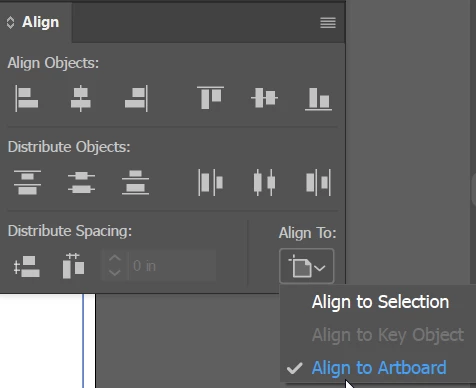
    5. In the Align panel, select Align to Artboard. (you may need to choose Show Options the panel menu to see that.)
    6. Then click the Horizontal Align Center  and Vertical Align Center icons in the Align panel.
    7. With the grouped rectangles selected, in the Effect menu choose Crop Marks. Now you'll need to adjust the marks.
    8. With the grouped rectangles selected, choose Object > Expand Appearance. Then choose Object > Ungroup a couple of times until there are no more groups and the ungroup command is grayed out.
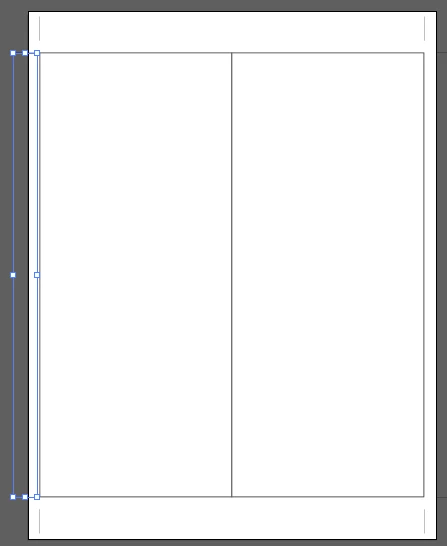
    9. Select the two trim marks on the left and move them far enough to the right that they fit onto the 8.5 x 11 sheet. Leave a little gap between the rectangle and the trim marks to give the printer some tolerance.
    10. Do the same thing on the right, moving the two trim marks in far enough so that they are within the 8.5 x 11 sheet but do not touch the rectangle.
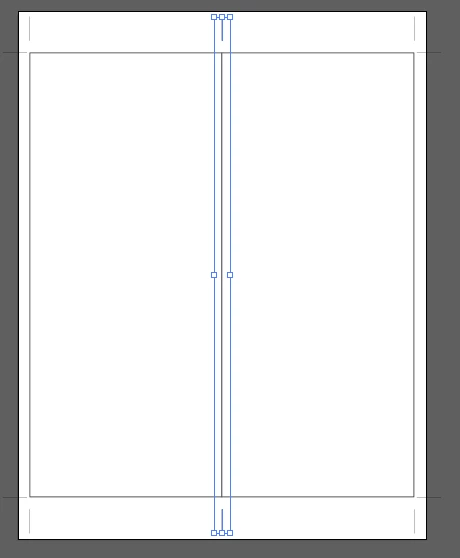
    11. Select a pair of the top and bottom trim marks and duplicate them to the center. (Once you select them you can hold down Alt or Option, start dragging, add the Shift key. Alt/Option will make a duplicate and Shift will constrain the movement so that they line up with the original lines.
    12. Select the two rectangles, and choose View > Guides > Make Guides. View > Guides > Lock Guides so that you won't accidentally move them.
    13. Create your layout on one side. Select everything in your layout (but not the trim marks).
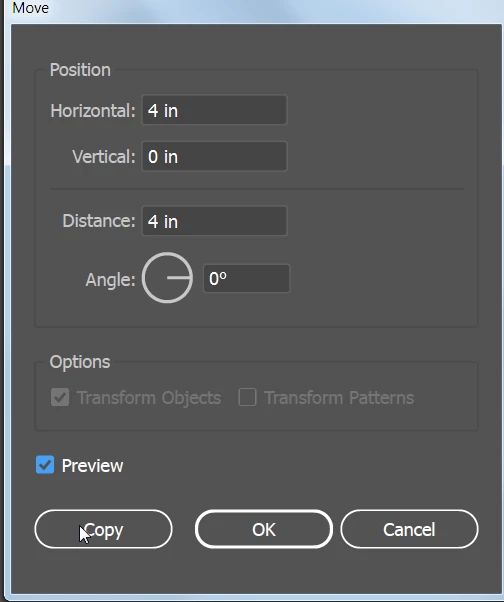
    14. Choose Object > Transform > Move, and type Horizontal 4, Vertical zero. Click Copy.
    15. File > Save as PDF.

    Good night for now. Will catch up with you tomorrow.

    2 replies

    barbara_a7746676
    Community Expert
    Community Expert
    December 17, 2017

    When you first create the document the settings should look like this:

    When you print, put a check mark on Use Document Settings,

    And scaling should be set to Do Not Scale.

    Your print dialog may look a little different, but those settings should be somewhere in the dialog box.

    Known Participant
    December 17, 2017

    I just would like to add one more question. The design I am doing is actually for wedding invites. So what I have been doing is creating the 4''X9'' document and then exporting it as a pdf. The I place two of those pdfs side by side on a letter size document.

    I just tested out those settings and then exported it as a pdf and ran a print copy to test. It now seems to size it down to 3,75''X 8,75''. Something I am doing wrong in the export process.

    Known Participant
    December 18, 2017

    Illustrator can create trim marks, but there isn't as much control as with bleed marks.

    I would do everything in Illustrator.

    1. Create a new 8 1/2 x 11 document, the same size as the sheet that the printer will be using.
    2. With the Rectangle tool, click on the artboard, and type in 4 wide, 9.25 high.
    3. Duplicate the rectangle and line it up with the first rectangle.
    4. Select both rectangles and group them.
    5. In the Align panel, select Align to Artboard. (you may need to choose Show Options the panel menu to see that.)
    6. Then click the Horizontal Align Center  and Vertical Align Center icons in the Align panel.
    7. With the grouped rectangles selected, in the Effect menu choose Crop Marks. Now you'll need to adjust the marks.
    8. With the grouped rectangles selected, choose Object > Expand Appearance. Then choose Object > Ungroup a couple of times until there are no more groups and the ungroup command is grayed out.
    9. Select the two trim marks on the left and move them far enough to the right that they fit onto the 8.5 x 11 sheet. Leave a little gap between the rectangle and the trim marks to give the printer some tolerance.
    10. Do the same thing on the right, moving the two trim marks in far enough so that they are within the 8.5 x 11 sheet but do not touch the rectangle.
    11. Select a pair of the top and bottom trim marks and duplicate them to the center. (Once you select them you can hold down Alt or Option, start dragging, add the Shift key. Alt/Option will make a duplicate and Shift will constrain the movement so that they line up with the original lines.
    12. Select the two rectangles, and choose View > Guides > Make Guides. View > Guides > Lock Guides so that you won't accidentally move them.
    13. Create your layout on one side. Select everything in your layout (but not the trim marks).
    14. Choose Object > Transform > Move, and type Horizontal 4, Vertical zero. Click Copy.
    15. File > Save as PDF.

    Good night for now. Will catch up with you tomorrow.


    Wow! I followed your steps and it created exactly the document I was looking for. I cannot thank you enough! I have been struggling with this for a full day now and finally I have a solution! I am guessing that when it is a folded document I would follow the same steps but then create the front of the design on the right half and the back of the design on the left half? (For the outside of the invite)

    Known Participant
    December 17, 2017

    Correction**

    So by adding 0.25'' to one side but 0.50'' to the other side I then get the correct print size.