
Exit
  • Global community
    • Language:
      • Deutsch
      • English
      • Español
      • Français
      • Português
  • 日本語コミュニティ
  • 한국 커뮤니티
0

Illustrator warp tool outline result differs to preview?

Community Beginner ,
Dec 03, 2020 Dec 03, 2020

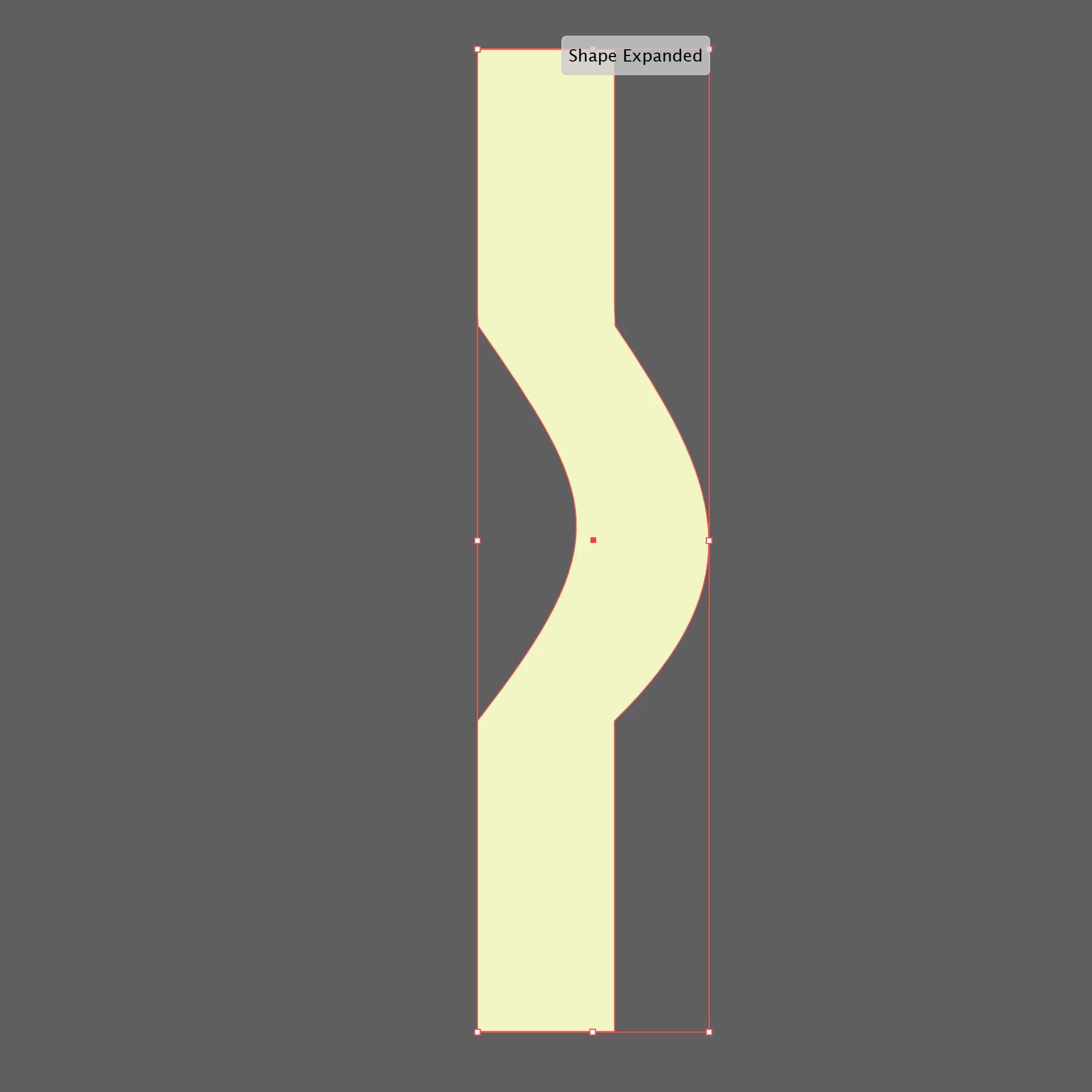
Wondering if there is a preference I can select to ensure the warp tool result matches the smooth red preview outline Illustrator generates (which I have seen on online tutorials) as mine creates sharp corners? Before and after files of a simple closed path rectangle attached.

TOPICS
Draw and design , Tools
609
Translate
Report
Community guidelines
Be kind and respectful, give credit to the original source of content, and search for duplicates before posting. Learn more
community guidelines

correct answers 1 Correct answer

Community Expert , Dec 03, 2020 Dec 03, 2020

Laura,


You have probably experienced a temporary corruption of a kind that can be healed by simply restarting the application/computer one or more times; there are more serious corruptions that require more.


Or, if you have started over in a new document and (only then) succeeded, you may have experienced a corruption of the original document, in which case you might have been able to copy the artwork to a new document and have it behave.


Both are known causes of wrong/strange behaviour.


...
Translate
Adobe
Community Beginner ,
Dec 03, 2020 Dec 03, 2020

After scouring the web I was expecting something smooth and simple like this: https://www.youtube.com/watch?v=ZGD963pBV9M

Translate
Report
Community guidelines
Be kind and respectful, give credit to the original source of content, and search for duplicates before posting. Learn more
community guidelines
Community Beginner ,
Dec 03, 2020 Dec 03, 2020

Oddly, today the warp tool works smoothly and I can’t delete the original post — the “… More” button simply shows an empty lozenge — although keen to see what caused the original result, for future reference.

Translate
Report
Community guidelines
Be kind and respectful, give credit to the original source of content, and search for duplicates before posting. Learn more
community guidelines
Community Expert ,
Dec 03, 2020 Dec 03, 2020
LATEST

Laura,


You have probably experienced a temporary corruption of a kind that can be healed by simply restarting the application/computer one or more times; there are more serious corruptions that require more.


Or, if you have started over in a new document and (only then) succeeded, you may have experienced a corruption of the original document, in which case you might have been able to copy the artwork to a new document and have it behave.


Both are known causes of wrong/strange behaviour.


None of us can delete posts, except for Adobe staff.


Recently, the More option of editing a post has been removed for newcomers owing to less nice folk joining the forums and posting bad things, and then bypassing moderation by editing the bad things back in; it will appear when you have used the forums some more.


Apart from that, your describing the issue and its vanishing again can be very helpful for others.


Translate
Report
Community guidelines
Be kind and respectful, give credit to the original source of content, and search for duplicates before posting. Learn more
community guidelines