
Participant
April 9, 2018
Answered

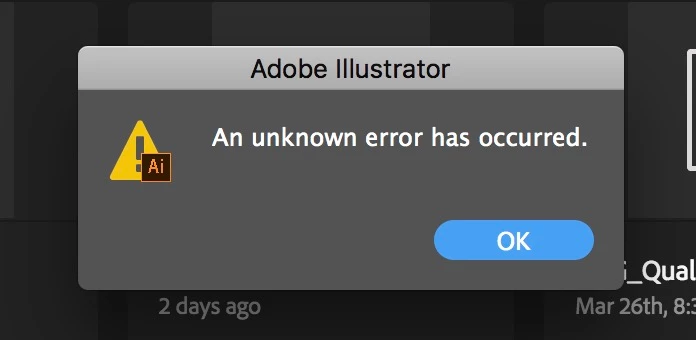
Illustrator won't open files or new document

  • April 9, 2018
  • 4 replies
  • 32934 views

Hi Guys, yesterday I opened illustrator to start work and I couldn't open a file I was working on the day before, nor can I create a new document.
I haven't changed anything or done anything different.
If I reinstall an older version everything works fine, its just the latest version that I am having the issue with. The rest of the CC collection is working fine.

I can open other file formats in illustrator such as tif, jpeg but if I try and open ai. or PDF files it comes up with the error warning.

Running latest CC on 2017 iMac
    This topic has been closed for replies.
    Correct answer Bill Silbert

    Try trashing your Illustrator preferences.

    To do so:

    With Illustrator closed launch a Finder Window in column view and click on your home folder. With the Option Key pressed choose Library from the Finder Go Menu. Within the Library folder find the folder called Preferences and within it find the following two files and delete them: “Adobe Illustrator <Version #> Settings” (earlier versions of Illustrator might just say “Adobe Illustrator”) and “com.adobe.Illustrator.plist”. When Illustrator is next launched it will create new preference files and the program will be restored to its defaults.

    The advantage of manually deleting preference files in this manner is that after you’ve reset up the program (make sure that no document window is open) to your liking, you can create copies of your personalized “mint” preference files (make sure that you quit the program before copying them—that finalizes your customization) and use them in the future to replace any corrupt versions you may need to delete.

    4 replies

    Participant
    February 11, 2022

    I seem to be encountering this issue more often, and Bill Silbert has offered options that have worked for some however i hit a snag in sentence one 😞
    So these were my steps and it may work for you

    1st attempt to open it directly

    2nd: go to creative cloud and try to open it there

    3rd (of late this has come through) Go to adobe creative cloud your files double click on the file you need, it will open the art in your browser. Here at the top right corner is an option next to share-Open in Illustrator. Click on this. It has worked for me and hope it does for you as well. All the best!

    Participant
    June 15, 2020

    Do you know how  to do this on windows 10?

    Monika Gause
    Community Expert
    Community Expert
    April 9, 2018

    Which system?

    Is a pinter connected and turned on?

    Bill Silbert
    Community Expert
    Bill SilbertCommunity ExpertCorrect answer
    Community Expert
    April 9, 2018

    Try trashing your Illustrator preferences.

    To do so:

    With Illustrator closed launch a Finder Window in column view and click on your home folder. With the Option Key pressed choose Library from the Finder Go Menu. Within the Library folder find the folder called Preferences and within it find the following two files and delete them: “Adobe Illustrator <Version #> Settings” (earlier versions of Illustrator might just say “Adobe Illustrator”) and “com.adobe.Illustrator.plist”. When Illustrator is next launched it will create new preference files and the program will be restored to its defaults.

    The advantage of manually deleting preference files in this manner is that after you’ve reset up the program (make sure that no document window is open) to your liking, you can create copies of your personalized “mint” preference files (make sure that you quit the program before copying them—that finalizes your customization) and use them in the future to replace any corrupt versions you may need to delete.

    Participant
    April 11, 2018

    Sorry for the late reply, I had so much work to get through I didn't have time to update and try this fix.

    it worked perfectly and I can now open all file formats within illustrator.

    Thank you for the input.

    David