
Participant
April 23, 2023
Question

Image Trace - saved image looks different from "Tracing Result."

  • April 23, 2023
  • 1 reply
  • 805 views

Hi all,

I performed an image trace on an artwork and I having issues.

Before I did a "save as," this is what I see.
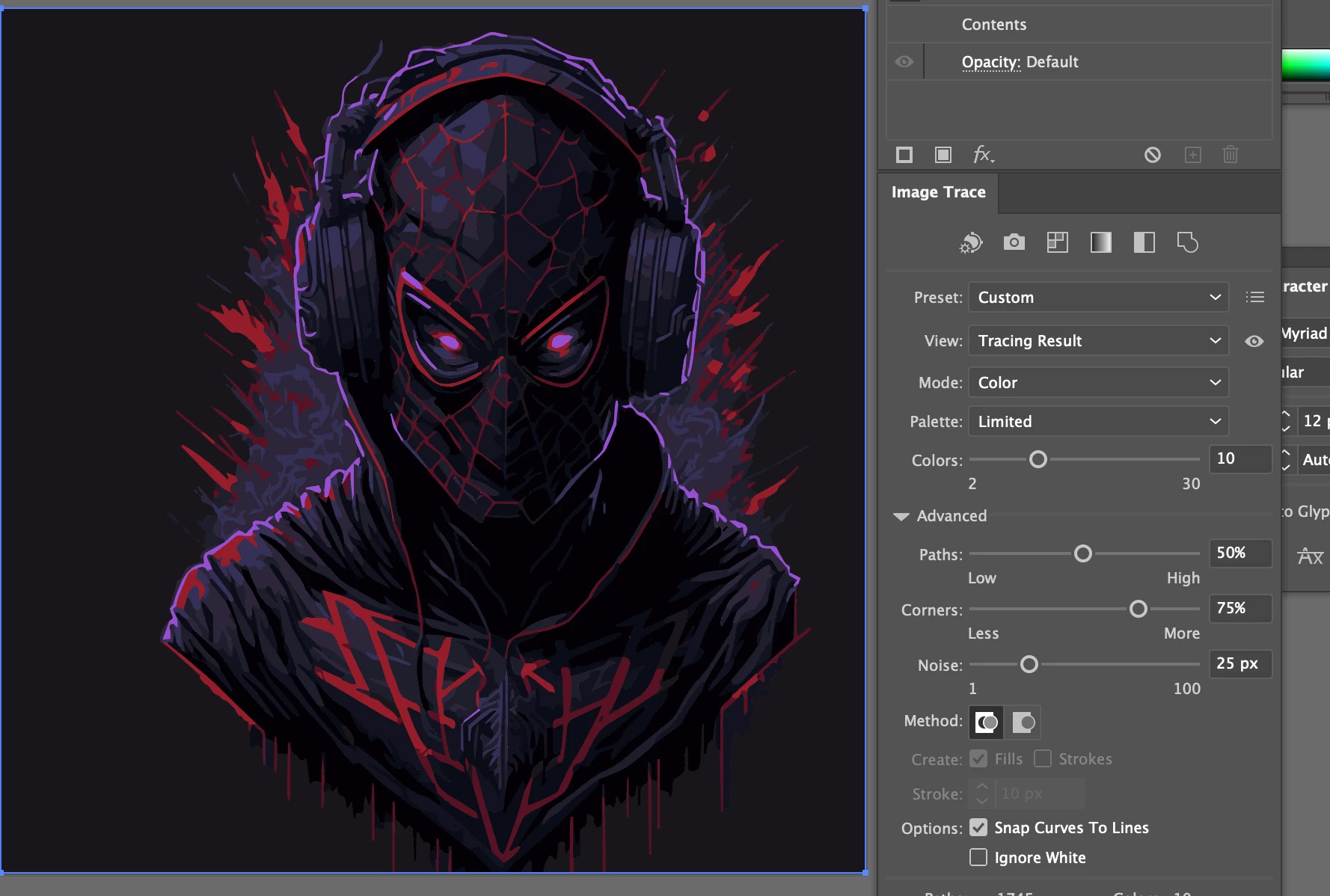
 

This is what I wanted; however, I did a "save as" to a svg and opened the file.  Here is what I got.
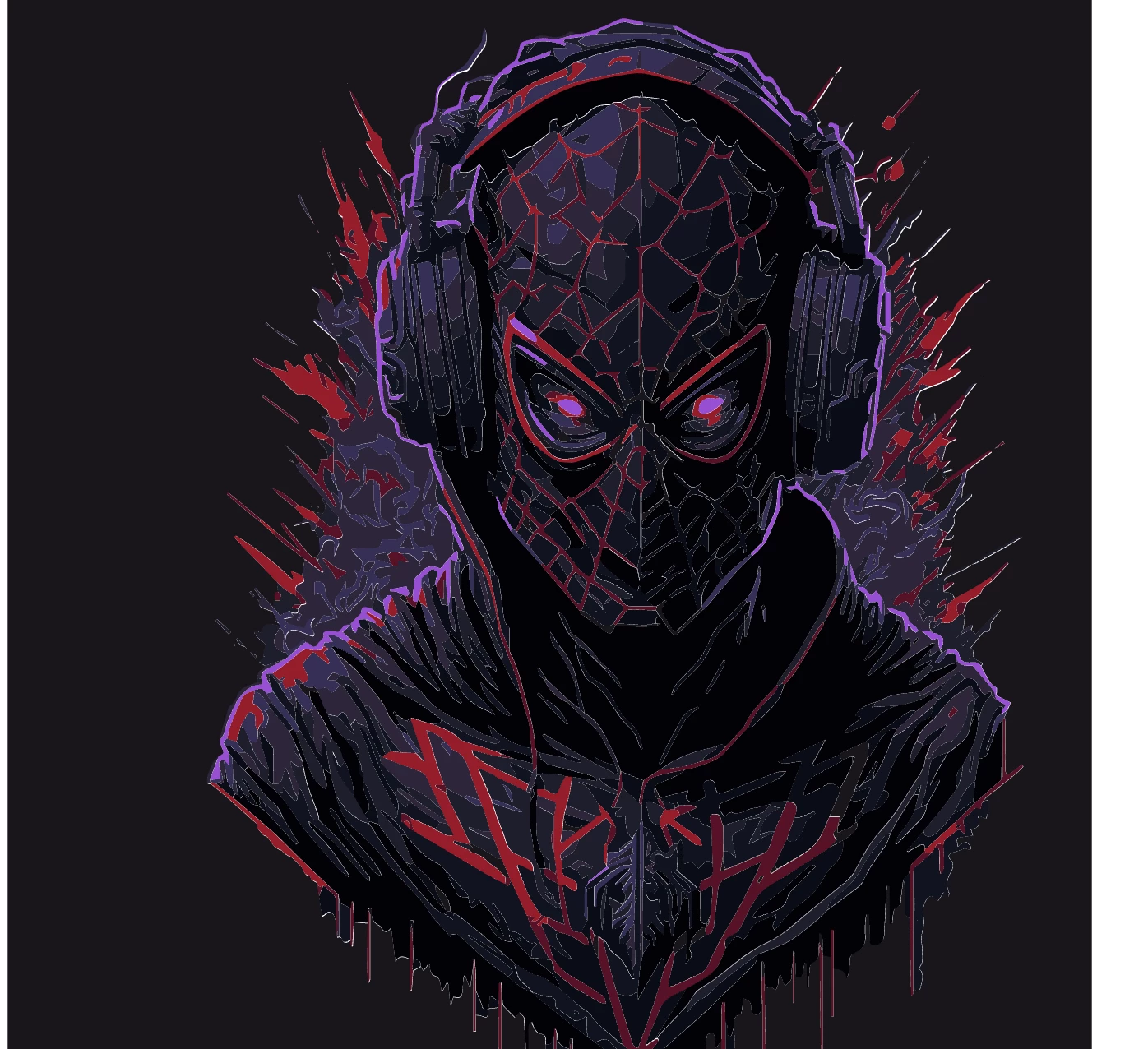
 

I see the extra white trace outline.  Why is that on my image? What can I do to just get the image that I saw in the first picture?  Thanks in advance.

This topic has been closed for replies.

1 reply

Community Expert
April 23, 2023

Auto-tracing functions are going to be only so good at re-creating an image. Some of the faint white borders you're seeing along object edges are where new vector shapes are butting up against each other, but with nothing behind them. If you placed your traced result over a rich black background the white edges would probably disappear, but then you might see some black edges in between lighter colored objects.

When re-creating an image like this in vector form by hand it would be common to draw out the larger background shapes and then work inward, stacking smaller vector shapes inside over the tops of other objects. That would yield a more precise and efficient end result without the white edges. But it takes objective, human-style decision making. Auto-tracing systems don't have that ability. They can work very fast, but deliver quick and dirty results.

Participant
April 23, 2023

Thank you for your reply Bobby. What I still don't understand is why did the "Tracing Result" showed the results without the white edges?

I just want to save that image.

Monika Gause
Community Expert
Community Expert
April 23, 2023

You could use the Overlapping Method in the Image Trace panel.

When to Use the Image Trace Options Abutting and Overlapping in Illustrator?