Participant
June 29, 2017
Answered

Importing an image to fit Artboard

  • June 29, 2017
  • 3 replies
  • 15846 views

Hi.

I'm an Ai novice and am struggling with this.  I hope someone can help using layman's terms. I have been "placing" images and then dragging the corners to fit the artboards (8.5x11- letter size).  So far all has been going well until I tried to import a JPEG to use as background.  First, once it lands on the screen, I can't seem to move it.  Then it's HUGE and won't let me shrink it using the intersect lines.  I'm not sure what I'm doing wrong.  Is there a way to make this happen?

I'd love any advice.

BTW, I use a MAC.

Thank you,

V
    This topic has been closed for replies.
    Correct answer jane-e

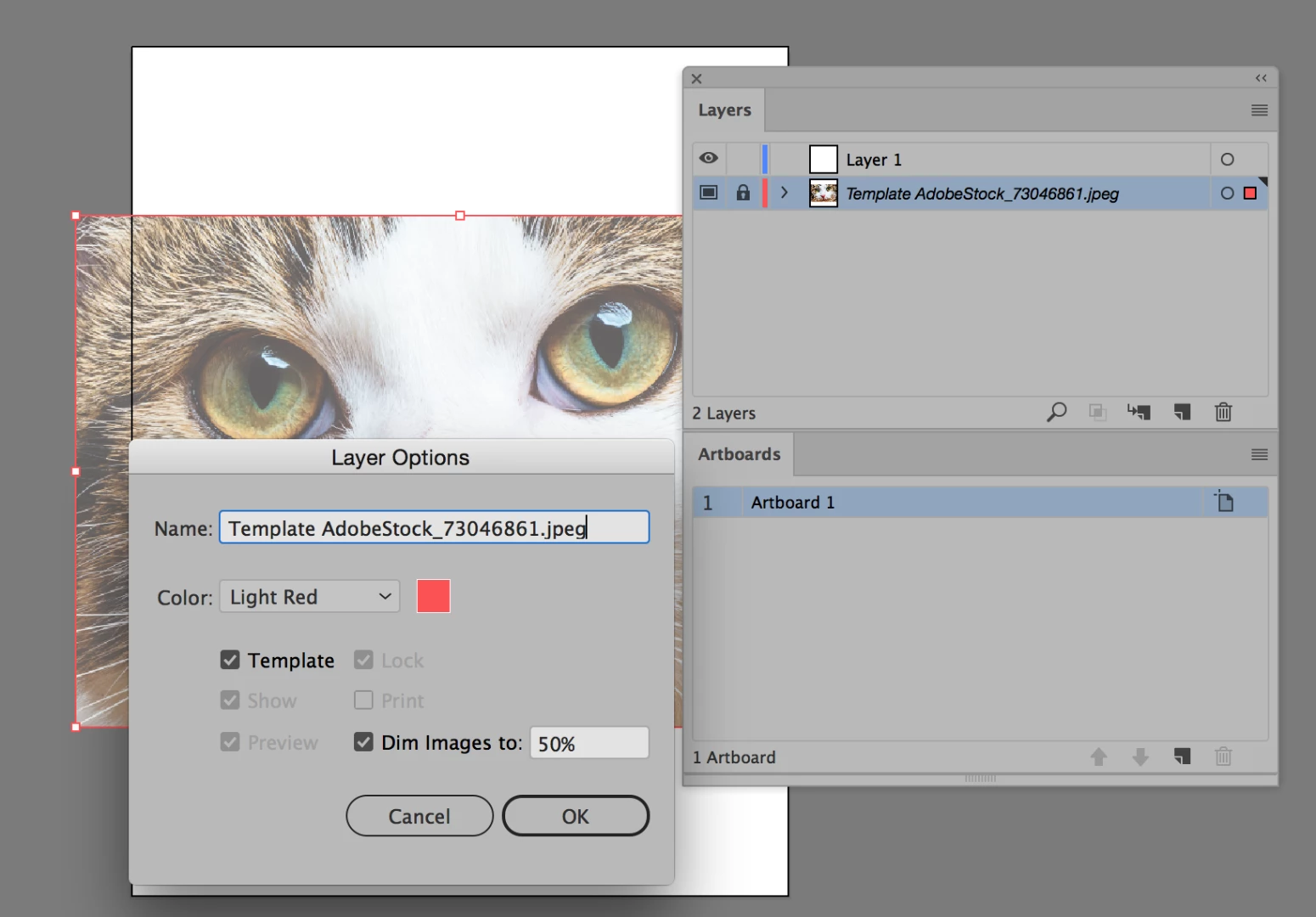
    Ugh!  No.  It only adds new artboards.  Maybe there is something wrong. I tried template (which fills the artboard correctly but the image lands in a faded way and I can't seem to get it to it's original color.


    Vanessa, can you post a screen shot? Placing an image should not create an artboard or layer, whether you click to place it at 100% or drag to scale it as you place it.

    If you place it as a template, the image will not create an artboard, but will create a template layer with the name of the image. Template layers are locked and dimmed to 50% by default. You can double-click the layer to open layer options to uncheck Template. Templates were only brought up because the first responder, rcraighead, thought you might have accidentally selected template. He did not mean to suggest that it was a good idea. Go back and read his response.

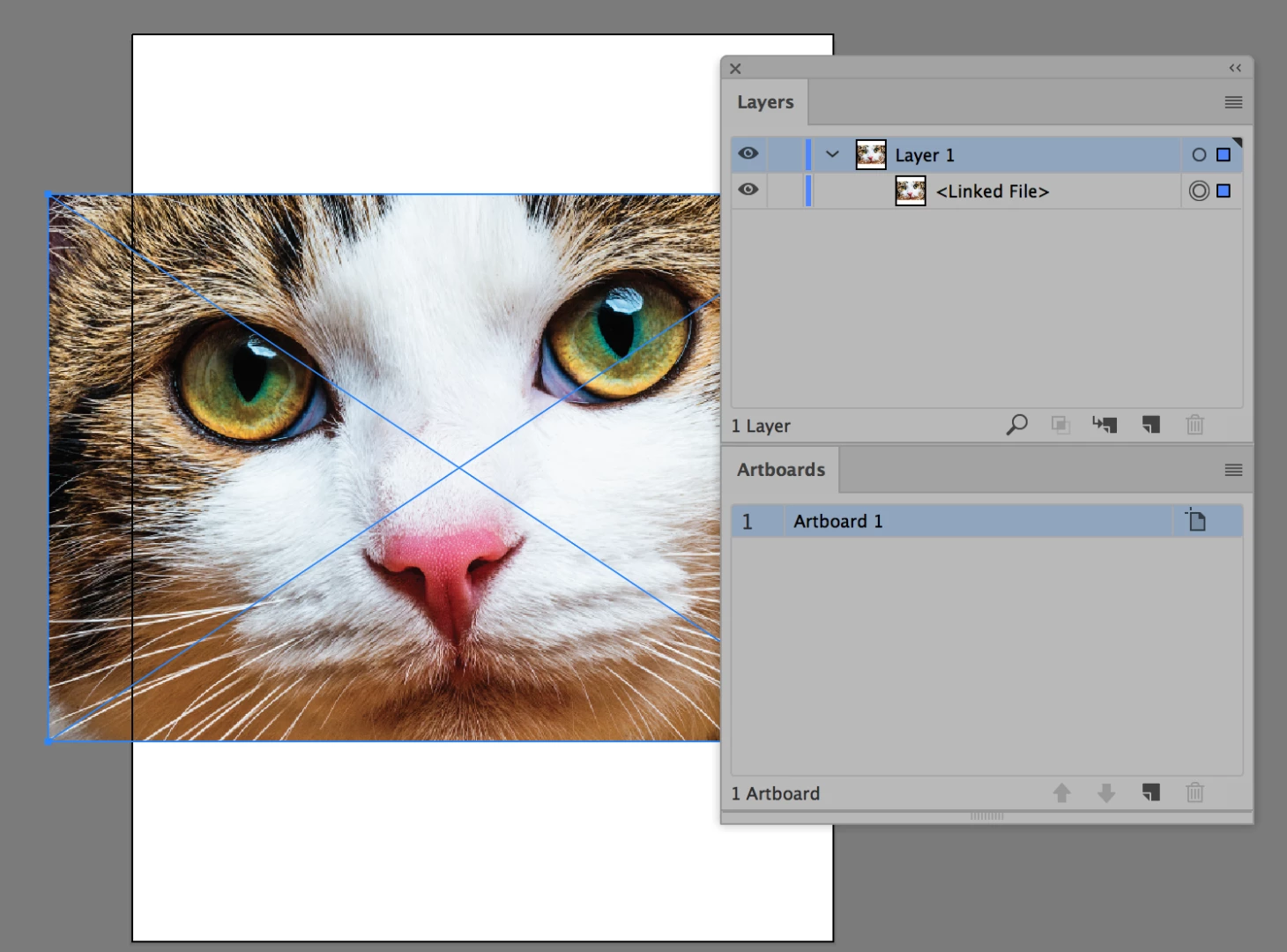
    Please open both your Artboard panel and your Layers panel, and watch to see what is happening. I think you may be confusing the two terms. An image can sit partially or completely off of an Artboard, but it is always on a Layer.

    Screenshots please, so we can better assist.

    3 replies

    Participating Frequently
    June 29, 2017

    Here is a script by Ruandre that you might find useful.

    Adobe Illustrator script to resize objects proportionally to fit inside the artboard. · GitHub

    This script does the reverse of what "Fit to Artwork Bounds" does - instead of changing the artboard, it scales the selected object proportionally to fit perfectly inside of it instead.

    A J

    Participant
    June 29, 2017

    Way over my head.  I have no idea how to apply a script.  But thank you so much for trying to help.  V

    jane-e
    Community Expert
    Community Expert
    June 29, 2017

    The options that rcraighead mention show up at the bottom of the place dialog. What is checked?

    Participant
    June 29, 2017

    I can't find that.  I click on Place from the drop down menu.  There isn't a dialog box.  But I'd love to try it.

    Participant
    July 1, 2017

    vanessas47844280  wrote

    There isn't a dialog box.

    Sure there is. It appears immediately after you choose File > Place. Without it you wouldn't be able to select a file to place.


    Yes.  You're right.  I have to select "options" for it to come up.  "Link" is selected.  And All readable documents. 

    I'm trying to place something a PNG image.

    I've been using Ai for about 2 months now and it's never been an issue before.  What should be checked?  I'm still having some difficulty.

    I can't tell you how much I appreciate the help. 

    rcraighead
    Legend
    June 29, 2017

    Are you importing the JPG as a "Template"? This would explain why it comes in large and cannot be scaled. This feature automatically places the selected image onto a locked, grayed-out layer and names it "Template". It CAN be unlocked and the image scale just like any other object.