
Participating Frequently
March 23, 2022
Question

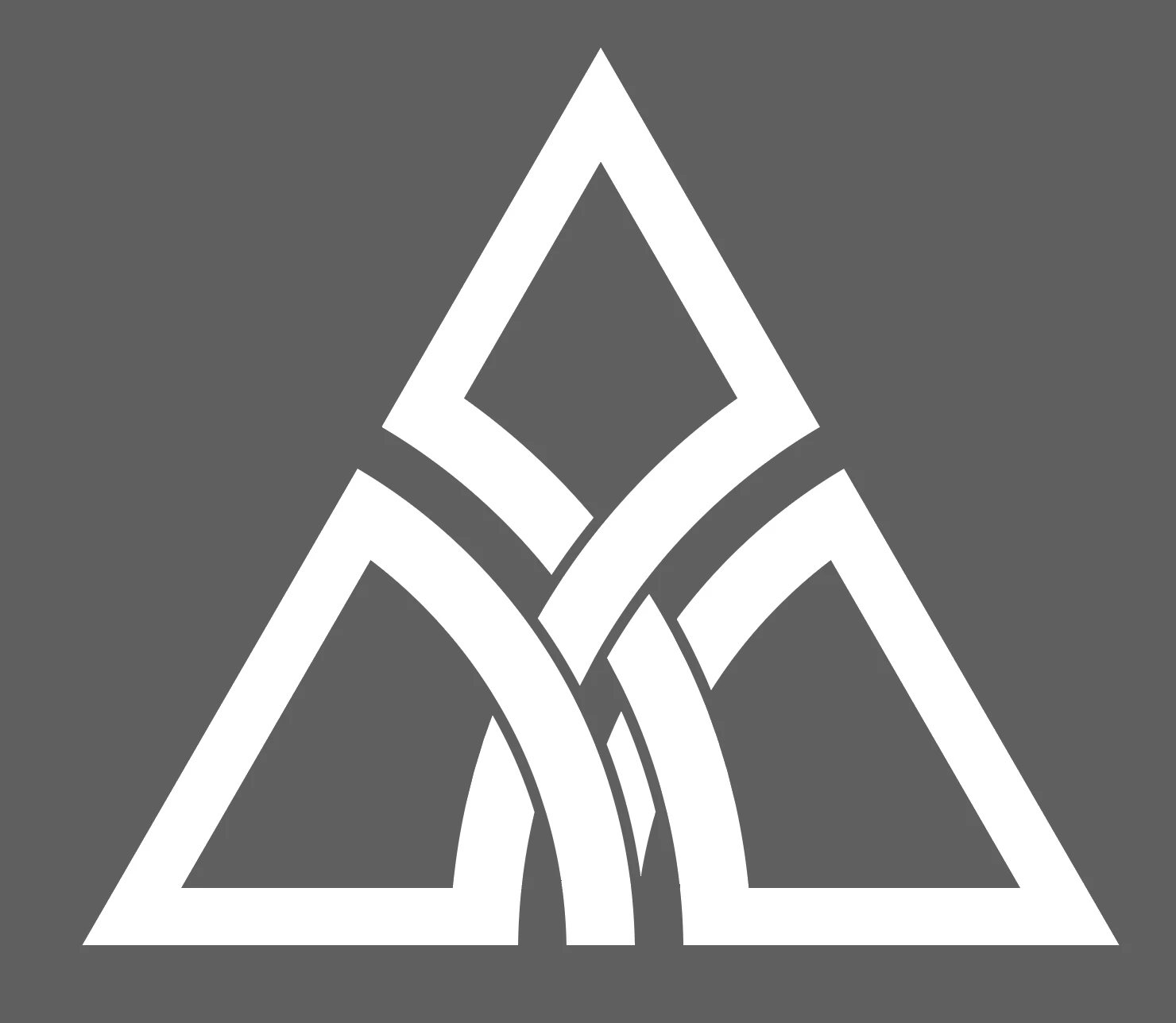
Increasing gap width in an already existing vector (celtic knot)

  • March 23, 2022
  • 6 replies
  • 1911 views

I am working on a series of celtic knots that I already got in vector format.
The issue is that when printed very small they just fuse together as one shape. To avoid this I want to increase the gaps where the lines are broken up (to make them look they go over eachother).
Is there a way to do this automatically or do I have to do this all manually (I have a lot of different knots so it will be a lot of work).

Just adding a stroke means the whole shape will be thinner which is not wat I want.

Hope it makes sense, thank you.
This topic has been closed for replies.

6 replies

Met1
Legend
April 1, 2022

Selectively use offset path and pathfinder's minus front a few times.

Edit: sorry, I didn't read all the replies, Anna already effectively said the same thing...

Anna Lander
Inspiring
March 27, 2022

did you try to use Offset Path with a negative value? This will make all shapes a bit thinner and the gaps a bit bigger

Participating Frequently
April 1, 2022

yes but same as with stroke it will make everything thinner while I only want to take off parts in certain areas without having to go through all my different shapes manually.

Anna Lander
Inspiring
April 1, 2022

well, in this case I would copy the form, cut the overlapping branches using the Knife tool, and make Offset Path with positive value. Then there is come creative moment to choose how to divide the original knot, vhich details select to cut by "Minus Front" button and what unite at the last step. But finally you vill have the new version with increased gaps and preserved all other lines. The process is not instant, I think it might take about 3-5 vbyents per knot, but it does not require any precise manual work.

tonyharmer
Community Expert
Community Expert
March 27, 2022

Hi


If you want to see how the live paint works, as suggested by Monika, try this video: https://youtu.be/9PNbT76P2us

🙂


Monika Gause
Community Expert
Community Expert
March 27, 2022

When doing this with live paint with the intention of it being fully editable, it would need a  different approach than in your video. You cannot delete anything from the shapes and you would have to fully engineer it with the gaps before filling anything.


Participating Frequently
April 1, 2022

This looks great, but will be better for when I am going to make new ones myself. ATM I received a lot of images that need to be adjusted for small printing, I was trying to avoid having to go through each shape manually but it seems to be the only way.


barbara_a7746676
Community Expert
Community Expert
March 27, 2022

Woule this work for you?

With the Direct Selection tool, carefully click the very edge of the shape. The anchor oionts should look white and should not look filled in.

Then drag to reposition it.

Participating Frequently
April 1, 2022

I think this changes the shape of the curve too much, or is there a way to avoid that from happening?


Jacob Bugge
Community Expert
Community Expert
March 23, 2022

Schoonbeek,


As I (mis)understand it, (even) if you just have 4 closed (non compound) paths with a white fill, you can do as follows (always set a copy of the original artwork aside as backup before destroying it):


A) To increase the gaps without thinning the (white) knot parts, you can:


1) Select all the 3 corner paths (leaving the little 4th path unselected) and Object>Path>Offset Path with an offset equalling the desired gap (more than the current one);

2) Switch from white fill to black stroke for all the 3 new offset paths;

3) Cut each long curved part that runs over an end part (for the longest curved part at the lower left there are two end parts) on both sides of the end part(s), then keep these cut paths and delete all the rest of the offset paths;

4) Select each cut paths and Object>Divide Objects Below and delete the unwanted end bits.


However, this will make the little 4th path very short.


Therefore, you may consider, as a more harmonious solution:


B) To increase the gaps by a slight thinning of the (white) knot parts, you can:


Select all 4 paths and Object>Path>Offset Path with a negative offset equalling half the desired increase in the gap, and hide/delete the original paths.


Or you may consider a redrawing where you recreate the celtic knot with the curved parts moved towards the outer corners, to retain the thickness and increase the gaps.


Participating Frequently
March 26, 2022

Unless I am doing it wrong this seems to work only for the overlapping parts where it's not the shape overlapping itself if that makes sense.

Jacob Bugge
Community Expert
Community Expert
March 26, 2022

Schoonbeek,


I believe something goes wrong in step 3).


The outcome ought to be indvidual seperate stroked arcs that cross the ends to be shortened in 4).


Can you show a screenshot after step 3), preferably with one of the arcs selected and also showing a  part of the fully expanded Layers panel including the selected arc/path?


Please keep using the Insert Photos button as in the original post.


Monika Gause
Community Expert
Community Expert
March 23, 2022

In Illustrator on the iPad there is in fact a functionality that looks like it's built for this, but unfortunately doesn't do it.


https://www.dropbox.com/s/zj5b96y37wly7fp/idrectselection-ipad.MP4?dl=0


Those shapes are no longer live paint groups, I assume?

Participating Frequently
March 23, 2022

Hi thanks Monika,
the image is just made up off shapes I think (I don't even know what live paint groups are, will look that up).

The tool you showed looks interesting, I am using Adobe Cloud on my pc though, so will also try to find if that tool exists there.

Monika Gause
Community Expert
Community Expert
March 24, 2022

The tool only exists on Illustrator for the iPad unfortunately.