chrissydetroit
Known Participant
October 17, 2019
Answered

Invert Selection and Cutting Custom Shapes

  • October 17, 2019
  • 1 reply
  • 7343 views

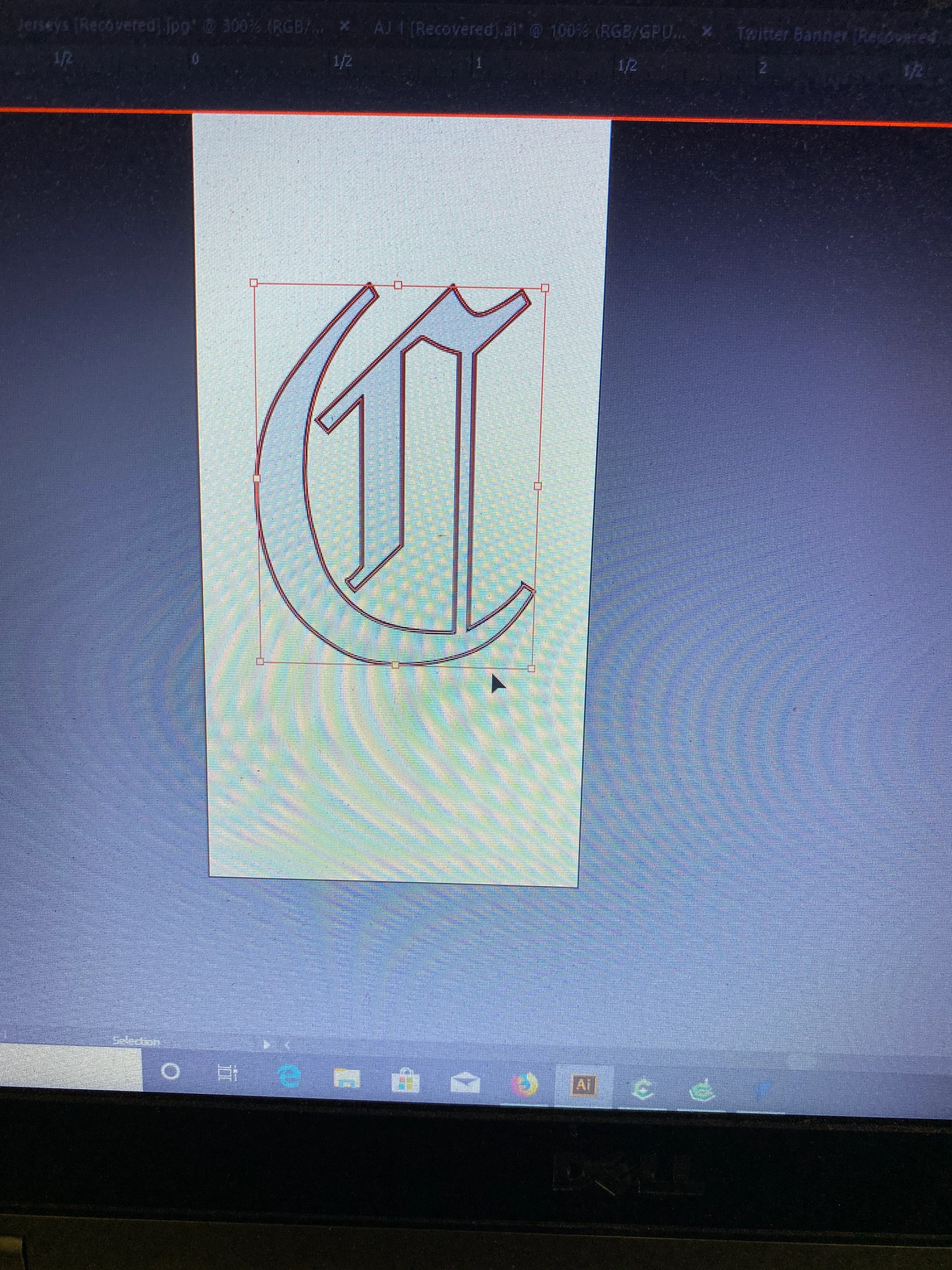
I need help inverting the selection in the following photo. I have the letter selected but I want the outside to be filled with black. Also, does anyone know how to cut a custom shape? For example, if I have a black background and I want the cut out the shape of the letter. Thanks in advance.

    This topic has been closed for replies.
    Correct answer S_Gans

    Hi. Since Illustrator is Object oriented, not pixel oriented, there's no direct option to select the inverse like in Photoshop. However, remember, that letter IS an Object - so if you put a black rectangle on behind it, it'll have black wherever that letter is transparent. There are several ways to draw behind that object. You can select "Draw Behind" (https://helpx.adobe.com/illustrator/how-to/draw-content-behind-and-inside.html), but an easier way would be to just draw a black rectangle, right click it, and select Arrange>Move Backward.

    IF you want to cut the shape OUT of a black rectangle, make sure the shape is in front of the black rectangle. Convert you letter to Outline (Type>Create Outlines). Select both the letter and the rectangle, and in the menu, choose Object> Compound Path>Make

    1 reply

    S_Gans
    Community Expert
    S_GansCommunity ExpertCorrect answer
    Community Expert
    October 17, 2019

    Hi. Since Illustrator is Object oriented, not pixel oriented, there's no direct option to select the inverse like in Photoshop. However, remember, that letter IS an Object - so if you put a black rectangle on behind it, it'll have black wherever that letter is transparent. There are several ways to draw behind that object. You can select "Draw Behind" (https://helpx.adobe.com/illustrator/how-to/draw-content-behind-and-inside.html), but an easier way would be to just draw a black rectangle, right click it, and select Arrange>Move Backward.

    IF you want to cut the shape OUT of a black rectangle, make sure the shape is in front of the black rectangle. Convert you letter to Outline (Type>Create Outlines). Select both the letter and the rectangle, and in the menu, choose Object> Compound Path>Make
    Adobe Community Expert / Adobe Certified Instructor
    chrissydetroit
    Known Participant
    October 17, 2019
    Thanks so much.
    S_Gans
    Community Expert
    Community Expert
    October 19, 2019

    Glad to help! 

    Adobe Community Expert / Adobe Certified Instructor