
Known Participant
November 27, 2024
Answered

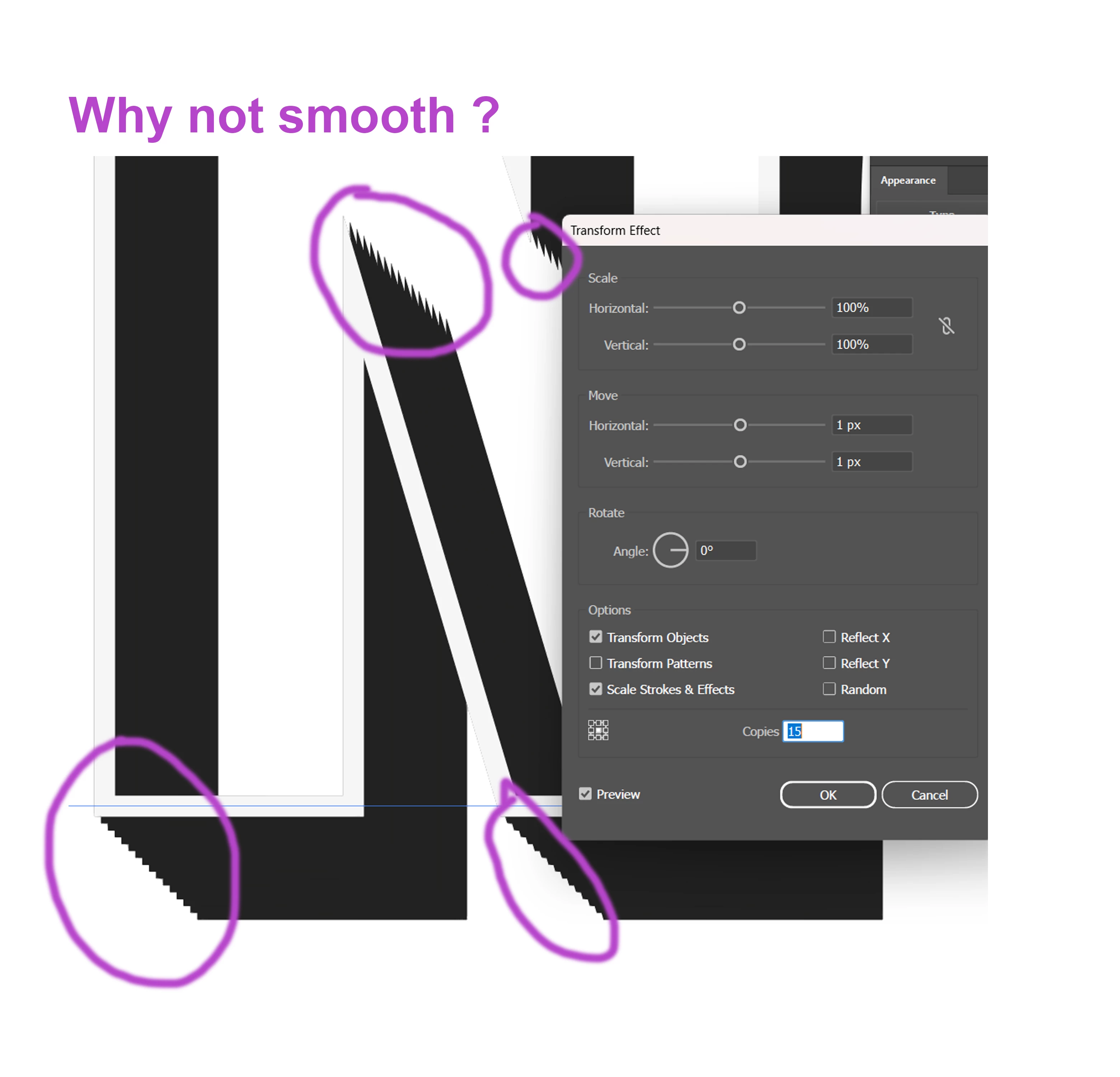
Jagged diagonals when using Transform Effect

  • November 27, 2024
  • 2 replies
  • 1241 views

Hi, 

When using Transform Effect on text or shape, 

the diagonal lines are either jagged or in bumpy steps instead of level.

If used with offset path using rounded corners then the lines become rounded bumpy.


Any help appreciated thank you.

Example image attached.
This topic has been closed for replies.
Correct answer Monika Gause

If you want it clean, do it like this: https://www.vektorgarten.de/long-shadows-with-illustrator.html 

2 replies

Monika Gause
Community Expert
Monika GauseCommunity ExpertCorrect answer
Community Expert
November 27, 2024

If you want it clean, do it like this: https://www.vektorgarten.de/long-shadows-with-illustrator.html 

Known Participant
November 28, 2024

Thanks Monika i will give it a try

Doug A Roberts
Community Expert
Community Expert
November 27, 2024

Why would you expect 15 copies of a pointy shape to produce a smooth line?

Known Participant
November 27, 2024

Because i watched a tutorial on creating a text effect, in the tutorial text the diagonal lines are straight not jagged But my text has jagged diagonals and i followed the tutorial properly.

Do you know if there is a fix for this or are you just a Troll ?

Doug A Roberts
Community Expert
Community Expert
November 27, 2024

I'm not trying to troll. You understand that the effect is producing copies of the object, right?


You can use this effect to create a 'good enough' block shadow under these circumstances:


1. Your output is going to be raster (JPEG, PNG etc.)

2. The number of copies is sufficiently high that they won't be evident given the PPI of the raster output


It frustrates me that the internet is full of people promoting this and blend tool methods as a catch-all block shadow creator. It's useful for that in very specific circumstances only.