
Exit
  • Global community
    • Language:
      • Deutsch
      • English
      • Español
      • Français
      • Português
  • 日本語コミュニティ
  • 한국 커뮤니티
0

Join multiple paths at once

Community Beginner ,
Aug 31, 2023 Aug 31, 2023

Hello People, im new here.


I have an aray of lets say Hexagons, not filled, with a stroke of 0.8mm. All closed paths.

Now the stroke is aligned to the center of the path, but i want hem, alignd to the inside.


For 1 item its just Crt-J (join) and i can alter the alignment. But with a lot of these hexagons it's quite a hassle to individualy join them.

Is there a way (scrip maybe) to join them in one go.

The have to remain individual items.


Below an example, left is what 1 need, right is wat i have (i hope i did not upload it trice, something lagged)
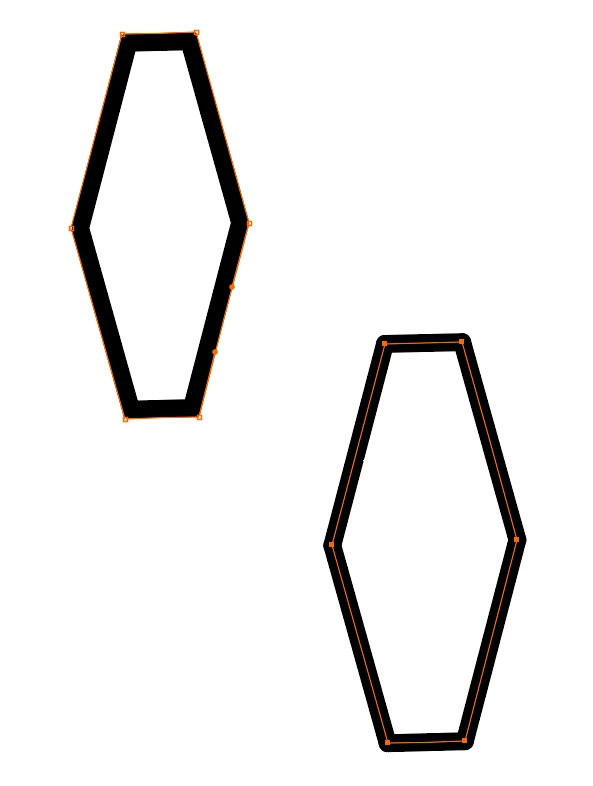
image.png

TOPICS
How-to , Scripting
1.3K
Translate
Report
Community guidelines
Be kind and respectful, give credit to the original source of content, and search for duplicates before posting. Learn more
community guidelines

correct answers 1 Correct answer

Community Expert , Aug 31, 2023 Aug 31, 2023

You could try the Join reasonable script:

https://shanfan.github.io/Illustrator-Scripts-Archive/


But also: select them all

Object > Live paint > Make

Triple click with the live paint tool in one of them

select with the selection tool

set all the strokes to none.

Expand the live paint group.

Ungroup

Apply fill and strok as desired.

Translate
Adobe
Community Expert ,
Aug 31, 2023 Aug 31, 2023

You could try the Join reasonable script:

https://shanfan.github.io/Illustrator-Scripts-Archive/


But also: select them all

Object > Live paint > Make

Triple click with the live paint tool in one of them

select with the selection tool

set all the strokes to none.

Expand the live paint group.

Ungroup

Apply fill and strok as desired.

Translate
Report
Community guidelines
Be kind and respectful, give credit to the original source of content, and search for duplicates before posting. Learn more
community guidelines
Community Beginner ,
Sep 04, 2023 Sep 04, 2023

Thank you Monica,


Your sugestion via the live paintgroup was flawless.

It was perfect because i came from a live paintgroup in the first place.

I had to go from filled, to outline only, without compromising the size.


(AI crashed on the script. so that didnt work out.)


Thanks,

Maarten

Translate
Report
Community guidelines
Be kind and respectful, give credit to the original source of content, and search for duplicates before posting. Learn more
community guidelines
Community Expert ,
Sep 04, 2023 Sep 04, 2023
LATEST

Glad you could solve it!

Translate
Report
Community guidelines
Be kind and respectful, give credit to the original source of content, and search for duplicates before posting. Learn more
community guidelines
Community Expert ,
Aug 31, 2023 Aug 31, 2023

Hi @b l m bd40819900, what exactly are you joining? I didn't think Join ctrl-J could join closed paths. After you have tried Monica's suggestions, if you still need help, please post a demo file showing before you have joined, and then after how you want it joined? That might help. (You must attach the demo file as a .pdf with Illustrator editability because the forum software doesn't accept .ai files.)

- Mark

Translate
Report
Community guidelines
Be kind and respectful, give credit to the original source of content, and search for duplicates before posting. Learn more
community guidelines
Community Beginner ,
Sep 04, 2023 Sep 04, 2023

Hi,


Monica's suggestion did the job.

Ctr-J did not close the path, it was already closed.

It does however makes the stroke alighnment work. But that would have had me do it a couple of hundred times. for each individualy closed path.


Thanks for your input, and posting suggestions.


Maarten

Translate
Report
Community guidelines
Be kind and respectful, give credit to the original source of content, and search for duplicates before posting. Learn more
community guidelines