


Join two open paths, get an error
Hi. Illustrator newbie here. I am using the most current version of CC Illustrator under Windows 10 (also updated).
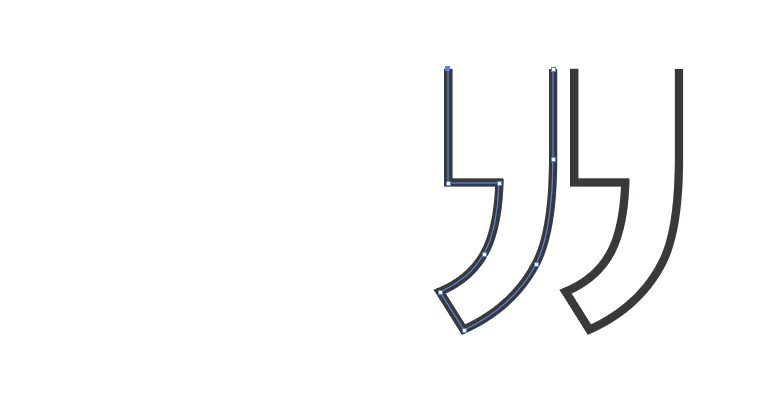
I am trying to create a line shape (two stylized quote marks) for use in a book. I have turned the quote marks into shapes using Type | Create Outlines, then I have removed the two closing line segments at the top using Direct Select Arrow | Delete. I am left with the following two unconnected and open shapes:
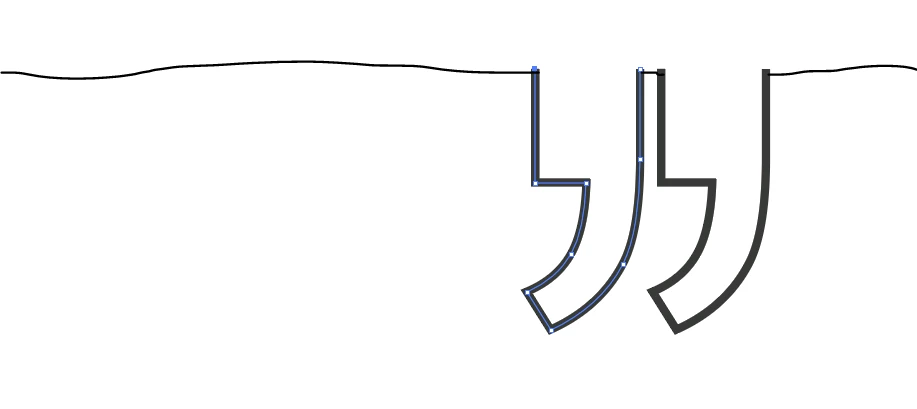
I want to lay a line across the tops -- shown by my wavy line example, below. Note the join between the two objects:
I tried to bridge the two objects with a small line segment between them using the instructions found here on the Adobe web site: https://helpx.adobe.com/illustrator/using/adjust-path-segments.html
However, I get this error:
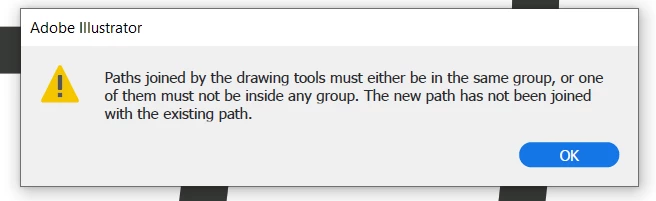
It is painfully obvious that I am actively doing something wrong or passively not doing something right. Can someone advise me, please, on how to put a straight line across the top of these two objects without closing their tops? I've also tried various clicks around Pathfinder, and haven't hit on the right combination.
Thanks!
-j
PS: I thought that my problem was that the two shapes were not in the same group... So I grouped them. No difference, and I got the same error message when trying to join the two shapes.
 AdChoices