Inspiring
May 16, 2024
Answered

Join two stray anchor points with handles

  • May 16, 2024
  • 2 replies
  • 953 views

Hi,

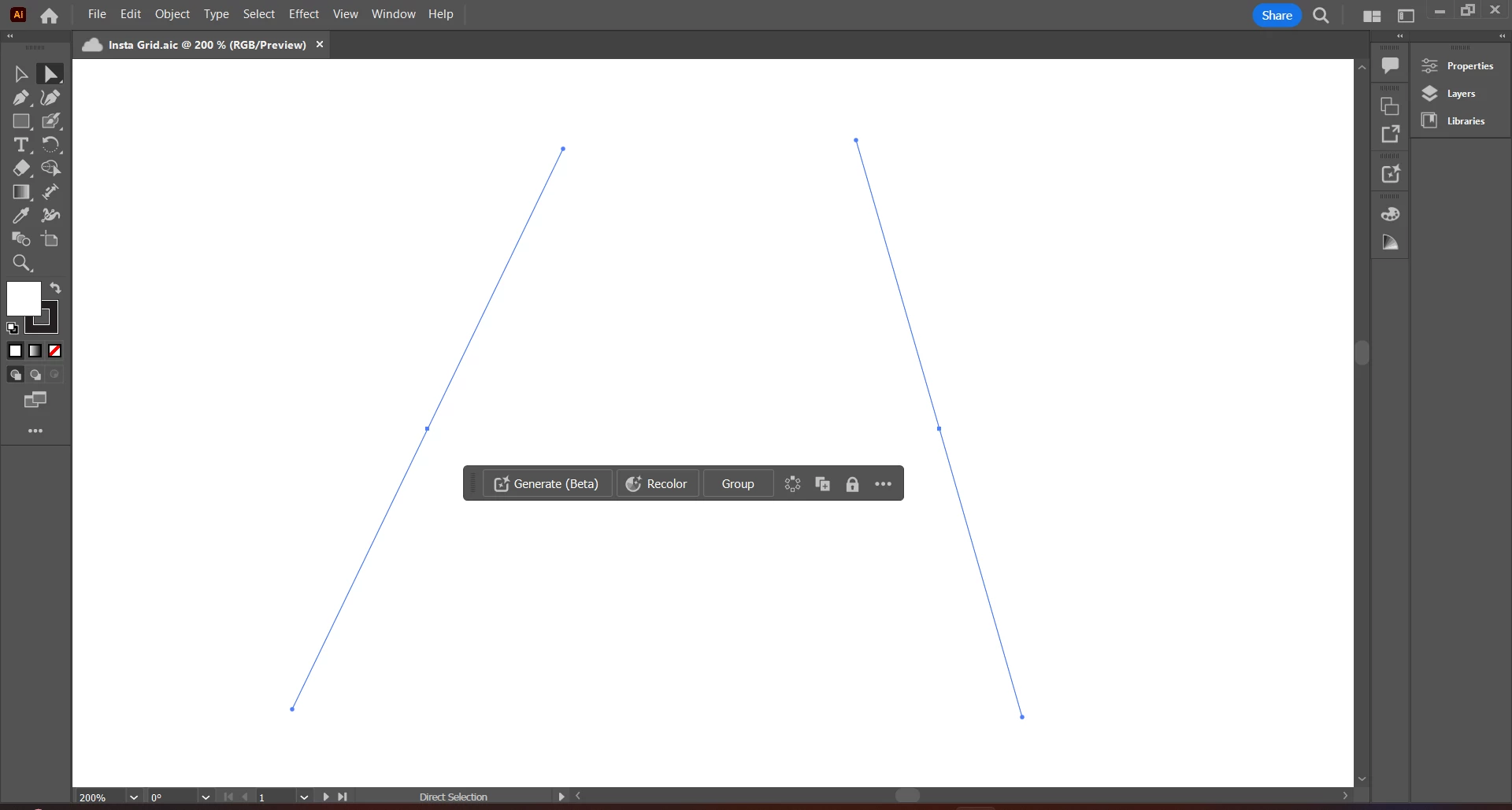
I have two stay anchor points with handles like this:

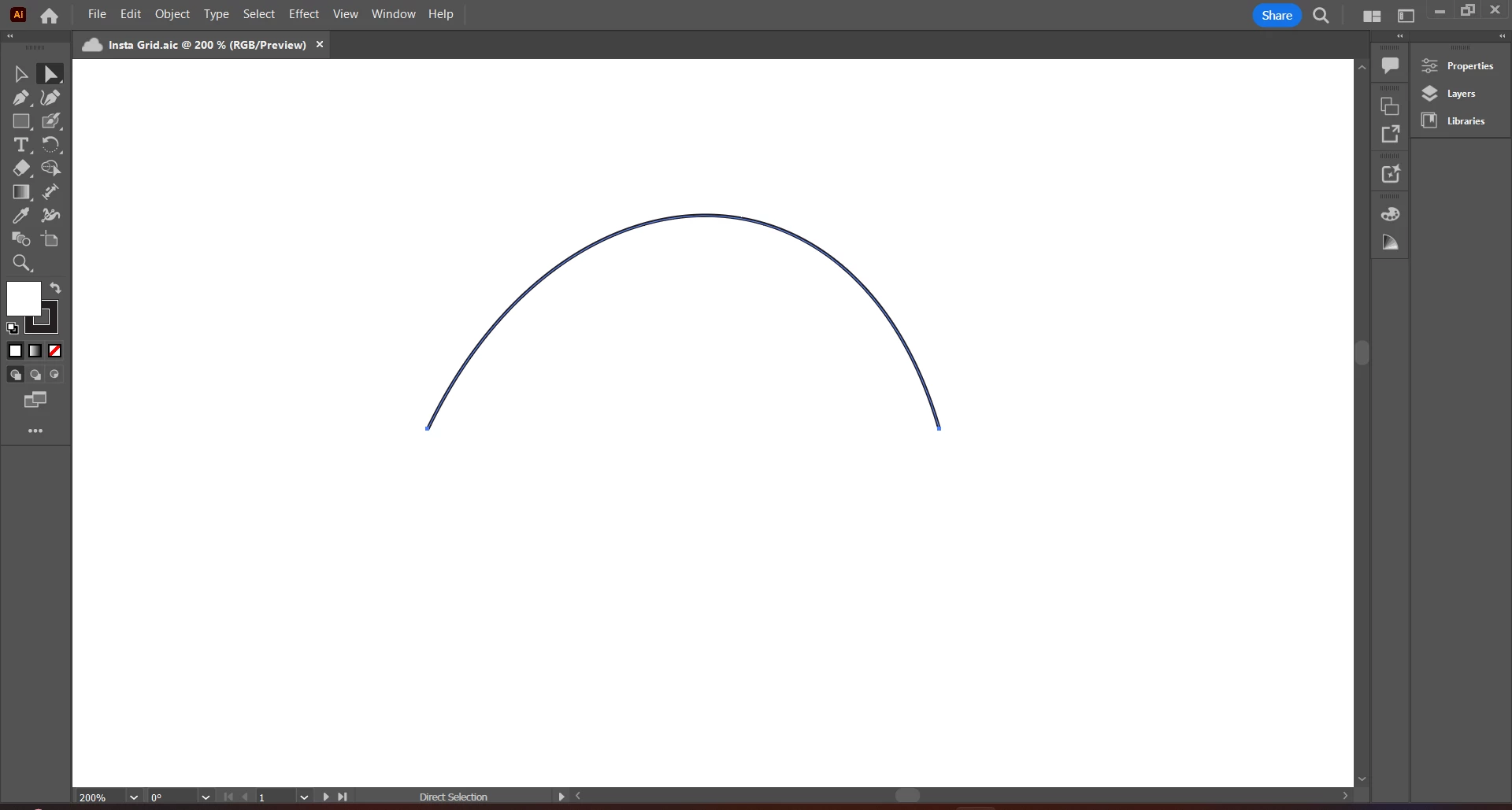
I just want to join both of them by preserving their handles, so that the result would look like this:

Is there any way to achieve this?

P.S: I don't have much idea about illustrator as I'm new to it. Any help is highly appreciated. Thanks.

Correct answer Raj Srikar

Hi jacob,

Thanks for your reply. I have now understood that it's not possible to join 2 anchor points by preserving their handles in Illustrator.

Anyways, I have tried writing a script that achieves this arbitrarily.

function joinTwoAnchorPoints(anchor1, anchor2) {
    // Create a new path item
    var line = activeDocument.pathItems.add();
  
    // Create an array to hold the points for the new line
    var lpp = Array();
  
    // Push the two anchor points into the array
    lpp.push(anchor1.anchor);
    lpp.push(anchor2.anchor);

    // Set the entire path of the new line with the points
    line.setEntirePath(lpp);
    
    // Set the handles of the segment endpoints
    for (var i = 0; i < line.pathPoints.length; i++) {
        line.pathPoints[i].leftDirection = i == 0 ? anchor1.rightDirection : anchor2.rightDirection;
        line.pathPoints[i].rightDirection = i == 0 ? anchor1.leftDirection : anchor2.leftDirection;
    }
    // Redraw the artwork
    app.redraw();
}


var selectedPathItem1 = selection[0],
selectedPathItem2 = selection[1];

if (selection.length == 2 && selectedPathItem1.typename === "PathItem" && selectedPathItem2.typename === "PathItem") {
    var points1 = selectedPathItem1.pathPoints,
    points2 = selectedPathItem2.pathPoints;

    // Get anchor points
    for (var i = 0; i < points1.length; i++)
        if(points1[i].selected === PathPointSelection.ANCHORPOINT) var anchor1 = points1[i];
    for (var i = 0; i < points2.length; i++)
        if(points2[i].selected === PathPointSelection.ANCHORPOINT) var anchor2 = points2[i];

    if (anchor1 && anchor2) {
        joinTwoAnchorPoints(anchor1, anchor2);

        // Remove the orignal points
        points1.length === 1 && selectedPathItem1.remove();
        points2.length === 1 && selectedPathItem2.remove();
    }
    else alert("Please select two anchor points");
}
else alert("Please select two anchor points");

This works for joining 2 anchor points (Sometimes also for more anchor points, as I'm unable to cover all the cases). This creates a new line segment of 2 endpoints that are placed in the positions of the original anchor points and adjusts the handles of the endpoints to match the handles of the original anchor points.
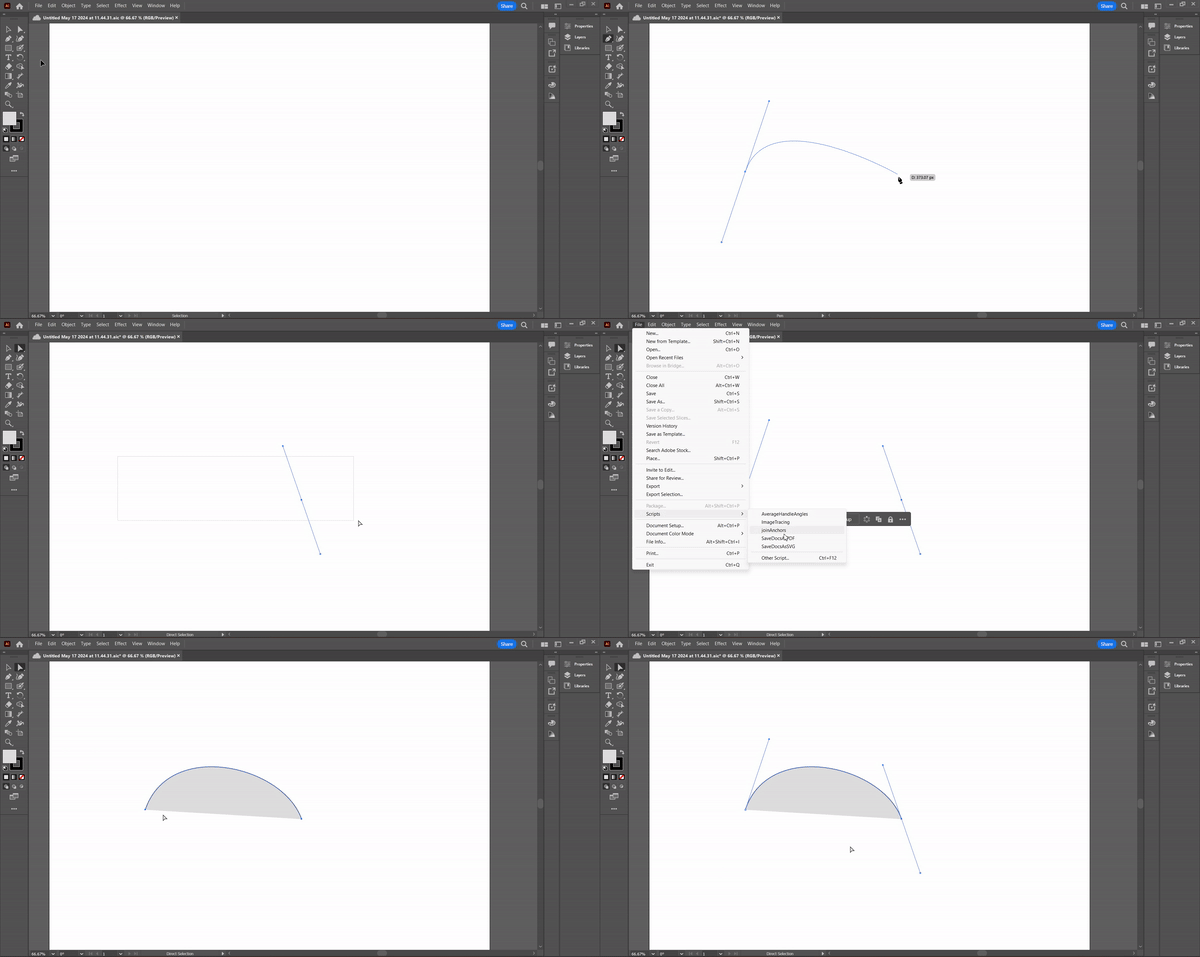
For joining 2 endpoints of 2 different paths: 
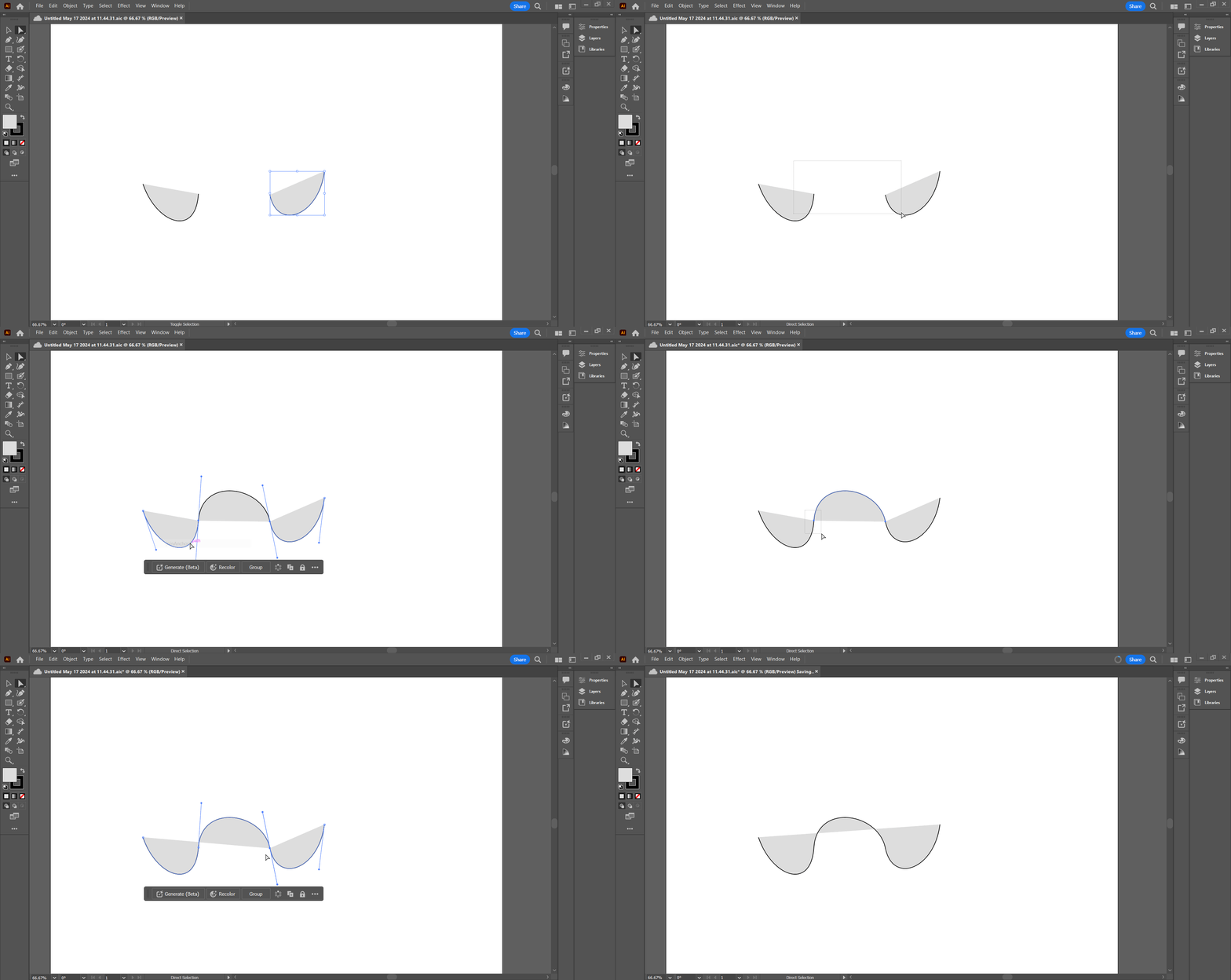
While this doesn't join the 2 points, it only places the curved segment over the selected two points and doesn't remove them. This requires each of the points to be joined (Ctrl + J) manually to obtain a continuos path.

However, this sort of solves the original issue. Wish adobe implements such features, that reduces manual work upto some extent.

2 replies

Jacob Bugge
Community Expert
Community Expert
May 17, 2024

Raj,


I am afraid that "so that the curve forms automatically based on the pre existing handle points" is out of the question, owing to the inevitable disappearance.


I believe the (only) way is (still) to use the Line Segment Tool as follows, Smart Guides being your friends, see images below:


1) Select the first (left) stray point with the Direct Selection Tool, then with the Line Segment Tool ClickDrag from the Handle extended towards the other stray point (outgoing) into the Anchor Point (Smart Guides say handle, then anchor when you are within snapping distance);

2) Repeat for the other one, only from the opposite Handle (ingoing);


These are your guiding paths, shown in red;


3) Lock everything, then with the Pen Tool ClickDrag along the guiding line from the first Anchor Point to the first Handle to also recreate the Handle accurately, then ClickDrag along the oother guiding line to complete the path also with the other Handle recreated accurately;

4) Delete/hide the original stray points and guiding lines.


Click to get closer

Raj SrikarAuthorCorrect answer
Inspiring
May 17, 2024

Hi jacob,

Thanks for your reply. I have now understood that it's not possible to join 2 anchor points by preserving their handles in Illustrator.

Anyways, I have tried writing a script that achieves this arbitrarily.

function joinTwoAnchorPoints(anchor1, anchor2) {
    // Create a new path item
    var line = activeDocument.pathItems.add();
  
    // Create an array to hold the points for the new line
    var lpp = Array();
  
    // Push the two anchor points into the array
    lpp.push(anchor1.anchor);
    lpp.push(anchor2.anchor);

    // Set the entire path of the new line with the points
    line.setEntirePath(lpp);
    
    // Set the handles of the segment endpoints
    for (var i = 0; i < line.pathPoints.length; i++) {
        line.pathPoints[i].leftDirection = i == 0 ? anchor1.rightDirection : anchor2.rightDirection;
        line.pathPoints[i].rightDirection = i == 0 ? anchor1.leftDirection : anchor2.leftDirection;
    }
    // Redraw the artwork
    app.redraw();
}


var selectedPathItem1 = selection[0],
selectedPathItem2 = selection[1];

if (selection.length == 2 && selectedPathItem1.typename === "PathItem" && selectedPathItem2.typename === "PathItem") {
    var points1 = selectedPathItem1.pathPoints,
    points2 = selectedPathItem2.pathPoints;

    // Get anchor points
    for (var i = 0; i < points1.length; i++)
        if(points1[i].selected === PathPointSelection.ANCHORPOINT) var anchor1 = points1[i];
    for (var i = 0; i < points2.length; i++)
        if(points2[i].selected === PathPointSelection.ANCHORPOINT) var anchor2 = points2[i];

    if (anchor1 && anchor2) {
        joinTwoAnchorPoints(anchor1, anchor2);

        // Remove the orignal points
        points1.length === 1 && selectedPathItem1.remove();
        points2.length === 1 && selectedPathItem2.remove();
    }
    else alert("Please select two anchor points");
}
else alert("Please select two anchor points");

This works for joining 2 anchor points (Sometimes also for more anchor points, as I'm unable to cover all the cases). This creates a new line segment of 2 endpoints that are placed in the positions of the original anchor points and adjusts the handles of the endpoints to match the handles of the original anchor points.

For joining 2 endpoints of 2 different paths: 

While this doesn't join the 2 points, it only places the curved segment over the selected two points and doesn't remove them. This requires each of the points to be joined (Ctrl + J) manually to obtain a continuos path.

However, this sort of solves the original issue. Wish adobe implements such features, that reduces manual work upto some extent.
Jacob Bugge
Community Expert
Community Expert
May 18, 2024

You are welcome, Raj, and thank you for sharing; and welcome as a new scripter here.


Had I guessed your being one, I should have mentioned the possible option , especially for repeated use.


Over the years, showing ways with the inherent tools has formed the basis for many scripts that can do the work for the user by tapping into the underlying code.


In this case it is the easy way of leaving the stray points be and thereby getting access to the evasive Handles.


Here is a somewheat similar recent case, unfollowed by the creation of a script,

https://community.adobe.com/t5/illustrator-discussions/pull-out-deleted-handle-without-disturbing-active/td-p/14487588


Bill Silbert
Community Expert
Community Expert
May 16, 2024

It seems that just joining the two points (Object>Path>Join) leaves the segment that has joined the points with combination points—half smooth points and half corner points. A handle will project above the segment but it won't move the segment. You will need to use the Anchor Point tool on the segment's end points to make them back into smooth points so that you can curve the segment as you need to. If you're not familiar with the Anchor Tool check out https://helpx.adobe.com/illustrator/using/tool-techniques/anchor-point-tool.html for more information.

Inspiring
May 17, 2024

Hi Bill,

The Anchor Point tool only redraws the curve again manually by creating a new smooth point. Instead, I'm looking for a way to keep the handles where they are and then join the two anchor points, so that the curve forms automatically based on the pre existing handle points.