
Knock out colours, and preparing for print
Hello
I'm having issued with illustrator in that I can't figure out how to stop the final knock out artwork from having this strange thin white line on all the shapes.
I know I'm missing a step in the process but I can't figure it out.
The logo has been illustrated, and then traced, then colours have been added. So a lot of small shapes and paths were added separately to get the right look - but now I need to prepare it for screen printing in two colours. The logo is currently black, yellow and with some small white parts. So if it's being printed on a white tee, the white needs to be knock out, and I need to make sure the paths are cutting through the right parts - the screenshots should illustrate this well.
I've made everything into outline, and then selected it all together - and used the divide tool in the pathfinder window. It then does allow me to delete certain areas to reveal the transparent background - but there are lines left on the black lines, from what seems like where the individual parts of the illustration have not all been joined together perhaps?
I hope someone can help!!
Charlie
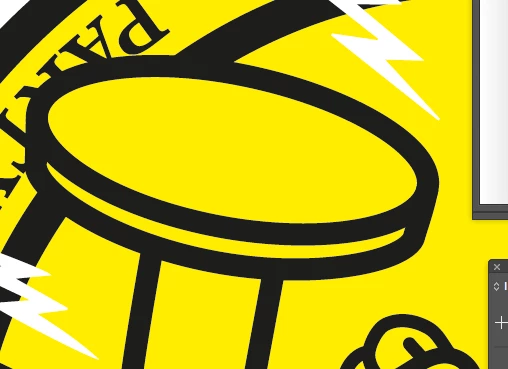
Black lines with yellow shapes to block out unwanted black lines, rather than erase them....
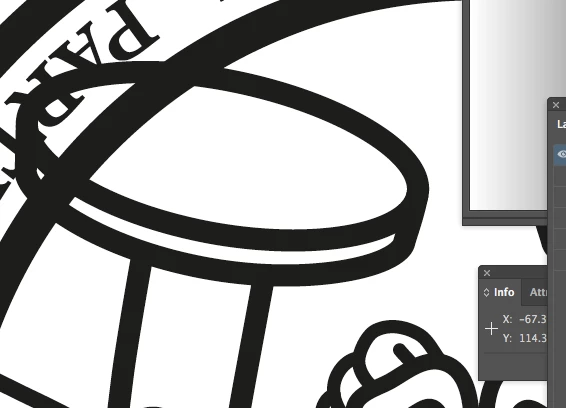
How the actual black lines are, all overlapping each other and the text - I can only think to delete all un wanted shapes that I don't want, but below is the real problem...
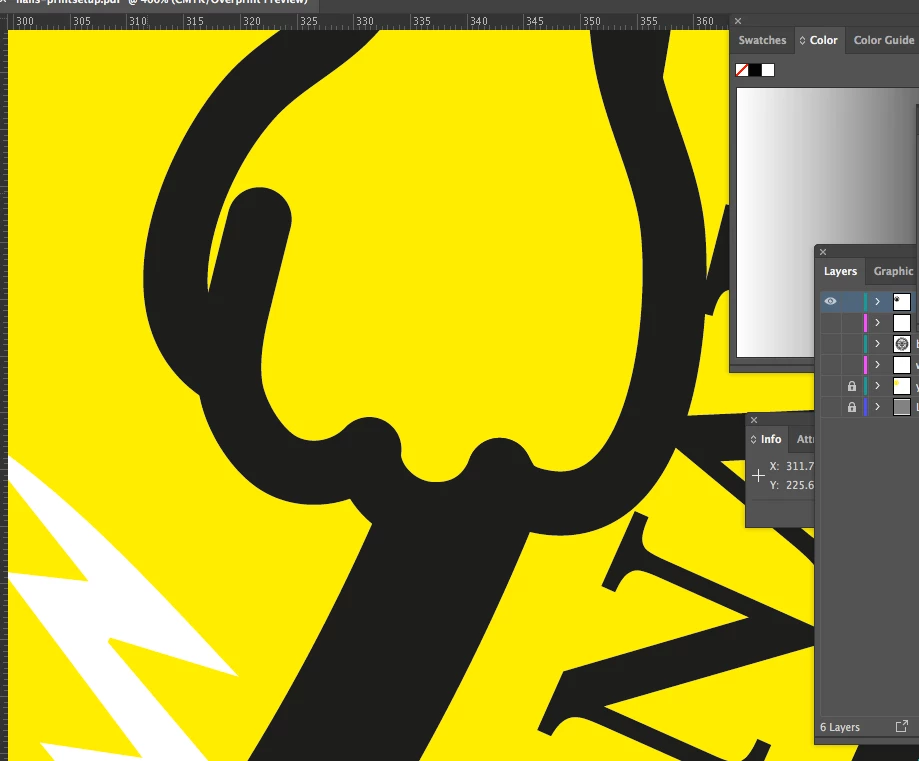
Before divide effect...
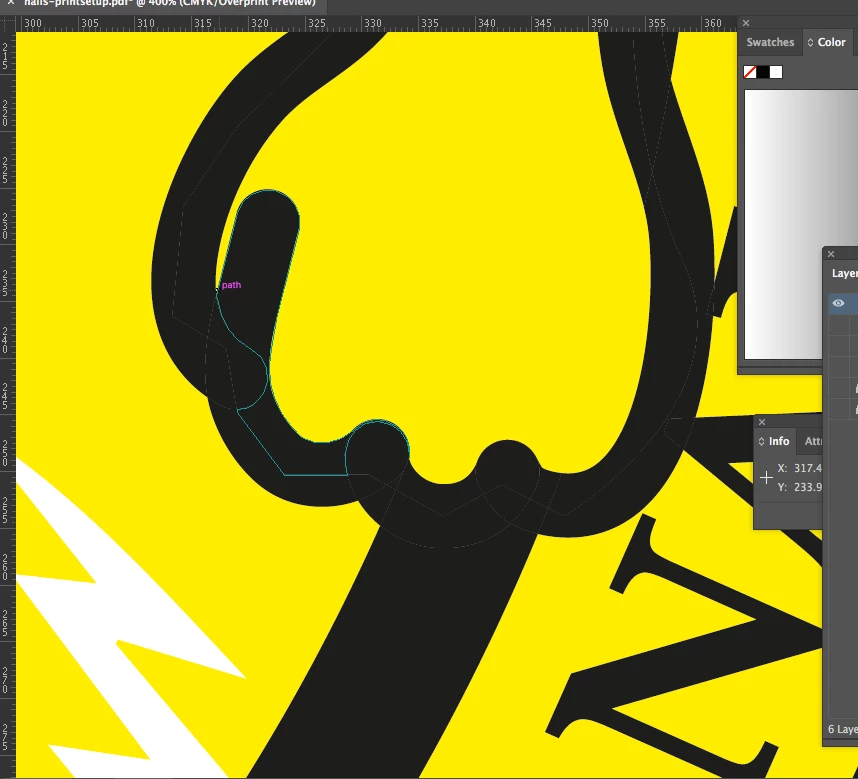
Thin white lines shown, after knockout has been done - via pathfinder, 'divide'.
 AdChoices