
Known Participant
May 29, 2023
Answered

Laser Cutting: How Do I Copy a Complete Image, Raster & Vector, With One Click?

  • May 29, 2023
  • 2 replies
  • 966 views

Hello, Everyone. Thanks in advance for your help and advice. 


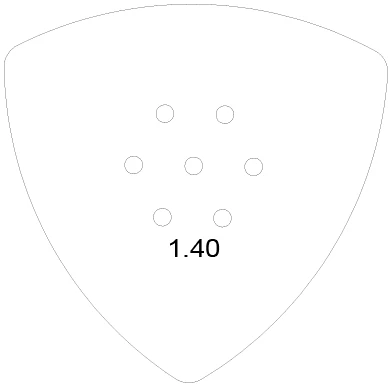
I am attempting to laser cut and engrave the image below. Everything is being cut (Vector) except the number 1.40, which is being engraved (Raster).


I want to build a whole row of these, for a sheet that is about 10 inches long. I cannot figure out how to copy and paste this ENTIRE image with one click, although I'm sure it's super easy. 


I looked on YouTube, and they mention the Image Trace feature, but when I go to click this image the entire Image Trace window/popup is grayed out. 


Again, thanks for your help. 


This topic has been closed for replies.
Correct answer Monika Gause

Group the paths and the image.

Then apply Effect > Distort & Transform > Transform

Make as many copies as need and enter horizontal Move

Then apply a second transform effect.

Again as many copies as need and vertical movement.


You might need to Object > Expand appearance for your laser. Make a copy of the file or artboard before doing so.

2 replies

pixxxelschubser
Community Expert
Community Expert
May 29, 2023

If I understand you right - You want a row of copies of the entire artwork for laser cutting?


Have you already tried:

  • [Ctrl]+[A]
  • [Ctrl]+[Shift]+[M] --> set your values and confirm with [copy]
  • press [Ctrl]+[D] as often as you need copies
Scott5F8FAuthor
Known Participant
May 29, 2023

pixxie, thanks. No, didn't know about those steps. I'll give a go and report back.


Thank You Kindly,

EG

Scott5F8FAuthor
Known Participant
May 30, 2023

BTW, folks, I'm having trouble getting Notifications on this thread when someone posts something new. Are others having the same problem? I've checked my notifications and everything seems okay.


Monika Gause
Community Expert
Monika GauseCommunity ExpertCorrect answer
Community Expert
May 29, 2023

Group the paths and the image.

Then apply Effect > Distort & Transform > Transform

Make as many copies as need and enter horizontal Move

Then apply a second transform effect.

Again as many copies as need and vertical movement.


You might need to Object > Expand appearance for your laser. Make a copy of the file or artboard before doing so.

Scott5F8FAuthor
Known Participant
May 30, 2023

Monica, I went and ran your steps and it worked like a champ. BUT I still have one more problem.


Once I get these multiple images created, I want to drag them across the artboard and position them for laser cutting. On both the original image and the copy I created, when I drag the image, the number (the raster part) does not move. I have to go and move it independently, then take the time to realign that number.


Question: Is there a way for me to highlight the ENTIRE image, including all raster and vector lines, then drag and drop it where I want? If so, I'd love to see the steps for that. 


Thanks so very much,

Scott

Monika Gause
Community Expert
Community Expert
May 30, 2023

Did you group all the items as the first step?