Copy link to clipboard
Copied
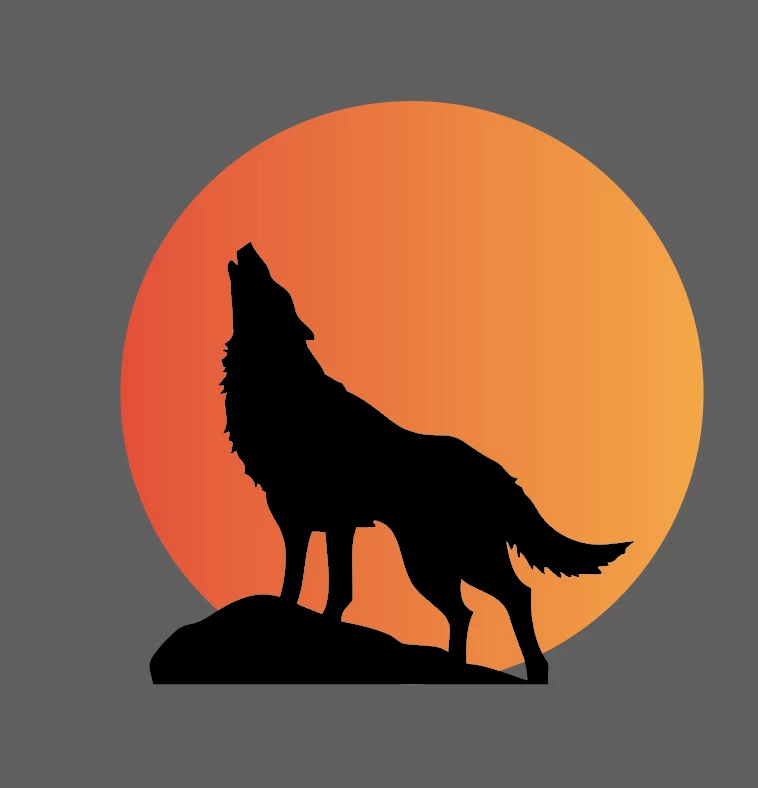
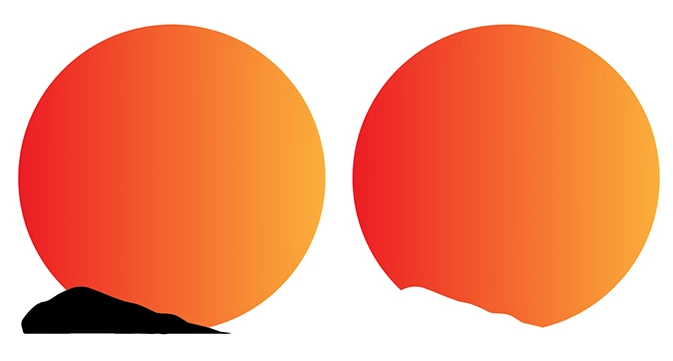
I used the Pathfinder Minus Front to create the image on the left where the bottom of the wolf cuts out the bottom part of the circle. However, I truly want the wolf to stay black and create two different layers (wolf and moon) so that I can add mountains in between the two. I am an Illustrator novice, so any help would be extremely appreciated. Thank you in advance.
That can be solve by making a copy of the circle, put it in front of the mountains, select both the mountains and the circle and choose Object > Clipping mask > Make
Delete or erase a copy of the wolf part until you are left with the rock only (close any open paths to make it a single shape). Use that to subtract it from your circle with minus front.
Use the result instead of your circle to create a clipping mask.
Copy link to clipboard
Copied
If you still have the objects as they were before you used the Pathfinder it is a matter of putting them on separate layers and create a mountain layer between them.
Copy link to clipboard
Copied
Thank you, but how do I make the bottom of the wolf image cut out the bottom of the circle while keeping it a separate layer? And how do I conform the mountains to the edges of the circle? Make sense?
Copy link to clipboard
Copied
You don't need to cut out as long as they are stacked (layered) on top of each other, but maybe I misunderstand you.
Copy link to clipboard
Copied
Yea, I get that, but trying to make the bottom of the circle the shape of the ground the wolf is standing (see below) and then have mountains constrained by the borders of the circle, not outside the circle.
Copy link to clipboard
Copied
That can be solve by making a copy of the circle, put it in front of the mountains, select both the mountains and the circle and choose Object > Clipping mask > Make
Copy link to clipboard
Copied
Okay, thank you on that. That solves the mountain problem. Do you know how i can then make the bottom of the wolf icon the shape of the bottom of the circle?
 
Copy link to clipboard
Copied
Similar, just add (drag) it to the clipping mask group.
Copy link to clipboard
Copied
That clips it to the edge of the circle, but I guess I am not stating it clearly, but I want the rock that the wolf is standing on to be the actual bottom of the circle.
 
 
Copy link to clipboard
Copied
I probably dont understand what you want.
Copy link to clipboard
Copied
I'm not sure how else to say it. I put a red border around the sun so you could see that the bottom part of the circle is not round. It is cut out to the shape of the part of the wolf icon that is a rock. So, the bottom of the circle is cut out.
 
Copy link to clipboard
Copied
Select that new circle you drew and the wolf shape.
Take the shapebuilder tool and press the alt key and then click on the part of the rock shape that you do no longer need.
Copy link to clipboard
Copied
I want the rock shape, but I want it to cut out of the circle
Copy link to clipboard
Copied
Than you have to separate the rock part of the wolf shape from the wolf to cut it out of the circle. Use that cut out circle as the clipping mask.
Copy link to clipboard
Copied
Copy link to clipboard
Copied
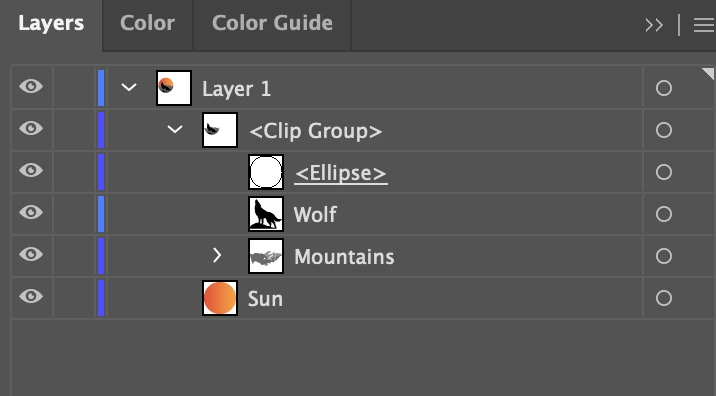
Thank you Ton, not sure how to do that. Here is my layers panel:
 
Copy link to clipboard
Copied
Delete or erase a copy of the wolf part until you are left with the rock only (close any open paths to make it a single shape). Use that to subtract it from your circle with minus front.
Use the result instead of your circle to create a clipping mask.
Copy link to clipboard
Copied
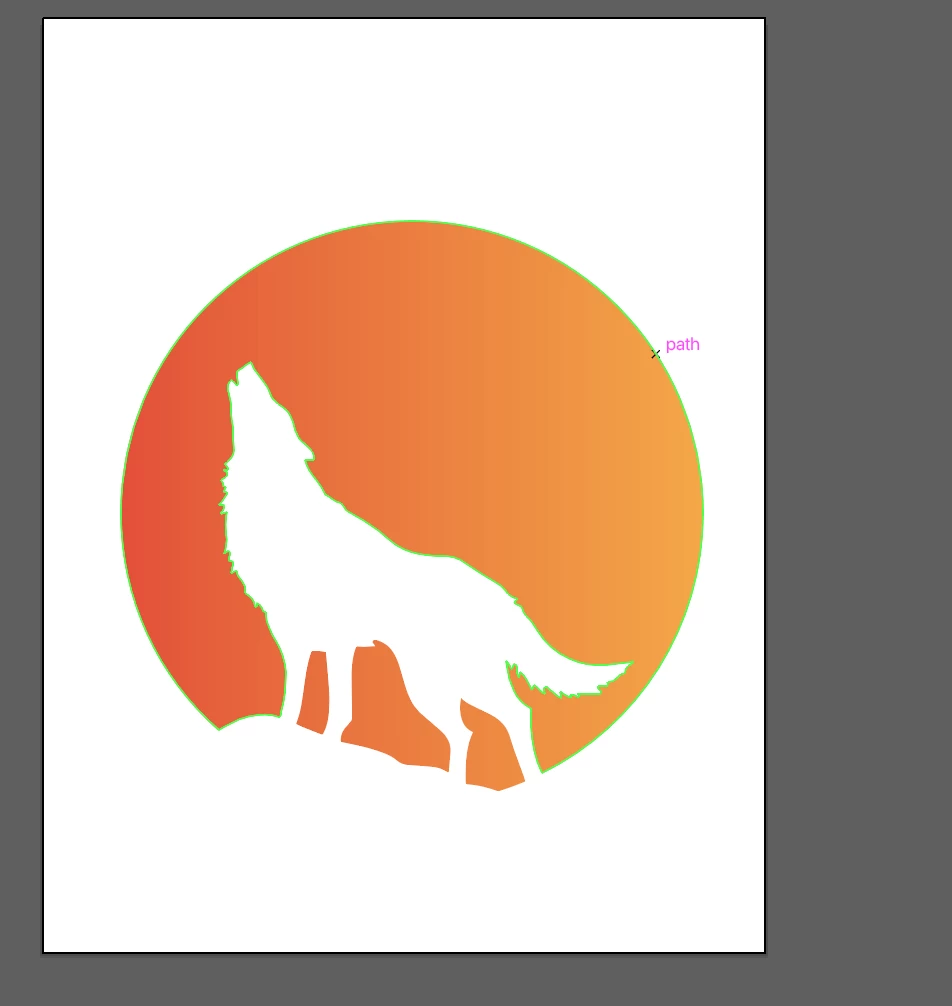
Thank you! I think I figured it out:
 
Copy link to clipboard
Copied
Good to hear that.
Get ready! An upgraded Adobe Community experience is coming in January.
Learn more