
ryangberry
Participant
October 15, 2014
Answered

Layers Disappearing in Panel

  • October 15, 2014
  • 5 replies
  • 24760 views

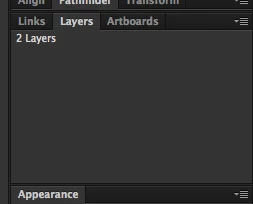
I'm having an issue with the layers panel. I have a document that has 2 layers. Usually in the layers panel I can see both layers, turn them on and off, lock them, etc. Now the panel only says "2 Layers" and nothing else. What can I do to fix this? I have the most recent version of Illustratior (18.1.0) and I just upgraded my Mac to OS X Mavericks, which is when this issue started occurring.
This topic has been closed for replies.
Correct answer ryangberry

Thanks for the help! I had an update show up for OSX Mavericks this morning that I might have missed yesterday. Installing the update seemed to fix the issue.

5 replies

Participant
January 10, 2016

Close Photoshop. Keep Shft+Alt+Ctrl (windows) or Shft+Alt+Cmd (mac) pressed and double click on photoshop icon to start the application. It will display "delete the adobe settings file", - click yes. When photoshop opens the layers will reappear.


Hope this helps

ryangberry
ryangberryAuthorCorrect answer
Participant
October 16, 2014

Thanks for the help! I had an update show up for OSX Mavericks this morning that I might have missed yesterday. Installing the update seemed to fix the issue.

Raghuveer_Singh
Community Manager
Community Manager
October 16, 2014

Hi Ryan,

The Illustrator team is looking into this issue right now. For the time being please increase the height of the Layers panel so that all the layers can be displayed.

With Best Regards,

Raghuveer

mrbray
Participant
November 6, 2014

i've had this same issue where layers panels and even the pathfinder completely disappear regardless if it says they're selected in the window panel. I've only experienced this issue since upgrading to the new Retina Macbook Pro. Resting the Ai setting seems to work half the time. Nonetheless this is a really annoying bug and is making Affinity sound like a better alternative to illustrator if this isn't fixed stat.

Larry G. Schneider
Community Expert
Community Expert
September 5, 2015

but i dont...


‌Can you put the file on a file sharing site like Dropbox and provide a link?

Jacob Bugge
Community Expert
Community Expert
October 15, 2014

Ryan,

Or you may try from the top of the list. Maybe it is enough to restart as in 1) or 2), maybe necessary to reset preferences more or less thoroughly as in 3) and 4), or even a reinstallation as in 6).

The following is a general list of things you may try when the issue is not in a specific file (you may have tried/done some of them already); 1) and 2) are the easy ones for temporary strangenesses, and 3) and 4) are specifically aimed at possibly corrupt preferences); 5) is a list in itself, and 6) is the last resort.

1) Close down Illy and open again;

2) Restart the computer (you may do that up to 3 times);

3) Close down Illy and press Ctrl+Alt+Shift/Cmd+Option+Shift during startup (easy but irreversible);

4) Move the folder (follow the link with that name) with Illy closed (more tedious but also more thorough and reversible);

5) Look through and try out the relevant among the Other options (follow the link with that name, Item 7) is a list of usual suspects among other applications that may disturb and confuse Illy, Item 15) applies to CC, CS6, and maybe CS5);

Even more seriously, you may:

6) Uninstall, run the Cleaner Tool (if you have CS3/CS4/CS5/CS6/CC), and reinstall.

http://www.adobe.com/support/contact/cscleanertool.html

Larry G. Schneider
Community Expert
Community Expert
October 15, 2014

Try replacing the Preferences by holding down Cmd(Ctrl)-Opt(Alt)-Shift on restart of AI.