
Participant
October 25, 2017
Answered

line editing in Illustrator after updating

  • October 25, 2017
  • 1 reply
  • 587 views

I have been using Illustrator for many years and have recently upgraded to CC from CS6.  I was working on a large file at the time I upgraded. The upgrade went fine, editing lines on this large file was unchanged.  Then I ran the update (ACE 2107/09/08-21:12:31).  The initial response of my computer (a Dell running Windows 10 Enterprise) was to freeze up -- even the Task Manager froze.  I did get the computer to work again, but now  when editing lines, Illustrator has a new trick.  It goes like this:  I select the line, and then with the Direct Selection Tool I select a node, when I start to move the node the rest of the line, except for the node I selected, the nodes on either side and the 2 lines connecting them disappears.  Illustrator will let me move the node, but then it freezes for 3 seconds -- I've counted, many times -- after the freeze the entire line is visible again.  In my experience, Illustrator has never done this.  It concerns me for 2 reasons: 1) as someone who was used to the fluidity of Illustrator before the update, all of these imposed pauses are really, really annoying and 2) that 3-second hesitation may add weeks, if not, months to this project.

Is this the way Illustrator is designed to work now and, if not, how do I fix it -- the old standby of turning off the computer and rebooting did not work.
    This topic has been closed for replies.
    Correct answer Mariner2

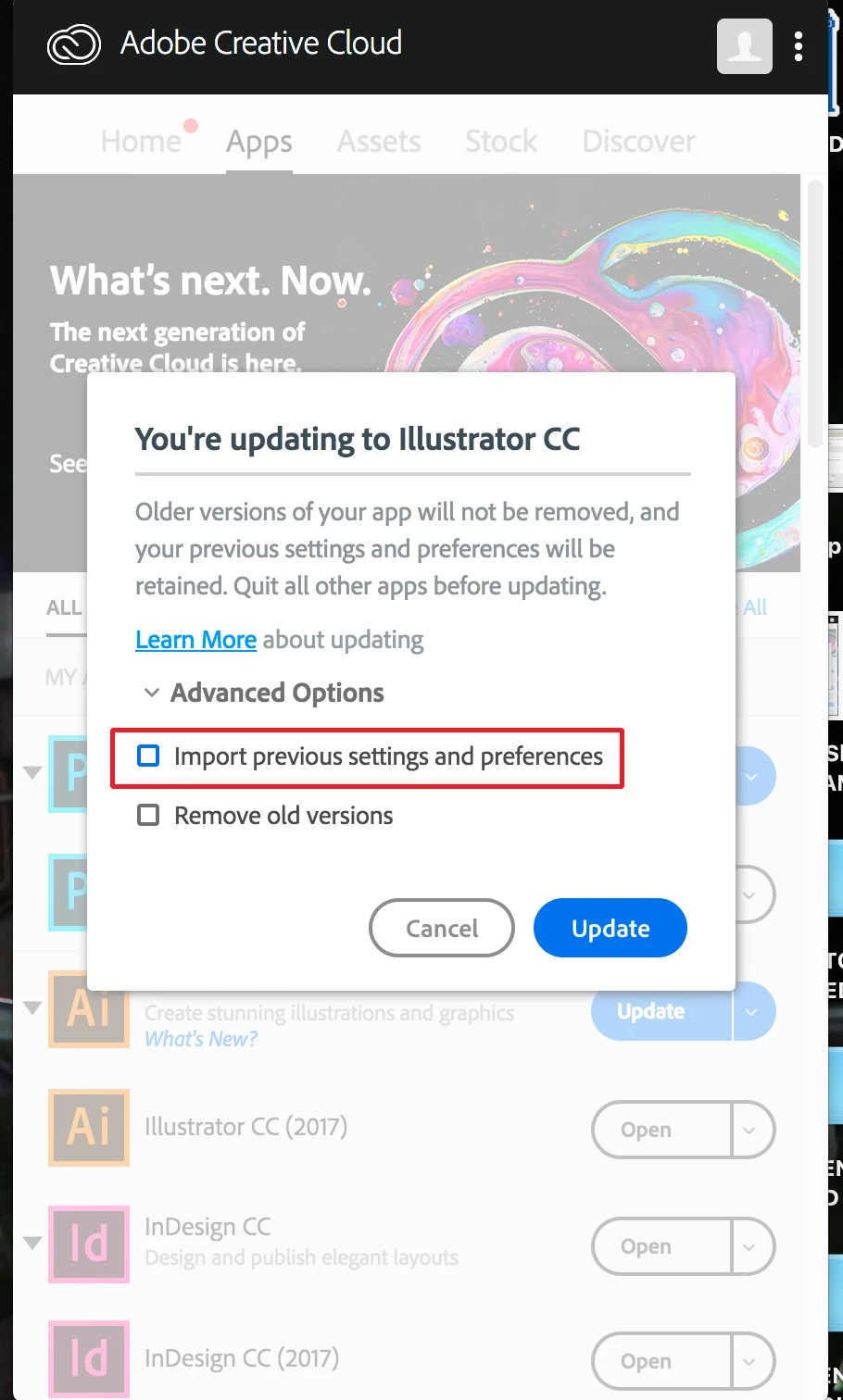
    As long as you have a Creative Cloud subscription you can load any of the versions offered in the Creative Cloud Desktop app. First you will need to uninstall using the uninstaller provided in the desktop app. You can find it by clicking on the "V" shape to the right of the version that you want to uninstall. A pull-down menu will show up that has the uninstaller (also note the option for installing earlier versions in that same pull-down). Run the uninstaller and then you can reinstall whatever earlier version that you want using the desktop app. Make sure that when you do you make sure that you do not allow it to install with any previous settings and preferences intact. The screen shot below shows what the current desktop app will show during the install in regard to Advanced Options:


    Thanks, Bill.  I uninstalled Illustrator CC 2018, turned off my computer, waited, turned it back on and installed Illustrator CC 2017.  There is still the whole disappearing line, except for three nodes worth (don't understand what that is all about), but the freeze is down to only about a second.  That's much easier to work with than the 3 second stall -- CS6 didn't have any disappearing or stalling so, needless to say, I don't consider this much of an improvement in programming.

    Zehdreh

    1 reply

    Bill Silbert
    Community Expert
    Community Expert
    October 25, 2017

    You could try resetting your preferences.

    To do so:

    Hold down Ctrl + Alt + Shift when launching Illustrator and respond affirmatively when asked if you want to reset.

    Mariner2Author
    Participant
    October 25, 2017

    After reading some of the other discussions that were not quite the problem I was having but similar, I tried that.  It reduced the freeze period from about 10-seconds to 3-seconds.

    Bill Silbert
    Community Expert
    Community Expert
    October 25, 2017

    If I were to remove Illustrator CC from my computer, would that also remove the updates?  I could then reload Illustrator, without  the update,s and be able to do my work.


    As long as you have a Creative Cloud subscription you can load any of the versions offered in the Creative Cloud Desktop app. First you will need to uninstall using the uninstaller provided in the desktop app. You can find it by clicking on the "V" shape to the right of the version that you want to uninstall. A pull-down menu will show up that has the uninstaller (also note the option for installing earlier versions in that same pull-down). Run the uninstaller and then you can reinstall whatever earlier version that you want using the desktop app. Make sure that when you do you make sure that you do not allow it to install with any previous settings and preferences intact. The screen shot below shows what the current desktop app will show during the install in regard to Advanced Options: