
Participant
October 21, 2021
Question

Live Paint Bucket / Fill tool not working within closed paths

  • October 21, 2021
  • 4 replies
  • 9587 views

Hey there, I'm new-ish to Adobe Illustrator, but I've looked everywhere for the answer to this and no forum question really pinpointed why this has been happening in my situation or provided a solution.


I have paths formed by the brush tool and when I have enclosed shapes that are definitely on the same layer, the Live Paint Bucket and Fill option alike create the following:
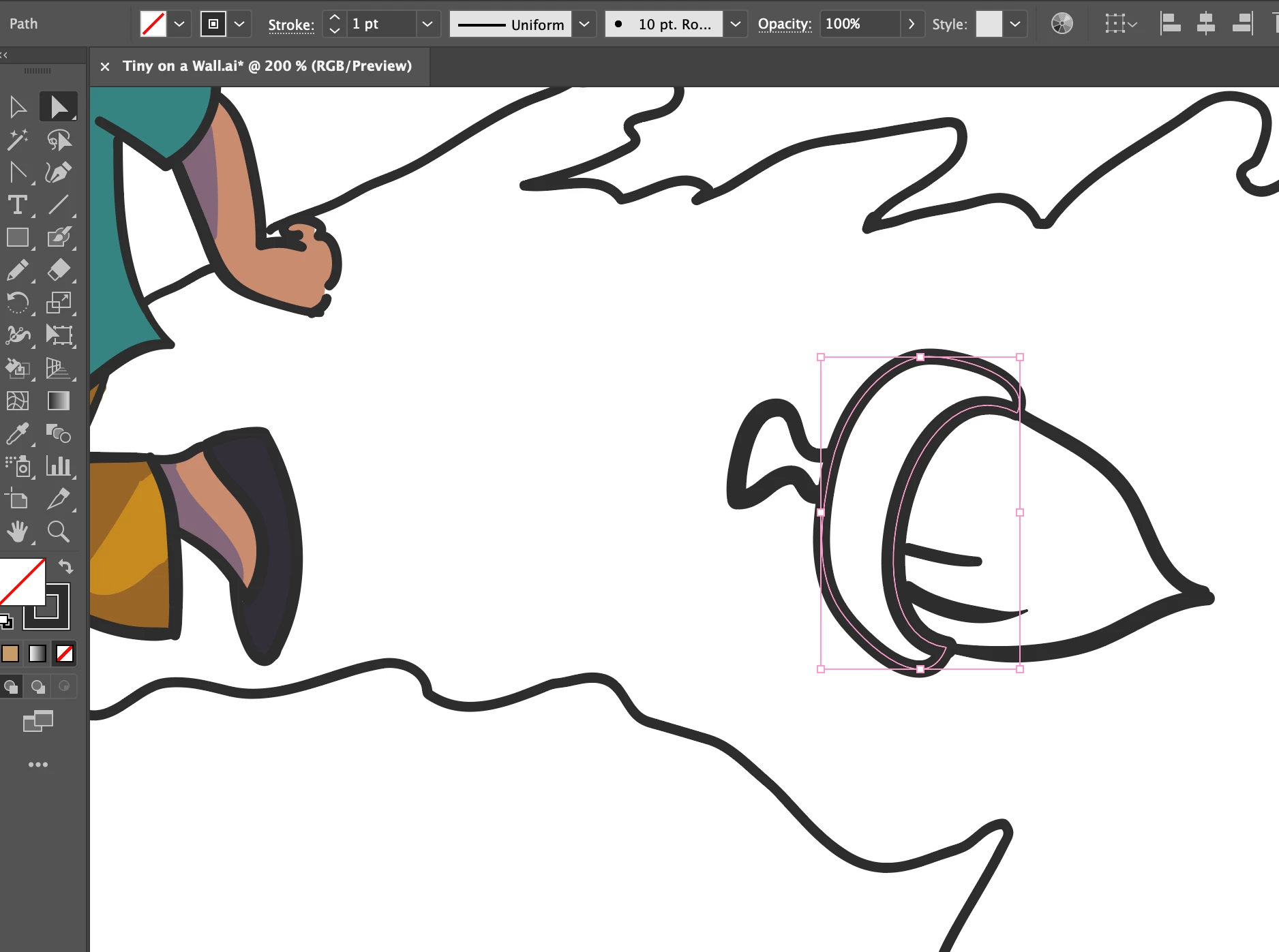
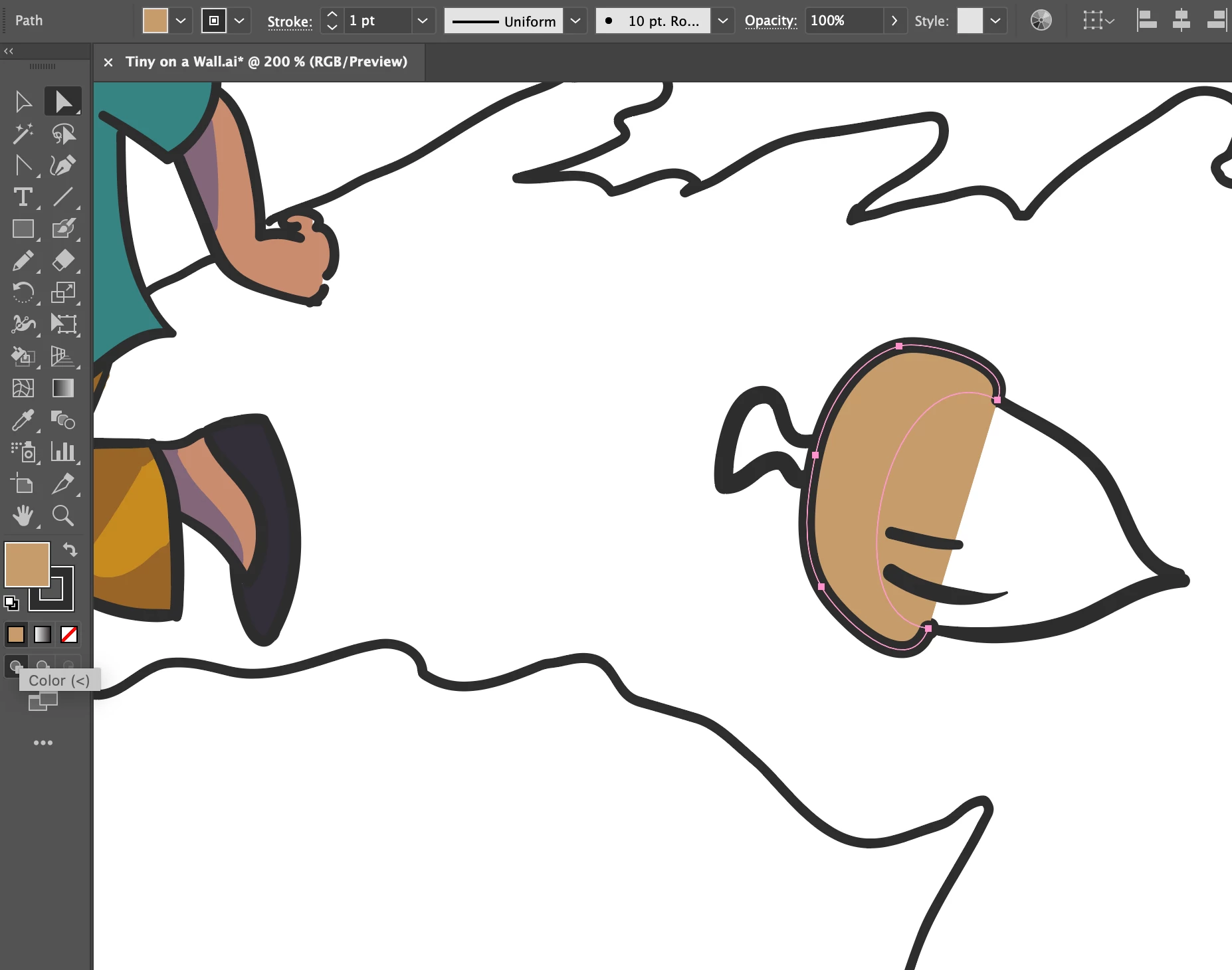


It either erases the brush stroke or looks like this:
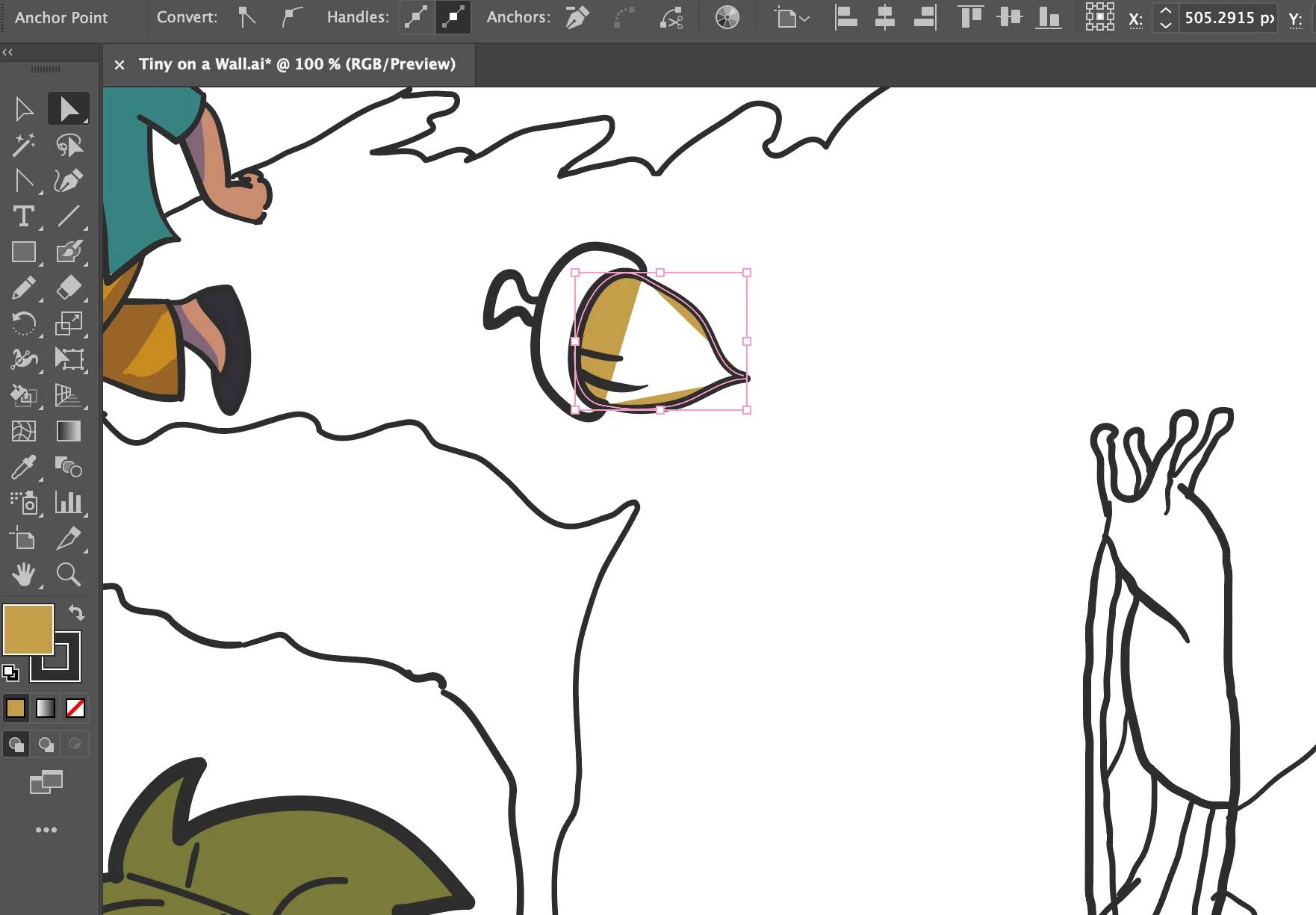


Where the fill space is disjointed and stretching between anchor points, even though the outline is enclosed.

Other times it WILL fill it in after giving a warning window stating "Complex visual appearance attributes such as brushes, live effects, transparency...options may be lost when converting to a Live Paint Group" and then converting the brush strokes I drew into basic un-tapered strokes. Like so:
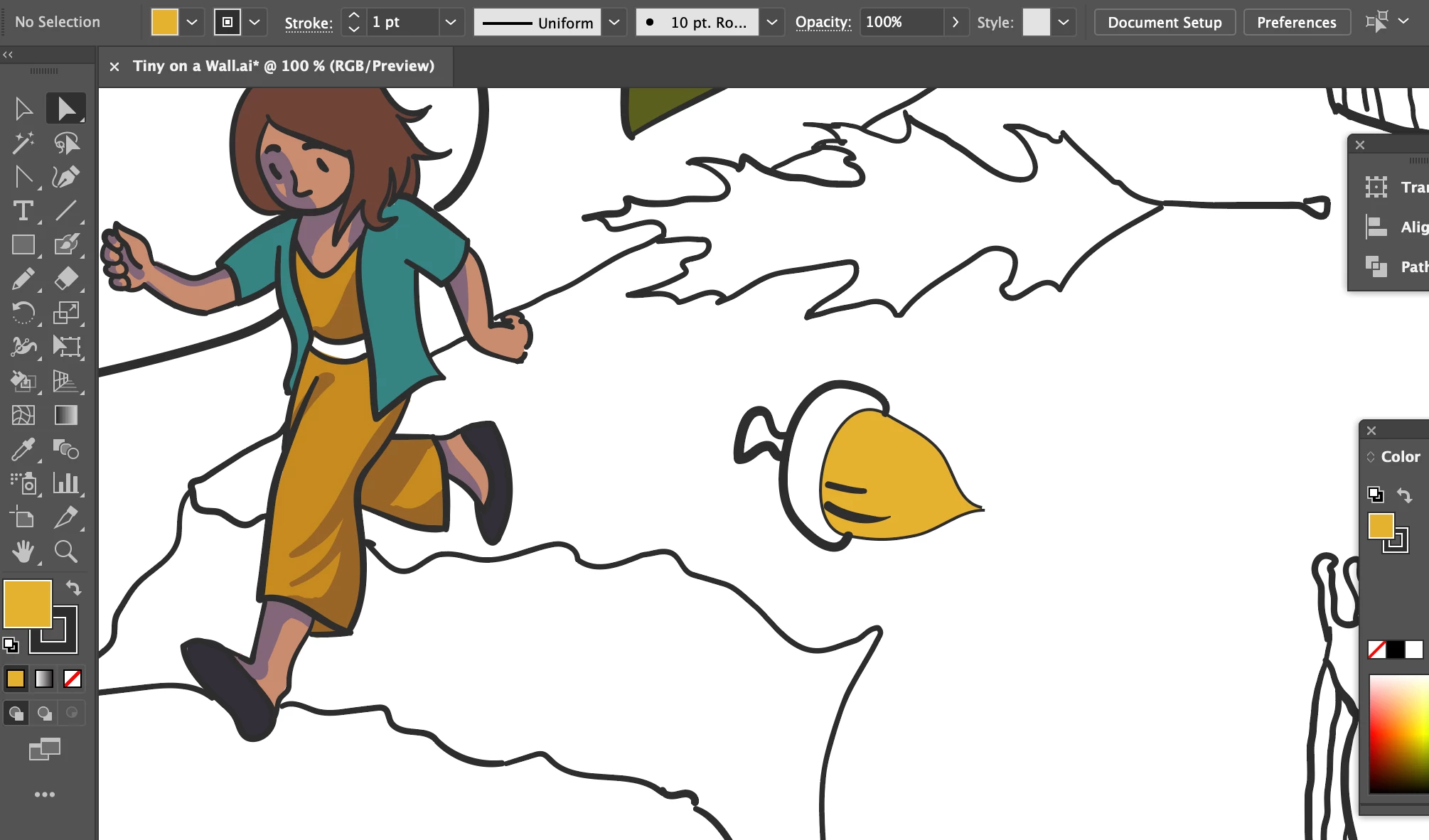
 

I don't want to reduce all the line art to basic uniform lines. I also don't want (and shouldn't have) to edit every brush stroke after filling everything in. Is this some error in Illustrator or is there some workaround?


I tried Gap options both for small and large gaps and there is no difference. What's going on? Please help.


I'm working on a Mac with Adobe Illustrator 2021.

This topic has been closed for replies.

4 replies

Participant
January 23, 2024

hello can someone tell me how to get my paint bucket to work it keeps turning into a painting brush with a x on it how do I turn it back

Doug A Roberts
Community Expert
Community Expert
January 23, 2024

Do you have something selected? Have you created a live paint group to use it with (i.e. select the objects you wish to paint and click on them)?

Ton Frederiks
Community Expert
Community Expert
October 21, 2021

I answered before checking your file.

It is easy to solve.

Make sure that your artwork has only strokes and no fills. This one has some unclosed objects with strokes and fills and some with only strokes.

Make a copy of your layer with the strokes and lock the top layer.

Convert the bottom one to Live Paint and color it.

Participant
October 22, 2021

Oh hey, thanks! For some reason I can't replicate that. Could you tell me what you mean by the file having both strokes and fills? I'm new to Illustrator still, so when I had the acorn file, all I saw was strokes made by the brush tool. However, I do see a strange triangle cutting between anchor points in the fill space, but I don't know how to remove that. Here's my silly attempt attached.

Doug A Roberts
Community Expert
Community Expert
October 22, 2021

I put a red background behind your acorn so you can see what is going on:


There are no closed shapes here. The acorn itself is comprised of three open paths with a white fill. A fill on an unclosed shape will fill up to a straight line between the two end points.


When you create a live paint group from this, it will incorporate this line.


As Ton said, remove the fills first.

Ton Frederiks
Community Expert
Community Expert
October 21, 2021

Brush strokes are not supported by Live Paint (as the warning mentions).

If you want to keep the appearance of the brush, you could make a copy of your on on a new layer before you start coloring it. 

Lock it and use the unlocked version with Live Paint.

When finished coloring, expand the Live Paint group and delete the linework .


Participant
October 21, 2021

That's a good idea, but the only issue is sometimes it colors past the bounds of the shape for no reason I can tell. For example in the second image I attached, it basically filled over the brush stroke and flooded into the other "face" or open area enclosed by strokes.

The only solution I can think of is to draw the line art in pencil first, then do the brush line art over top to preserve the natural, varied weight in the lines. It just seems like a tedious and time-consuming workaround to have to draw line art twice just so the filling function works. I don't know if there's a better way, but it would be great to know when I'm on a deadline.

Met1
Legend
October 21, 2021

Try Merge Live Paint first...

Doug A Roberts
Community Expert
Community Expert
October 21, 2021

If these are actually closed shapes and not open paths that just appear to be, it's difficult to know what's going wrong without looking at the object in question. Do you think you could upload a sample file with just that object in it?

Participant
October 21, 2021

Sure, here it is attached. The reply post function wouldn't let me attach an .ai file for some reason so here it is as a PDF with the Illustrator editing capabilities turned on. Not sure if that'll do, but thanks for checking it out!