
This topic has been closed for replies.
Correct answer Kurt Gold

https://assets.adobe.com/id/urn:aaid:sc:US:e52a70a3-13f0-465d-953d-bc1288ab2863?view=difile
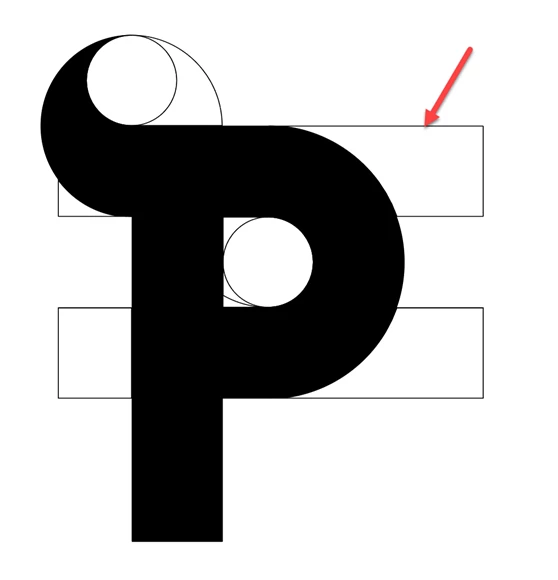
The link is same as before. I do not know the reason.


That link works.


The reason why the Magic Wand also selects the filled paths is because the filled paths also have stroke attributes applied.


If you remove the strokes from the filled paths, the Magic Wand works as you may expect it.

1 reply

Kurt Gold
Community Expert
Community Expert
September 25, 2024

The link to the sample file is not public.


Can you change that and make it public?

MahaB82A
MahaB82AAuthor
September 25, 2024

OK I have made it public. Please try again.

MahaB82A
MahaB82AAuthor
September 26, 2024

That link works.


The reason why the Magic Wand also selects the filled paths is because the filled paths also have stroke attributes applied.


If you remove the strokes from the filled paths, the Magic Wand works as you may expect it.


I replicated the work in this video. In this video without removing the stroke by using Magic Wand Tool tutor was able to delete the stroke [time 2.48]. How is it possible?

Logo Making