
Participant
March 16, 2017
Answered

Maintaining stroke weight when using live text as a clipping mask

  • March 16, 2017
  • 3 replies
  • 2417 views

Hi all - I'm trying to do something that I suspect isn't possible, but I wanted to reach out and see if anyone had any brilliant workarounds!

Often, I need to use a stroke to make some text appear thicker. I also often need to apply a texture to live text, which I do using clipping masks (thanks to the amazing advice I got re: Outline Object Effect here).

My goal is to be able to do both things while keeping the text editable. So, I want to have live text that's used as a clipping mask, that's also thickened with a stroke. Like so:
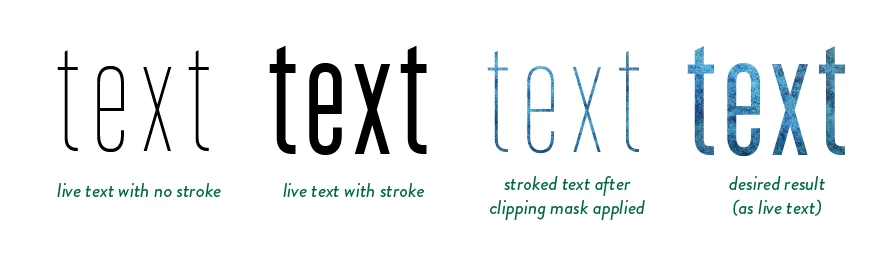
However, I know that when an object is used as a clipping mask, it gets its fill and stroke removed. I've tried re-adding the stroke, but then the stroke weight doesn't factor into the clipping mask but is rather applied around it:
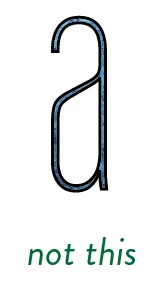
So, the visual effect I'm after is definitely achievable by creating outlines and expanding, but it's difficult for my workflow not to have the text remain live. I was hoping the "Outline Stroke Effect" might be the key here, but I haven't had any luck. Any suggestions?

This topic has been closed for replies.
Correct answer Jacob Bugge

bunting banner,

You can just use your live Type with added stroke in connexion with an Opacity Mask:

Select both Type and background and in the Transparency palette flyout click Make Opacity Mask with both Clip and Invert Mask ticked (in the main Transparency palette window).

3 replies

Participant
April 5, 2017

Thank you all again! We were able to change our process from using clipping masks to using opacity masks thanks to your advice, and it's been a boon for us.

Ton Frederiks
Community Expert
Community Expert
April 5, 2017

Good to hear that!

chanaart
Community Expert
Community Expert
March 17, 2017

No need to have a Clipping Mask when you are using Pattern in Type. (you need it only if you are using Gradients and want to keep the type live).

Simply type the text and add pattern using the Appearance Panel you can control it and even add stroke that has width to it or a brush.

Type is live!

Jacob Bugge
Community Expert
Jacob BuggeCommunity ExpertCorrect answer
Community Expert
March 16, 2017

bunting banner,

You can just use your live Type with added stroke in connexion with an Opacity Mask:

Select both Type and background and in the Transparency palette flyout click Make Opacity Mask with both Clip and Invert Mask ticked (in the main Transparency palette window).

Participant
March 16, 2017

Thank you! It seems like the text loses its editability so long as the Opacity Mask is applied (and then becomes editable again when you release the mask) - is that right?

For various reasons, I'd still love to find a way to do this with clipping masks if at all possible, but this is a good option - thanks again!

Sebastian Bleak
Community Expert
Community Expert
March 16, 2017

Hi I don't have a good workaround for your original question but I'm hoping this video will help you edit your text with Opacity Masks

Adobe Illustrator CS6 "Opacity Mask" NSL Week 96 - YouTube

Skip ahead to 3:48