
Make A Pattern only show Complete Tiles
Hello,
Firstly, I'm sorry if i made any mistakes in this discussion, I don't post to forums often, but I've been trying to find an answer forever so I figured I'd give this a shot.
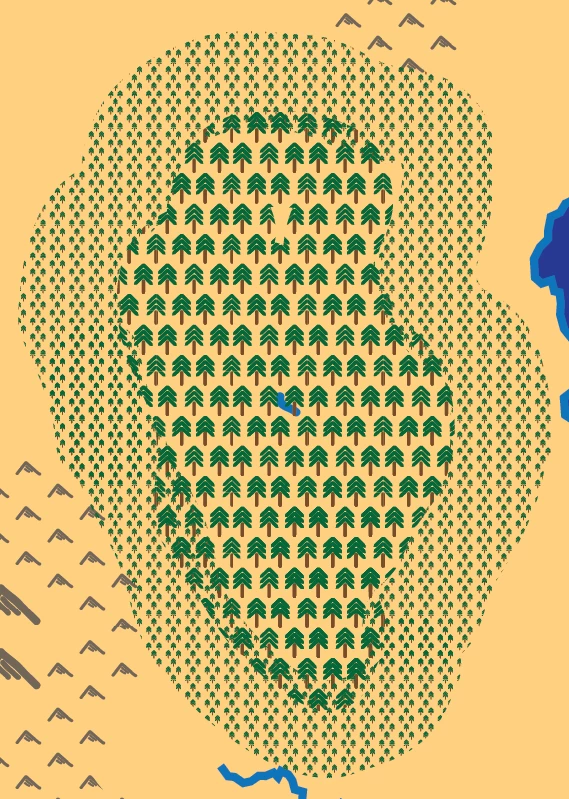
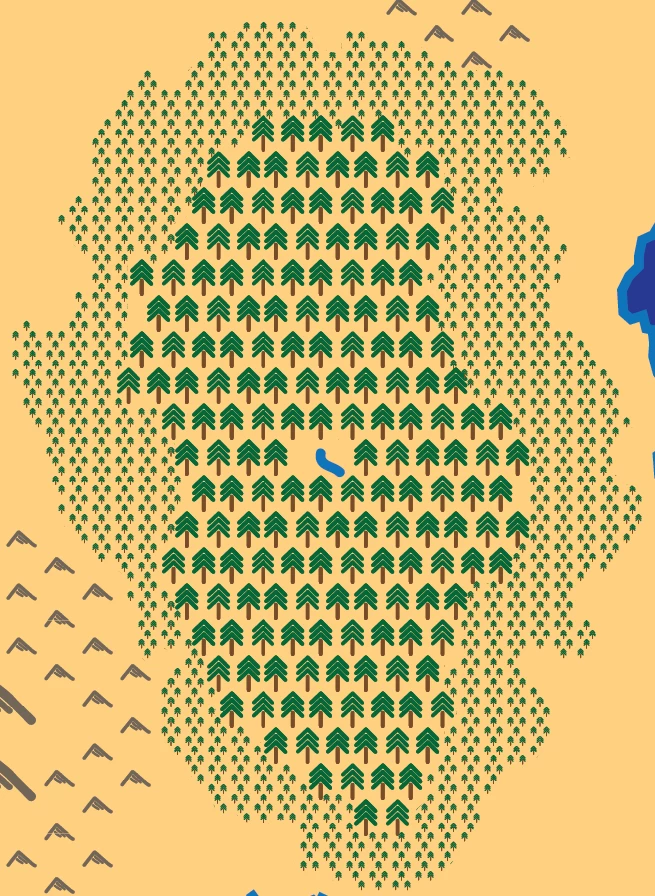
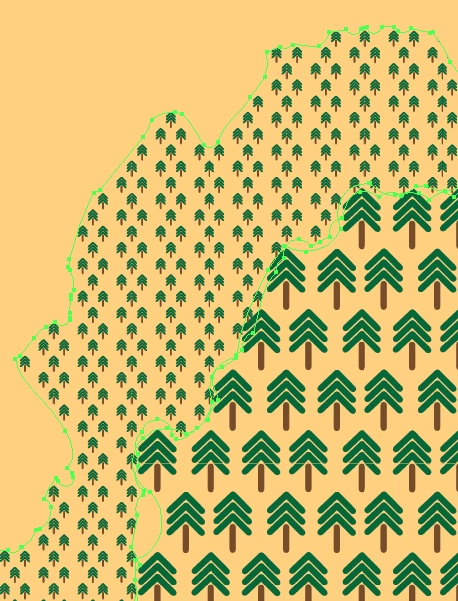
In Illustrator, I'm working on a fantasy map for a project, and I'm using patterns and the blob brush to add in the small details (in this case trees to indicate a forested area) that would take forever by hand, but my problem is that I have to go back through and erase/add to parts of the object the pattern is applied to because there's often only half or a quarter of a tree will be present around the edges, and so I have to go through fixing the edges, which, while faster than doing it by hand, still takes quite a long time. I tried making a brush to do it, but I need them to be upright and at least somewhat uniform, which I couldn't get to work with a brush
Main Point: I was wondering (hoping) if there is a way to make it so that only a full Tile of a pattern is shown, and no tiles that are cut off half way through are visible
Again, sorry if I've done anything I shouldn't have, or if this is an incredibly dumb question, and I've been using Illustrator less than a week and don't quite understand everything yet
before fixing by hand, with trees cut off along the edges
After fixing (and a bit of sculpting to make the forest look more realistic) (no trees cut off)
 AdChoices