Participant
July 29, 2024
Answered

Make white circles transparent

  • July 29, 2024
  • 4 replies
  • 1878 views

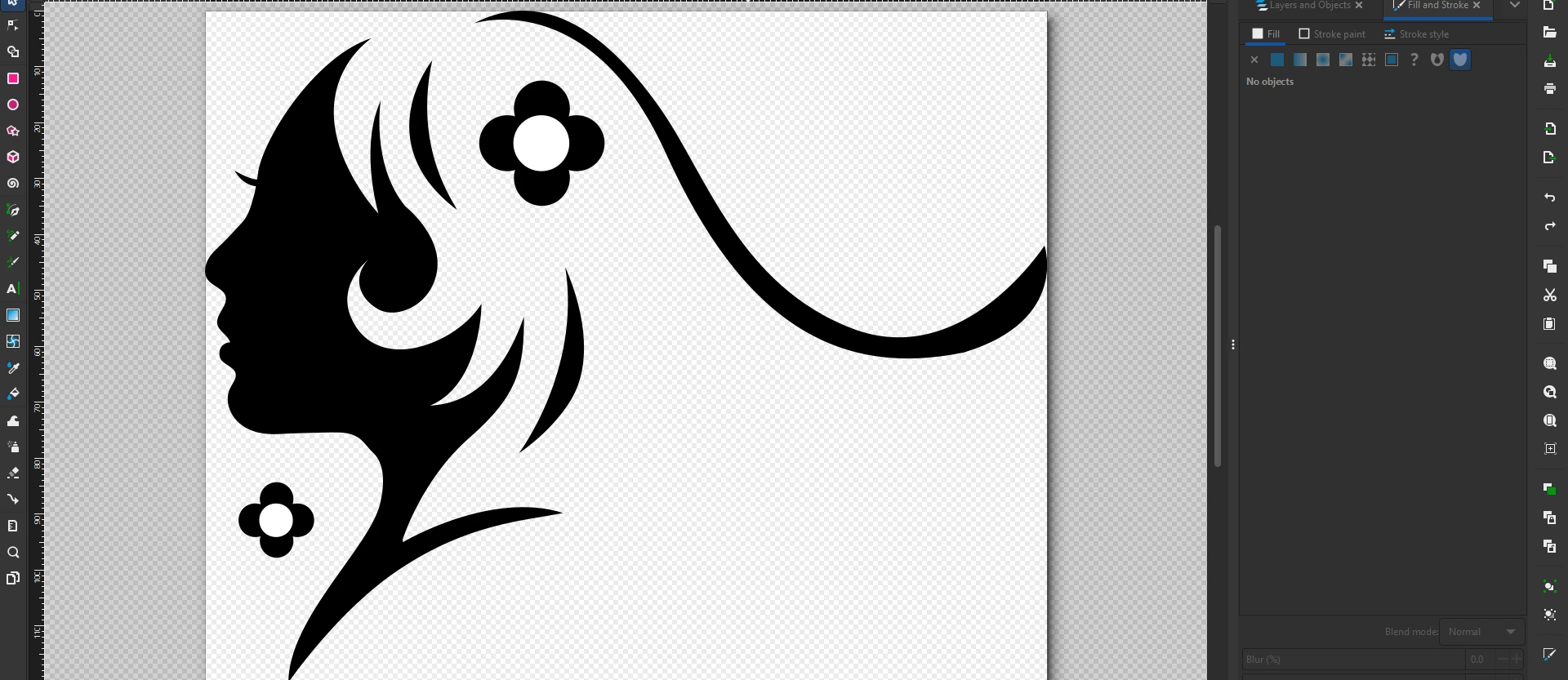
How do I make the white circles transparent. Whenever I change opacity it fills with the black circles that make the flower. Is there anyway to make white circle transparent when it is used to knockout black.

This topic has been closed for replies.
Correct answer Brad @ Roaring Mouse

I think what you mean is that you want the white circle to show what's behind it, like a hole.

You can use Pathfinder Tool > Unite to first combine the 4 black circles into one object if they are currently separate.

Then you can select both that new shape and the front (white) circle you want to be a hole, then use the Pathfinder > Minus Front to cut the front circle out of the flower shape.


4 replies

Kurt Gold
Community Expert
Community Expert
July 29, 2024

And just in case it may matter: Based on your screenshot you are not using Illustrator. Probably it's one of the applications from Affinity. Or something else.

Brad @ Roaring Mouse
Community Expert
Community Expert
July 31, 2024

@Kurt Gold . This is Inkscape's UI. My guess is the OP is importing an .AI file??

Otherwise, yeah, they are in the wrong forum! 😉 

Jacob Bugge
Community Expert
Community Expert
July 29, 2024

default2,


Depending on your use of the final artwork, and possible desired editability/reversibility, there are a few ways.


A simple and editable/reversible way is to select each of the white circles along with the four black circles that it overlaps (which can be Grouped, optionally), then in the Transparency palette click Make (Opacity) Mask with Clip unticked and Invert Mask ticked.


This will hide the overlapped parts of the four black circles so the background shows through; you can work within the Opacity Mask or release it so you can edit the constituent parts and reverse to what you have as desired.


For artwork used for logos and certain other uses, it is better/necessary to change the artwork to simple paths, such as the way suggested by Brad.


Brad @ Roaring Mouse
Community Expert
Brad @ Roaring MouseCommunity ExpertCorrect answer
Community Expert
July 29, 2024

I think what you mean is that you want the white circle to show what's behind it, like a hole.

You can use Pathfinder Tool > Unite to first combine the 4 black circles into one object if they are currently separate.

Then you can select both that new shape and the front (white) circle you want to be a hole, then use the Pathfinder > Minus Front to cut the front circle out of the flower shape.


Participant
July 29, 2024

Thank you guys for your help. I probably spent about 15-20 hours trying to figure how to do that with no luck.

Brad @ Roaring Mouse
Community Expert
Community Expert
July 29, 2024

When you have a achance, read up on what a Compound Path is in Illustrator. This will give you the background of how/why this works. Cheers

Participant
July 29, 2024

"First, cut out a white hole in the black part, then cover the hole with a white piece of the same size to achieve the desired effect."

Participant
July 29, 2024

When I select circle and cut it fills with the other four black circles. Then I make a transparent circle and it doesn't knock out the black.

Participant
July 29, 2024

First, I'm not a native speaker, so please forgive me if I can only understand the question to the best of my ability. Please make sure to press the button shown in the picture when cutting the circle, so you can 'actually' cut out the part you want to remove