
Inspiring
April 19, 2025
Answered

Mask problem

  • April 19, 2025
  • 1 reply
  • 1237 views

Hi, I'm quite new to Illustrator, but I have experience with Photoshop.


I'm struggling here for multiple hours with such a simple task, but it just won't work, so I'm reaching up to you. 


I have a group here of Text, 2 Lines and a logo. I used Create Outlines on Text and Trace Image on the Logo. 

I created gradient, which I want it to be on the surface of everything in the group.

I tried to do it through clipping mask, I tried it through Pathfinder. Nothing worked ... When I used clipping mask the gradient disappeared, It was only visible in the layers.
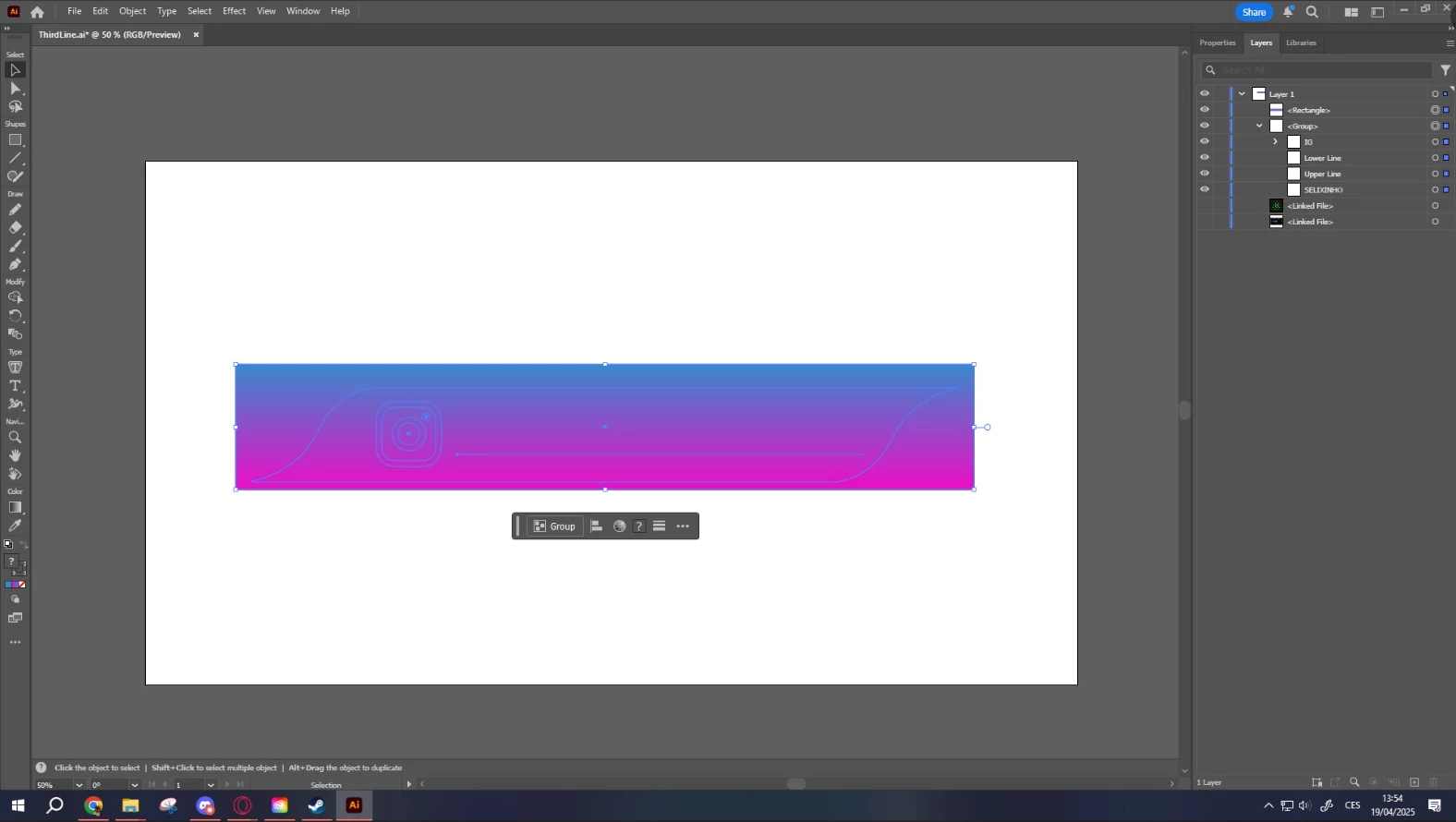
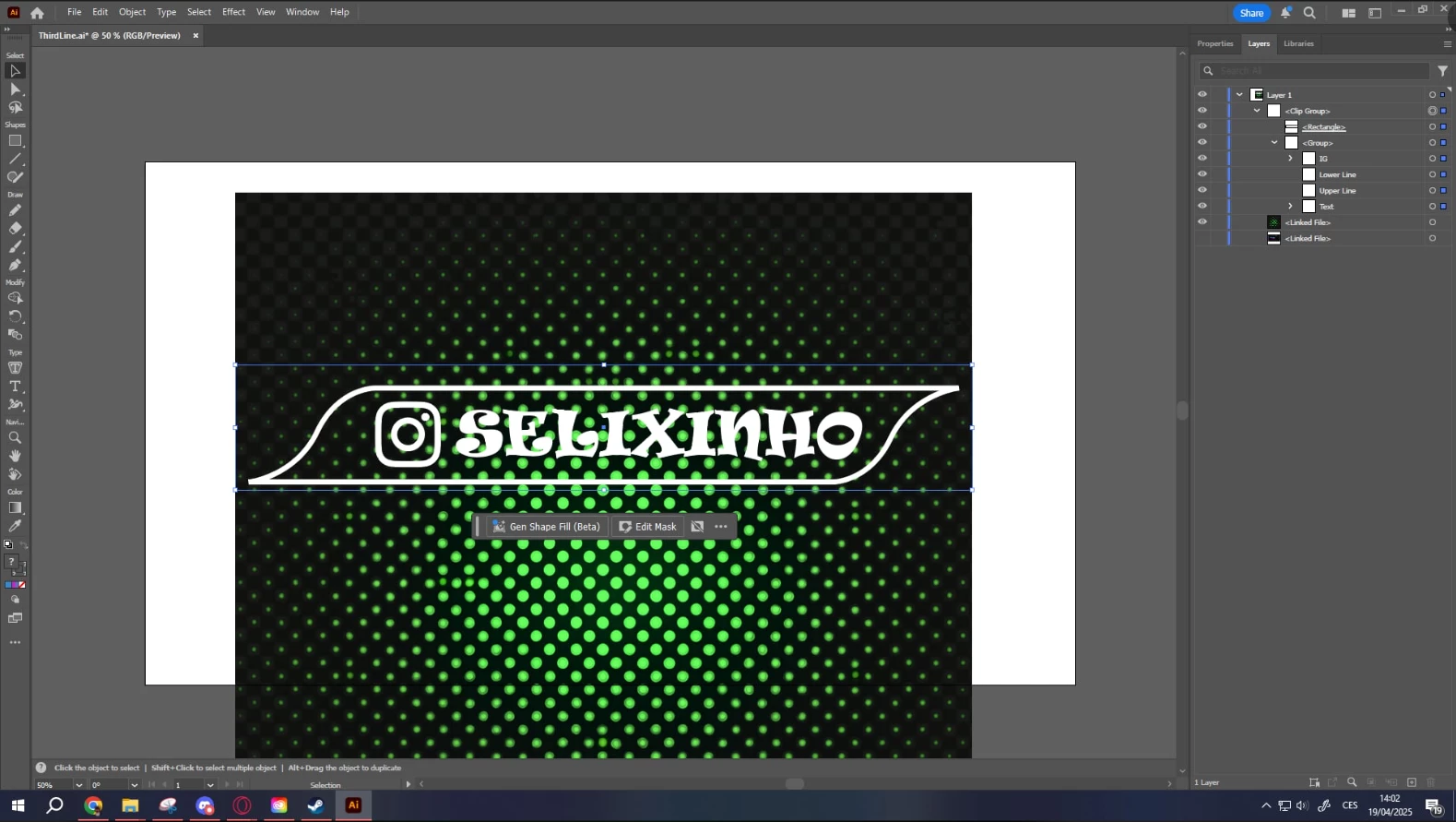


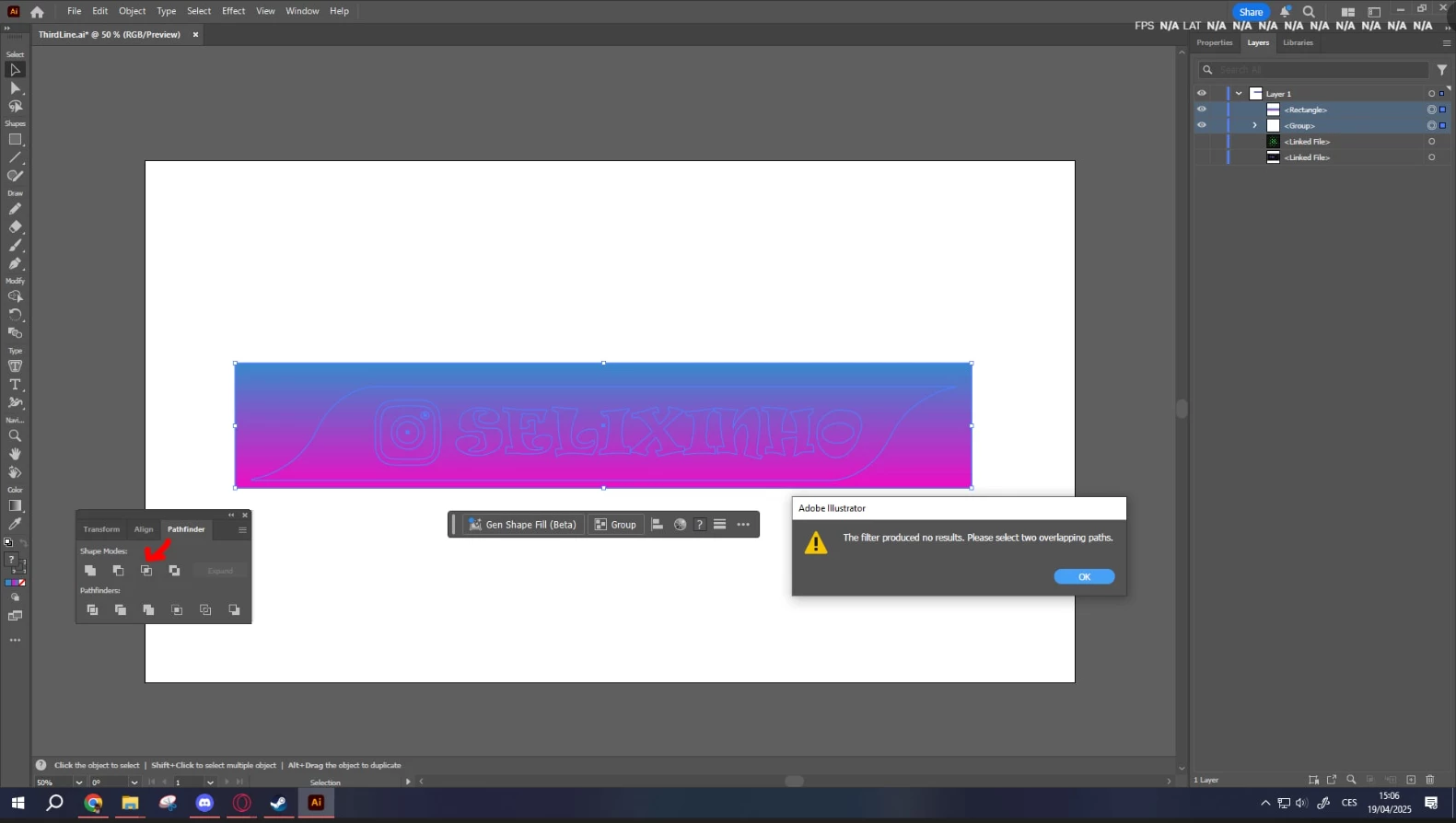
When I tried to use Pathfinder, it had always a problem, that group isn't an single object


Correct answer Monika Gause

What you did with the path is perfect. Mirroring it is just very good. But afterwards you need to select both the halves and Join them: Object > Path > Join.

1 reply

Jacob Bugge
Community Expert
Community Expert
April 19, 2025

Tygnar,


What happens if you do as follows?


1) Select all the parts that are to have the gradient colouring and turn them into a Compound Path (Ctrl/Cmd+8, hold Ctrl/Cmd an press 8);

2) Select the rectangle with the gradient  and bring it down below ths Compound Path from 1 (Ctrl/Cmd+X+B, hold Ctrl/Cmd and press X then B);

3) Select everything (Ctrl/Cmd+A) and apply the Clipping Mask (Ctrl/Cmd+7).


YuriwexyAuthor
Inspiring
April 19, 2025

It at least did something, I have never used or heard about the Compound Path so far, but it is still not the right version

1. The gradient overlay should be on the parts for example the text, not around it like background

2. I have problem with the outline, it looks like it created two deformed objects, which are divided with a thin line in the middle. 


I'v created a path (red line in picture) and then duplicated it, turn it by 180 degree and positioned it. Probably not the right way to do, but I didn't know how.

Monika Gause
Community Expert
Monika GauseCommunity ExpertCorrect answer
Community Expert
April 19, 2025

What you did with the path is perfect. Mirroring it is just very good. But afterwards you need to select both the halves and Join them: Object > Path > Join.