
Participant
September 17, 2020
Answered

Mass edit different files

  • September 17, 2020
  • 2 replies
  • 1645 views

Hi all,


I have received .ai files which are illustrations of  football/soccer shirts. (See image for an example) Each shirt has a number on the back side and there are 24 different shirts in total. For each shirt I would like to adjust the numbers on the back, so that I have a copy for numbers 1 up until 99 for each shirt, resulting in 24 * 99 = a lot of different files. Doing this manually clearly is a horrible task, so I thought scripting would come in handy. 


What I would like to do is the following:

  1. Open each file (country shirt)
  2. Run the script which changes the default number 1 to 2
  3. Center the number (number 3 for instance is wider than 1, so it is off-centered)
  4. Save copy of the file with name: $country_name$_$number$
  5. Repeat step 2, 3, 4 until number 99 is reached
  6. Repeat step 1 for all shirts (this can also be done manually, since doing this 24 times is not too bad)


I might be terrible at searching, but since I'm fairly new to Illustrator I'm not sure which keywords I should look for. 


Does anyone have an idea on where to start, or if there's a topic/video of someone doing something similar?
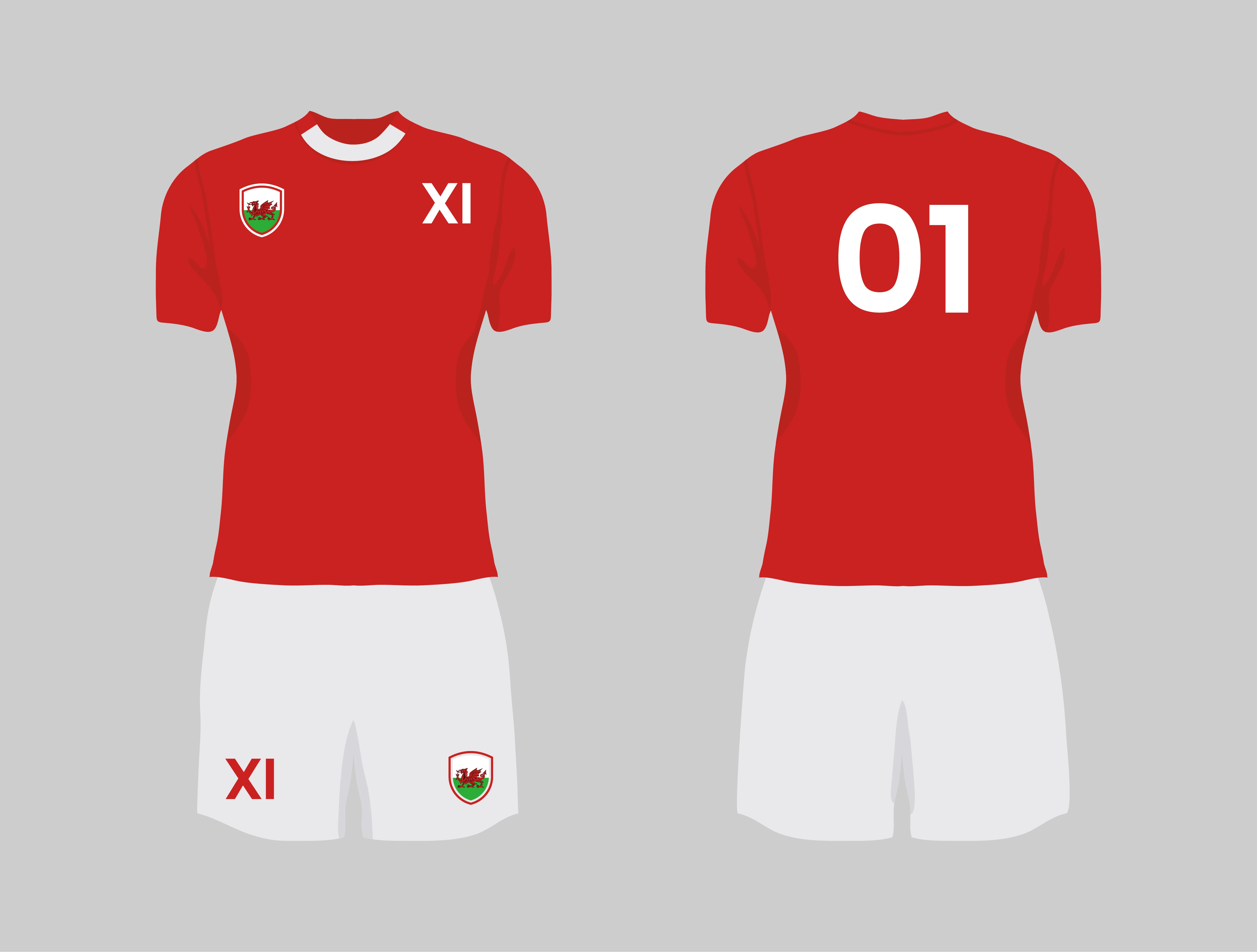
Thanks in advance!


Jeroen 

This topic has been closed for replies.
Correct answer CarlosCanto

Use Variable Data to replace the numbers, and Action (in Batch Mode) to save the different files.


check this tutorial to an awesome Illustrator Script and a Demo of the whole process

https://www.youtube.com/watch?v=eCBrK8tZAXQ

2 replies

Kurt Gold
Community Expert
Community Expert
September 17, 2020

There may be different ways, but in order to think about an appropriate approach, one thing is definitely required: At least one sample .ai file, so one can take a look.

Participant
September 17, 2020

Good suggestion indeed. Sorry, I should've added that directly. I cannot seem to edit my original message though and I cannot add .ai files to the reply. Here's the link to the file:

https://drive.google.com/file/d/12g0QaiAMqHD4P9i_t_YitE6z0dCQMr1L/view?usp=sharing

CarlosCanto
Community Expert
CarlosCantoCommunity ExpertCorrect answer
Community Expert
September 17, 2020

Use Variable Data to replace the numbers, and Action (in Batch Mode) to save the different files.


check this tutorial to an awesome Illustrator Script and a Demo of the whole process

https://www.youtube.com/watch?v=eCBrK8tZAXQ

Participant
September 19, 2020

This seems to be working so far, so I am happy with that. I do have one problem though that I cannot solve and maybe you can guide a bit. When my variables become double digit, the numbers are no longer aligned in the center of the shirt/artboard. 


I tried the following. I selected the number on the back and clicked Align -> Horizontal Align Center, which worked, but only for the currently active shirt.


Do you know how I can solve this? 

Participant
September 19, 2020

Ignore my message above. I cannot delete it unfortunately. I solved it by using a batched action.