


tomasg33705904
Participating Frequently
July 10, 2019
Question

Measurement precision FAIL

  • July 10, 2019
  • 2 replies
  • 4837 views

Hi,

I'm having troubles to make precise patterns because Illustrator keeps changing the measurement of my object.

Actually I'm having problems with patterns because white lines appears (but that's another issue...) so in order to fix that I read that it was needed to make forms with rounded figures. So I made a 20x20 mm square with the form of my pattern. See below.
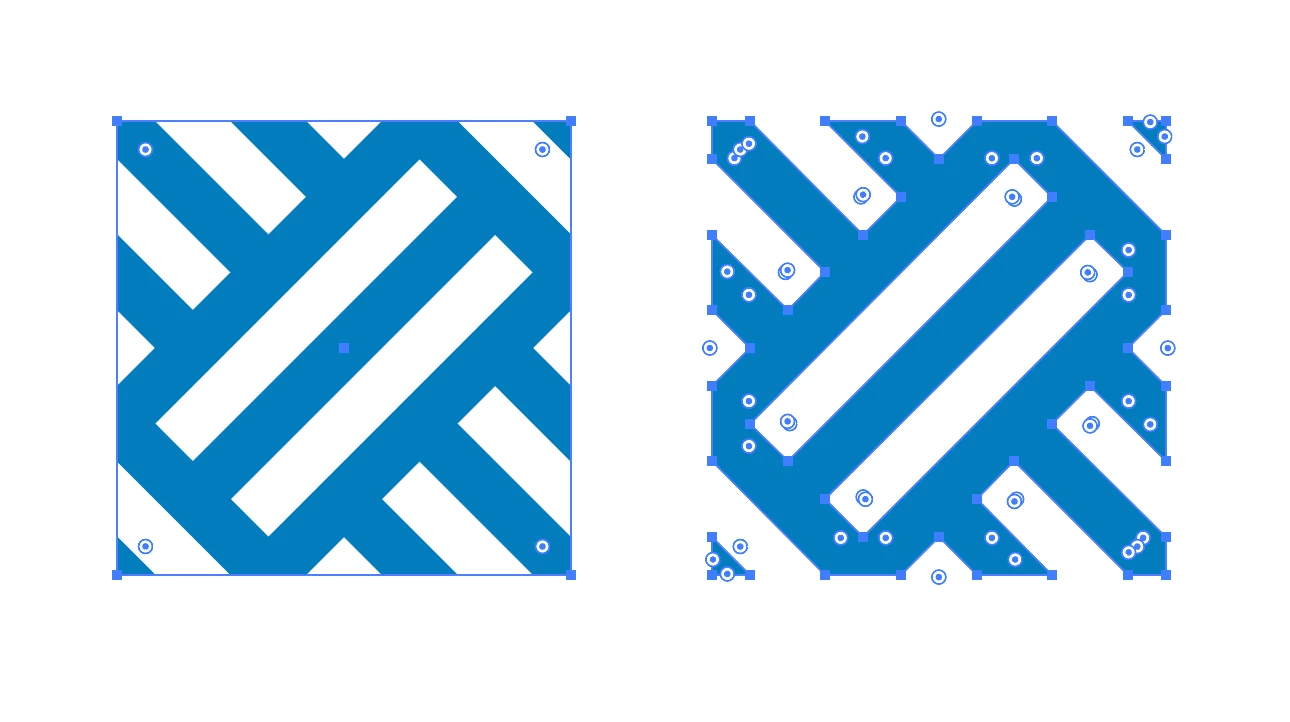
(I selected them so you can see the difference) I first tried with a 20x20mm mask (the one on the left) but the white lines kept appearing. So I decided to trim it (the one on the right) but what surprised me –and here comes the issue I'm asking help for– is that illustrator changes from a 20x20 mm square to a 20,03x20,02 mm square for a reason I can't understand. See below.
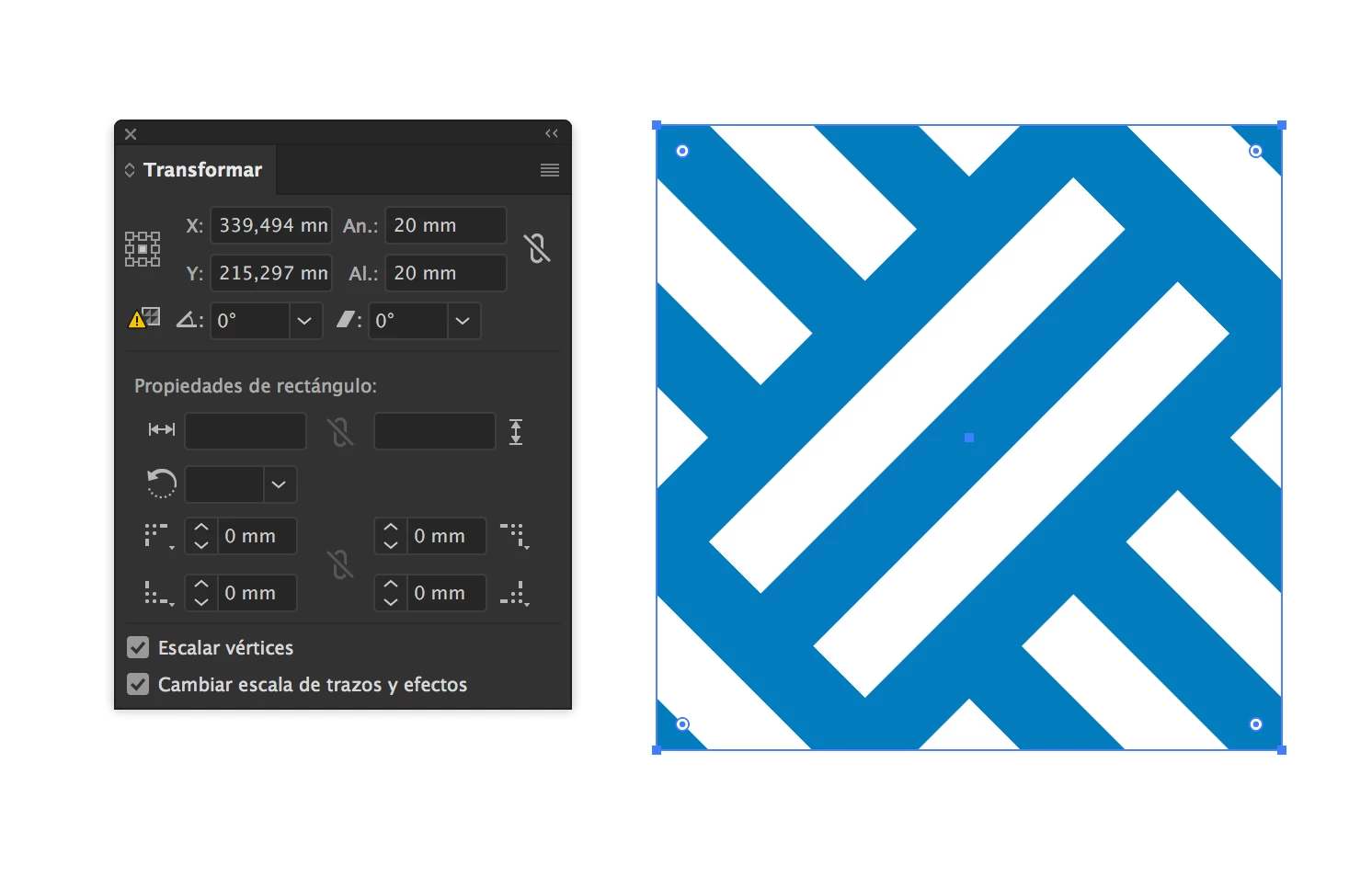
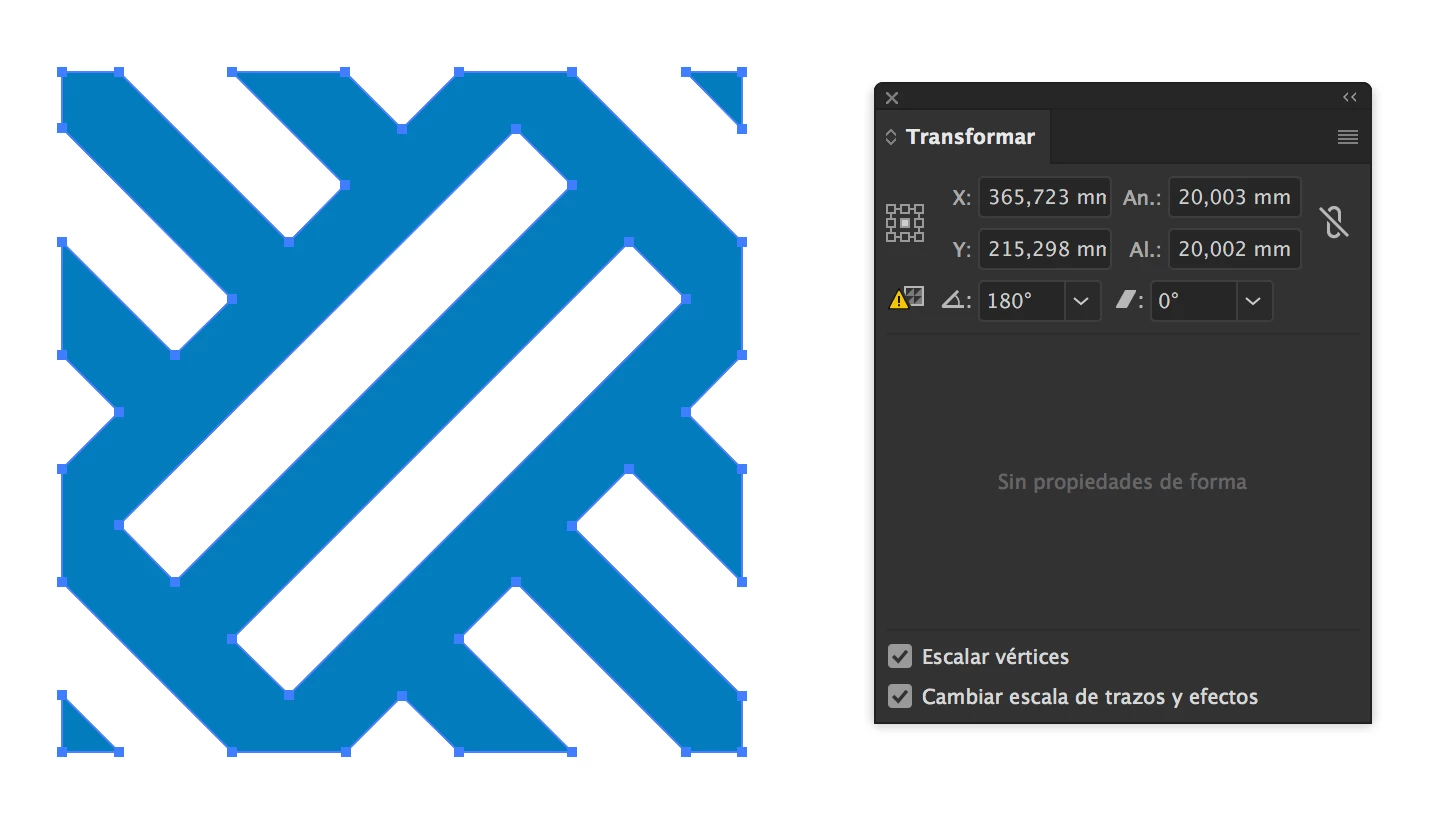
And that's very anoying. It's not the first time that I have this kind of issue.

Does anybody know why this happens?

Thanks a lot

This topic has been closed for replies.

2 replies

Ton Frederiks
Community Expert
Community Expert
July 11, 2019

tomasg33705904  wrote

Actually I'm having problems with patterns because white lines appears (but that's another issue...) so in order to fix that I read that it was needed to make forms with rounded figures. So I made a 20x20 mm square with the form of my pattern.

The rounded figures should be point or pixel values.

When exporting as an image, fractional pixels get rounded (anti-aliased) as whole pixels, and can give you extra unwanted pixels.

Your example of 20mm leads to these extra pixel: 20mm = 56,693 px

tomasg33705904
Participating Frequently
July 11, 2019

Great! Thanks for this answer! I think this will solve the white lines problem.

But what about the arbitrary measure increase?

Thank you

Doug A Roberts
Community Expert
Community Expert
July 11, 2019

Illustrator is accurate to 1000th of a point, or 72,000th of an inch. If you're working in millimetres, there will always be some rounding, but it shouldn't be noticeable at any realistic size.


Sorry, i'm mistaken/oversimplifying there. Here's Illustrator developer Teri Pettit on the actual accuracy:

"Illustrator preserves values to 0.0001 accuracy when files are saved. We don't write out more than that to save file space. All distances are saved in pts regardless of how they are entered and displayed.

Internally while the file is still open distances are preserved to the accuracy of a 32 bit floating point number expressed in points. An exact number of decimal places cannot be given because it is in the nature of floating points that they have more decimal places of accuracy on small numbers than they do on large numbers. That's what it means for the "point" to "float" - when it doesn't need as much room to represent the integer part, it moves over to give more memory to the fractional part. Near the center of the artboard (where the internal coordinates are in the range of about 8200 pts) I believe they have about 7 or 8 decimal places of accuracy, way up in the top left corner they have about 11 decimal places of accuracy, and way down at the bottom right corner of the pasteboard they have about 3 and a half decimal places of accuracy. (What it means for a number to have a fractional number of decimal places of accuracy is that adjacent representable numbers differ by that fraction. Remember, the program isn't putting the numbers in decimal form at all until it writes them out or displays them; internally they are binary.)

One way you can verify that even more than 4 decimal places of accuracy are used internally is to accumulate a bunch of transforms. Make a small vertical line, copy-paste-in-front so that you have two copies at the same place, select the top one, specify that you want to move it "0.00001 pt" horizontally, and then hit Cmd-D 100 times. Select both of them and you will see that they are 0.001 pt apart. (It would work even with 0.000001 pt, but I wouldn't want to ask you to hit Cmd-D 1000 times.)

Since options like stroke width always have small integer parts, they internally have extremely high precision while the file is open, although like all values they are rounded to 4 decimal places when saved."

Monika Gause
Community Expert
Community Expert
July 10, 2019

The white lines are preview issues. Most likely they don't exist.

Try and turn off Antialiasing in the Genereal preferences. If the lines are gone, you're good.

tomasg33705904
Participating Frequently
July 11, 2019

I don't think that's the issue because when I export a JPEG they are still visible.

Thank you for your answer anyway!