
Participating Frequently
December 12, 2023
Answered

Merging a shape with a font

  • December 12, 2023
  • 5 replies
  • 1934 views

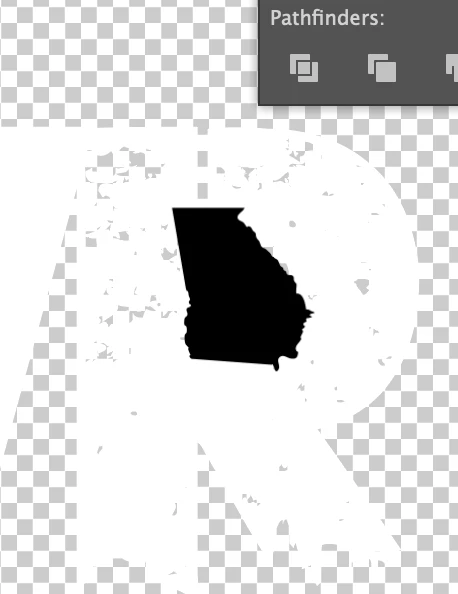
I'm trying to manipulate a font by adding a shape over a letter. I want to make a transparent shape of the state of Georgia inside the "R" but cannot figure out how to merge it together and make the state transparent as if it was part of the inside of the "R".

I saw a video about making the font into a shape first, but I still can't seem to add a transparent shape onto the letter.

This may not make sense, but hopefully the attachment will make sense. The shape of Georgia is black but I want it to be the same as the background so all I have is the letter "R"

Any help would be much appreciated!
This topic has been closed for replies.
Correct answer Monika Gause
https://drive.google.com/file/d/16Peu4-LhDqIX1E_BkUJhUOtZFPyD70sR/view?usp=drive_link

hopefully this works. The letters are white so they don't show up without a
transparent background.

Thank you. Georgia is still a placed PNG. You need to trace it first. I have used IMage Trace here. https://youtu.be/9PLe39vQvLo 

5 replies

Inspiring
December 14, 2023

If you wanted to keep the font live (not outlined), you can use Opacity Mask.

  1. Select the text and click the Make Mask button on the Transparency panel.
  2. You will see that the text on your artboard dissappeared and the second square in the Transparency panel is all black. Basically what is black will be masked and white will be shown.
  3. Click on the second square on the Transparency panel. Now you are in the masking mode to create a mask.
  4. Draw a white rectangular shape on your artboard over where the text was to show the text on the artboard.
  5. Then, paste your black state shape over the white shape to mask off that area. Make sure that its colour is 100% black.
  6. Now click on the first square on the Transparency panel to get out of the masking mode.

If you want the mask to move with your text, make sure that the icon between the two squares on the Transparency panel is the linked icon.

Participating Frequently
December 13, 2023

turn the type to outlines

ungroup the new type paths so you can select the R

place the georgia path over the R

with both layers selected click the "Subtract front from behind"  there is also a "subtract behind from front"  so select the correct one.

Participating Frequently
December 13, 2023
Thanks for your response. I have followed your instructions and nothing
happens. The Georgia image stays black. I'm not sure what to do from here.
Monika Gause
Community Expert
Community Expert
December 13, 2023

Please share the AI file.

Monika Gause
Community Expert
Community Expert
December 12, 2023

Outline the font via the Type menu

Ungroup, if it's a word.

Put the shape of Georgia in front.

Select the letter R and the shape and in the Pathfinder panel Subtract (second from left in the top row)

Participating Frequently
December 13, 2023
I have followed the instructions exactly and when I subtract on the
pathfinder panel it makes the "R" disappear and the shape of Georgia
remains the same.
Any suggestions would be appreciated
Monika Gause
Community Expert
Community Expert
December 13, 2023

Please upload an AI file that contains the outlined text and your shape.

kglad
Community Expert
Community Expert
December 12, 2023

in the future, to find the best place to post your message, use the list here, https://community.adobe.com/

p.s. i don't think the adobe website, and forums in particular, are easy to navigate, so don't spend a lot of time searching that forum list. do your best and we'll move the post (like this one has already been moved) if it helps you get responses.


<"moved from cc desktop">
kglad
Community Expert
Community Expert
December 12, 2023

what app?

Participating Frequently
December 12, 2023
Sorry I forgot to add that I’ve been using adobe illustrator

Sent from my iPhone