
Copy link to clipboard
Copied
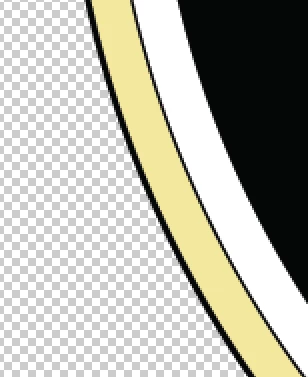
I am trying to merge two circles together. However, when I do this, the stroke thickness of the inner circle always becomes thinner. Is there any way to merge these two objects while maintaining the stroke thickness?
I'm fairly new to Illustrator. I've tried different things, like Expanding, but nothing seems to work.
1) The thickness I want:
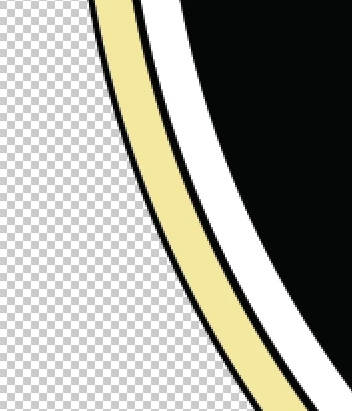
2) The thickness after merging the circles:
One of the chronic annoyances which has always plagued Illustrator is its sometimes goofy handling of strokes as opposed to fills. Pathfinder functions are one example. Merge works on fills and removes strokes. So...
1. Select all.
2. Object>Path>Outline Stroke.
3.Pathfinder palette: Merge. You now have a Group which contains only filled paths.
4. White Pointer: Select one of the black areas.
5. Select Menu: Same>Fill Color.
6. Delete.
JET
Copy link to clipboard
Copied
what does 'merging' mean in this instance? what are you trying to accomplish?
Copy link to clipboard
Copied
I'm trying to use merge in pathfinder to essentially create one circle from the two circles (yellow circle with black outline and white circle with black outline). So I want the appearance to be the same, but to only have one object.
Using a Photoshop analogy, I want to "merge down," or flatten, the images to create one. I realize Illustrator doesn't work the same way, so I'm trying my best to find a similar result.
I hope that makes sense.
Copy link to clipboard
Copied
right. so you have this structure (in outline mode)?

what sort of scale is this? in the pathfinder panel menu, if you select Pathfinder options, does altering the precision change anything?
also, what are you hoping to achieve by merging these shapes? do you need to for some reason? there's no 'merging' happening here really, all merge will do in this scenario is remove the black under the coloured shapes and create a group from the remainder. merge only really has an effect when you have discrete overlapping objects with the same fill colour.
Copy link to clipboard
Copied
I actually have this structure in outline mode:
Altering precision doesn't change anything for me.
I've created a logo for a school club. However, in order to get in on t-shirts I need to delete all the black and make it "transparent." I can do this by Select --> Same --> Fill and deleting all of the black. However, all it does is reveal the circles underneath (I created the logo, by making a number of circles layered on top of each other). I was hoping by merging all of the circles, I could then re-colour them and delete the black, allowing it to be transparent all the way through.
Logo:
Deleting the black (but being stuck with the white and gold underneath):
I want to delete all the black on the surface and have it delete everything underneath it as well. This is very easy with Photoshop, but I'm finding it difficult with vectors. I want it to look like this:
Copy link to clipboard
Copied
can you show that logo in outline mode?
Copy link to clipboard
Copied
Here it is. I'm not quite sure why the bottom half has that thick line (it shows 3 lines when I zoom in). I appreciate all your help so far. I'm a rookie with Illustrator, but learning lots fast.
Copy link to clipboard
Copied
One of the chronic annoyances which has always plagued Illustrator is its sometimes goofy handling of strokes as opposed to fills. Pathfinder functions are one example. Merge works on fills and removes strokes. So...
1. Select all.
2. Object>Path>Outline Stroke.
3.Pathfinder palette: Merge. You now have a Group which contains only filled paths.
4. White Pointer: Select one of the black areas.
5. Select Menu: Same>Fill Color.
6. Delete.
JET
Copy link to clipboard
Copied
in the second image of the first post, merge has apparently already taken place, yet there are still strokes.
if what JET suggests doesn't work, you might need to share the file as i'm having trouble reading the structure from these screenshots.
Copy link to clipboard
Copied
JET's method gets me very close. I think I can fiddle around with the rest. Thank you very much for the help!
Copy link to clipboard
Copied
This actually got me really close to where I need to be. Though there are still two thin black out lines ... but I can delete those individually. (I also lost the text on top, but I think I can fiddle around with that). Thanks for the help!
Copy link to clipboard
Copied
I also lost the text on top…
Convert the text to paths (Type Menu: Create Outlines) before performing the Merge. Then it will end up punched out of the white path behind it (as a Compound Path), which is what you want if the substrate being printed on is to serve as the color of the text.
JET
Copy link to clipboard
Copied
you are a life saver my friend
Copy link to clipboard
Copied
Thank you so much!! I had this problem for two days and could not figure it out!
Get ready! An upgraded Adobe Community experience is coming in January.
Learn more