
jahnayeO
Inspiring
February 17, 2019
Answered

More llustrator Issues: Connect the gaps

  • February 17, 2019
  • 3 replies
  • 309 views

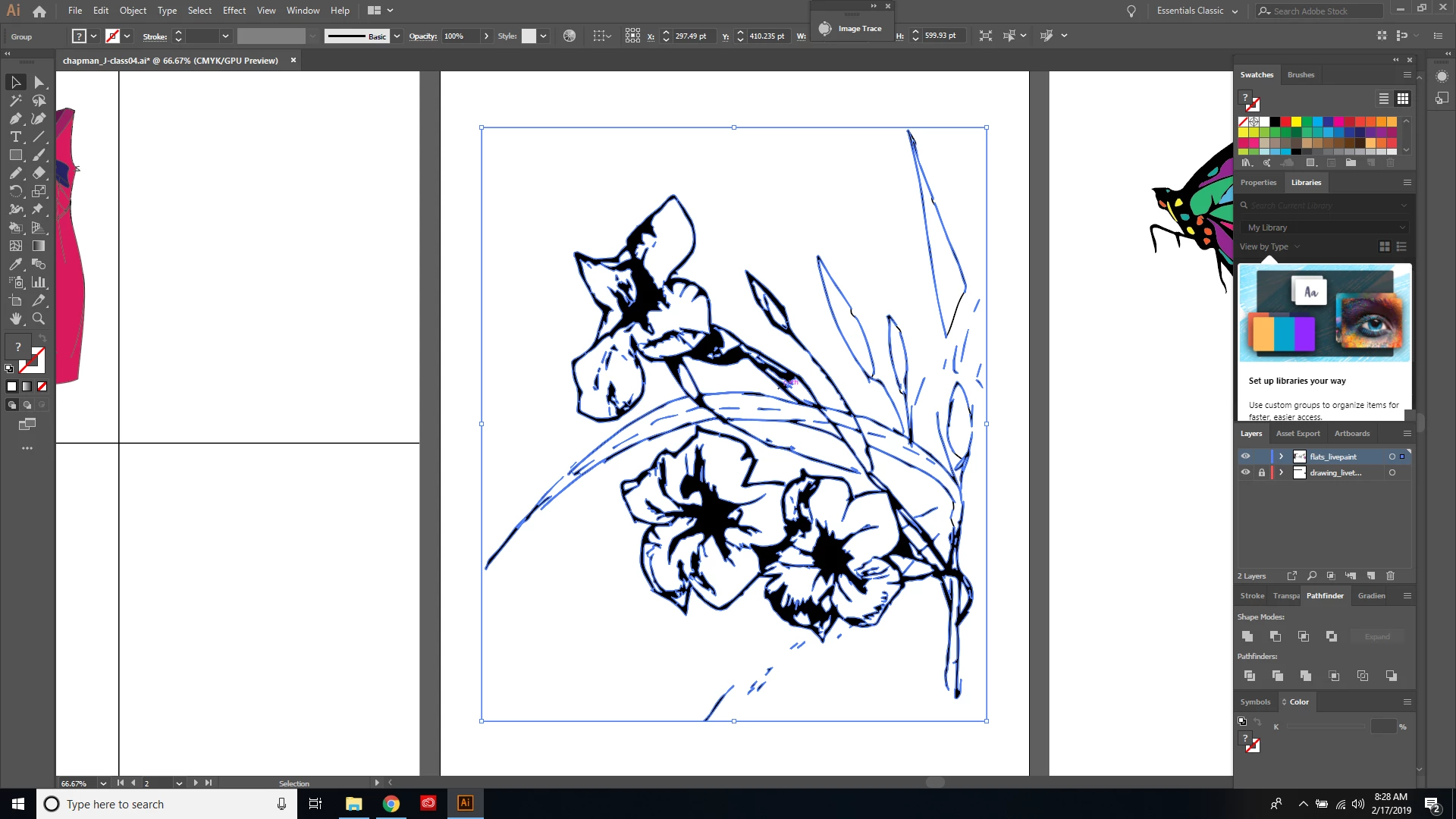
I cannot figure out how to do my homework for fashion tech class. I asked my instructor for help, but it did not work. For this assignment I have to connect gaps in flowers in order to use live paint to color in everything. Here are the steps I've done so far:

Selected whole picture, Image trace, changed line contrast, drew in lines to fill gaps with pencil tool, hit expand, live paint make ( I also tried filling in the gaps after hitting expand and that did not work either). The marks I made with the pencil tool wont connect with the rest of the photo, my instructor said to select the whole photo the select live paint again, but I can't select live paint again after I've selected it already.
[Title edited for clarity.  “Was More llustrator Issues“.]

This topic has been closed for replies.
Correct answer Ton Frederiks

jahnayeO  wrote

Selected whole picture, Image trace, changed line contrast, drew in lines to fill gaps with pencil tool, hit expand, live paint make ( I also tried filling in the gaps after hitting expand and that did not work either). The marks I made with the pencil tool wont connect with the rest of the photo, my instructor said to select the whole photo the select live paint again, but I can't select live paint again after I've selected it already.

You cannot edit your picture by drawing lines to fill gaps when you are Image tracing.

But after Expanding the traced image, you can do that, draw lines to cover gaps.

If you select your traced image and choose Live Paint, you can also draw lines or use the Live Paint > Gap Options.

You cannot select Live Paint if it is already a Live Paint object, you need to expand Live Paint first (but that does not make sense if you want to select it again).

3 replies

Doug A Roberts
Community Expert
Community Expert
February 18, 2019

jahnayeO  wrote

...my instructor said to select the whole photo the select live paint again, but I can't select live paint again after I've selected it already.

Select the live paint group and your additional lines, then click 'Merge Live Paint' in the control bar, or select Object > Live Paint > Merge.

KShinabery212
Community Expert
Community Expert
February 17, 2019

You have to expand the shapes and paths and lines.  Then you can use Live Paint.

Let's connect on LinkedIn. https://www.linkedin.com/in/kshinabery/
Ton Frederiks
Community Expert
Ton FrederiksCommunity ExpertCorrect answer
Community Expert
February 17, 2019

jahnayeO  wrote

Selected whole picture, Image trace, changed line contrast, drew in lines to fill gaps with pencil tool, hit expand, live paint make ( I also tried filling in the gaps after hitting expand and that did not work either). The marks I made with the pencil tool wont connect with the rest of the photo, my instructor said to select the whole photo the select live paint again, but I can't select live paint again after I've selected it already.

You cannot edit your picture by drawing lines to fill gaps when you are Image tracing.

But after Expanding the traced image, you can do that, draw lines to cover gaps.

If you select your traced image and choose Live Paint, you can also draw lines or use the Live Paint > Gap Options.

You cannot select Live Paint if it is already a Live Paint object, you need to expand Live Paint first (but that does not make sense if you want to select it again).