Inspiring
December 16, 2016
Answered

More tracing problems with hand-drawn art

  • December 16, 2016
  • 7 replies
  • 5290 views

Hello again,

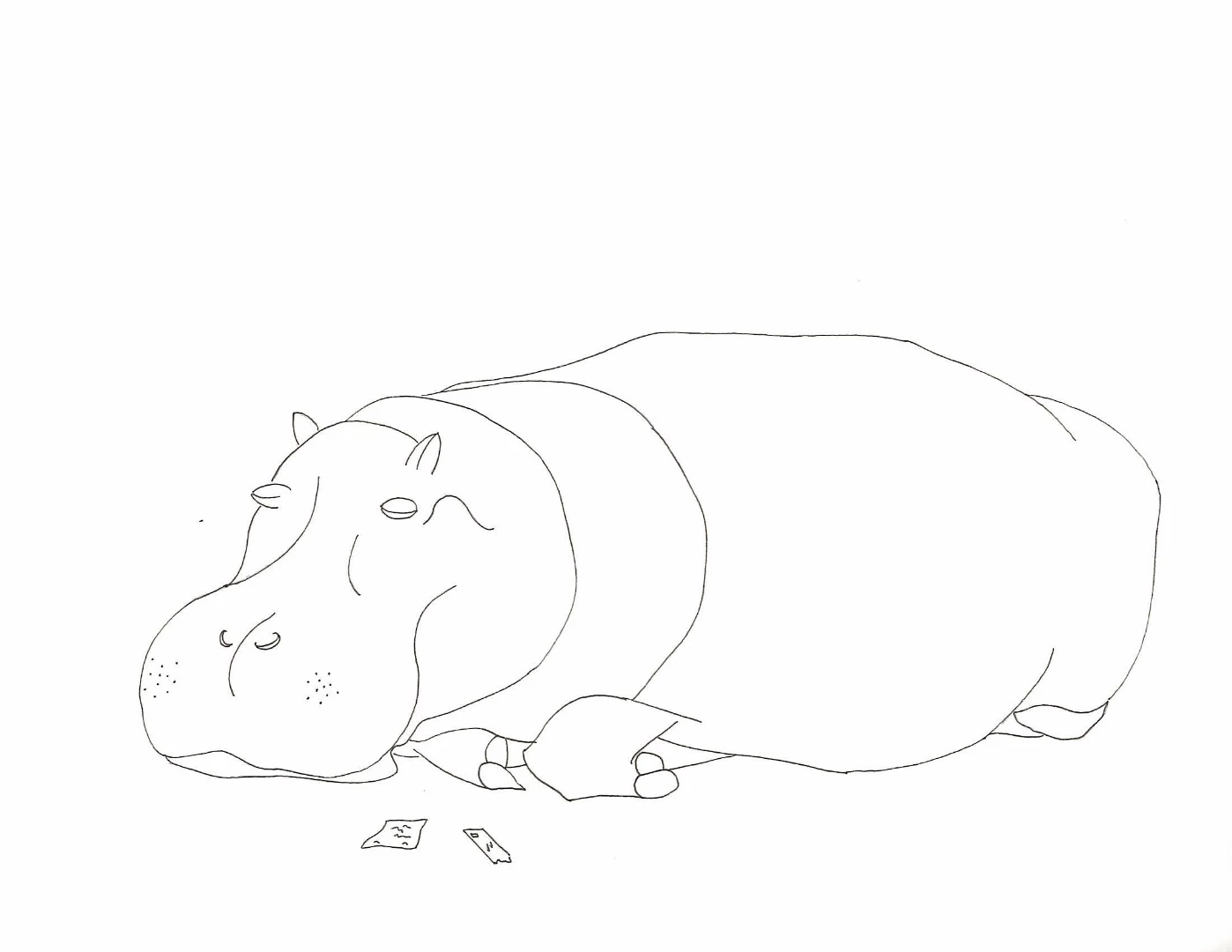
I'm still having problems tracing a VERY simple hand-drawn image. Here is a sample:

I've monkeyed with the trace for a couple hours and the most success I had was being able to join a few of the very small segments that the trace left out, and color a few of the small, completely closed segments. But now I've even lost the ability to recreate the anchor points. The best I can manage is to trace this image perfectly with every line accounted for. But then I can manipulate none of them.

    This topic has been closed for replies.
    Correct answer TreeBuffalo

    Thought I would tie this one off after a month of experimenting with AI. The biggest problem I was having that made my auto-traced sketches impossible to manipulate was the paths the auto-tracer was making. Despite having the paths scale set as low as it would go under the advance trace settings, the auto-trace was still making the trace overly complex. It would make a path for the outside of the stroke, the inside of the stroke, and a unifying middle path inside the stroke. But then it would jumble all these paths up at the slightest imperfection of my hand-drawn lines. This created a lot of anchor points and corner anchor points that were connected to the wrong paths.

    To fix it I have to zoom in and follow each path to see where it is joined with another path that it shouldn't be joined with, and break the path somehow (mostly with the eraser tool). Or join the path with anchor points to the corrected paths. Or some combination of the two. The point is, once I figured out the settings on the auto-trace to give me the best trace, it still wasn't giving me very good paths to work with. For anyone else who has this problem with auto-tracing your sketches, just get very familiar with the pen tool and then zoom in to the paths of your sketch to fix them manually.

    7 replies

    TreeBuffaloAuthorCorrect answer
    Inspiring
    January 11, 2017

    Thought I would tie this one off after a month of experimenting with AI. The biggest problem I was having that made my auto-traced sketches impossible to manipulate was the paths the auto-tracer was making. Despite having the paths scale set as low as it would go under the advance trace settings, the auto-trace was still making the trace overly complex. It would make a path for the outside of the stroke, the inside of the stroke, and a unifying middle path inside the stroke. But then it would jumble all these paths up at the slightest imperfection of my hand-drawn lines. This created a lot of anchor points and corner anchor points that were connected to the wrong paths.

    To fix it I have to zoom in and follow each path to see where it is joined with another path that it shouldn't be joined with, and break the path somehow (mostly with the eraser tool). Or join the path with anchor points to the corrected paths. Or some combination of the two. The point is, once I figured out the settings on the auto-trace to give me the best trace, it still wasn't giving me very good paths to work with. For anyone else who has this problem with auto-tracing your sketches, just get very familiar with the pen tool and then zoom in to the paths of your sketch to fix them manually.

    Myra Ferguson
    Community Expert
    Community Expert
    December 16, 2016

    The Shapebuilder Tool isn't going to make a fillable shape if the line segments don't form a closed shape. They'll  need to be joined first.

    Monika Gause
    Community Expert
    Community Expert
    December 16, 2016

    You could turn on the gap settings to make the shapebuilder close segments.

    John Mensinger
    Community Expert
    Community Expert
    December 16, 2016

    ^Right. The Shape Builder will tolerate gaps up to a certain point, and the tolerance is adjustable.

    Myra Ferguson
    Community Expert
    Community Expert
    December 16, 2016

    Oh, did you expand the result of the Image Trace? That'll turn it into lines that you can connect with the lines you're drawing. Then you can connect line segments you've drawn with the traced shape using the Join Tool which is in the same tool group as the Pencil Tool.

    When you're ready to fill it in, you'll probably want to close the shape so that it fills completely. You can do that with shape builder or Window > Pathfinder and under Shape Modes select Unite if it isn't already a closed shape.

    Inspiring
    December 16, 2016

    Myra Ferguson wrote:

    Oh, did you expand the result of the Image Trace? That'll turn it into lines that you can connect with the lines you're drawing. Then you can connect line segments you've drawn with the traced shape using the Join Tool which is in the same tool group as the Pencil Tool.

    When you're ready to fill it in, you'll probably want to close the shape so that it fills completely. You can do that with shape builder or Window > Pathfinder and under Shape Modes select Unite if it isn't already a closed shape.

    Yes, I've expanded every time.

    And I just tried the shape tool, but it won't join the colored segments to the white. They highlight when I drag over them, like normal, but that's it. However all the anchor points are there when I'm in the shaper tool, but then they're gone when I leave it.

    John Mensinger
    Community Expert
    Community Expert
    December 16, 2016

    Instead of struggling to make closed, fillable shapes out of a trace result (which, as you've learned can be a spaghetti bowl full of the unexpected), trace, expand, select all; then...

    Choose the Shape Builder, set a fill color, and click inside an area you want to fill.

    Ray Yorkshire
    Participating Frequently
    December 16, 2016

    those the setting I tried

    then Ungroup and tidy it up

    Inspiring
    December 16, 2016

    Ray Yorkshire wrote:

    those the setting I tried

    then Ungroup and tidy it up

    I tried this exactly as you did. Here is my result after selecting all and coloring:

    Myra Ferguson
    Community Expert
    Community Expert
    December 16, 2016

    The fills are showing up for each curve because the shape itself is not closed. If you select two segments that otherwise have a gap between them then draw over them with the Join Tool, it'll connect them. Close all the gaps in the perimeter, and you'll have a closed shape that you can fill.

    Ray Yorkshire
    Participating Frequently
    December 16, 2016

    Probably nothing you are doing is  wrong  -  image trace  simply isn't that accurate.

    But make sure to remember after Image Trace to  Expand .

    and then Object > Ungroup ,

    then  Select > Deselect

    Zoom into areas with the big gaps , select an end anchor point  with  the white arrow tool and drag to close the gap .

    Then select all and use the Shape Builder Tool   to make shapes to colour.

    You can double click on the Shape Builder Tool to set its options, like gap detection size,

    Inspiring
    December 16, 2016

    Ray Yorkshire wrote:

    Probably nothing you are doing is wrong - image trace simply isn't that accurate.

    But make sure to remember after Image Trace to Expand .

    and then Object > Ungroup ,

    then Select > Deselect

    Zoom into areas with the big gaps , select an end anchor point with the white arrow tool and drag to close the gap .

    Then select all and use the Shape Builder Tool to make shapes to colour.

    You can double click on the Shape Builder Tool to set its options, like gap detection size,

    Accuracy is one thing. None of the tools respond like they do when I create shapes inside the program. In particular the selection tool, which I need to color things. But also the anchor points are missing, so there is nothing to drag. I do see them when I hold the command button, but can't manipulate them. They just drag the entire trace around.

    Jacob Bugge
    Community Expert
    Community Expert
    December 16, 2016

    redgiancola,

    I believe the consistency (even with the solution attempts in your other thread) and strangeness of the issue may make it worth considering the list below (with the exclusion of 5) in this case).

    If things that should work simply refuse to (all possibilities exhausted (and carefully making sure you are performing (all) the needed things)), you may try the list below.

    Sometimes, (certain) things may fail or stop working for no apparent reason. When the (other) possible reasons/cures fail to work, it may be some kind of (temporay or permanent) corruption, or even some inconvenient preference setting(s), which may be cured with something on the following list set up in an attempt to provide a catchall solution for otherwise unsolvable cases. It starts with a few easy and harmless suggestions 1) and 2) for milder cases, and goes on with two alternative ways 3) and 4) of resetting preferences to the defaults (easily but irreversibly and more laboriously but more thoroughly and also reversibly), then follows a list 5) of various other possibilities, and it ends with a full reinstallation 6). If no other suggestions work, or if no other suggestions appear, you may start on the list and decide how far to go and/or which may be relevant.

    The following is a general list of things you may try when

    A) The issue is not in a specific file,

    B) You have a printer correctly installed, connected, and turned on if it is physical printer (you may use Adobe PDF/Acrobat Distiller as the default printer with no need to have a printer turned on, obviously you will need to specify when you actually need to print on paper), and

    C) It is not caused by issues with opening a file from external media (see at the bottom).

    You may have tried/done some of them already; 1) and 2) are the easy ones for temporary strangenesses, and 3) and 4) are specifically aimed at possibly corrupt/inconvenient preferences); 5) is a list in itself, and 6) is the last resort.

    If possible/applicable, you should save current artwork first, of course.

    1) Close down Illy and open again;

    2) Restart the computer (you may do that up to at least 5 times);

    3) Close down Illy and press Ctrl+Alt+Shift/Cmd+Option+Shift during startup (easy but irreversible);

    4) Move the folder (follow the link with that name) with Illy closed (more tedious but also more thorough and reversible), for CS3 - CC you may find the folder here:

    https://helpx.adobe.com/illustrator/kb/preference-file-location-illustrator.html

    5) Look through and try out the relevant among the Other options (follow the link with that name, Item 7) is a list of usual suspects among other applications that may disturb and confuse Illy, Item 15) applies to CC, CS6, and maybe CS5);

    Even more seriously (this may be serious because you may need to restore plugins and whatnot afterwards if you have customized things), you may:

    6) A) Uninstall (ticking the box to delete the preferences if applicable), B) run the Cleaner Tool (if you have CS3/CS4/CS5/CS6/CC), and C) reinstall. You may try without step B), but sometimes it is needed, because otherwise things may linger.

    To uninstall:

    https://www.adobe.com/cfusion/search/index.cfm?loc=en_us&term=uninstall&cat=support&product=illustrator&self=1

    Cleaner Tool:

    http://www.adobe.com/support/contact/cscleanertool.html

    Inspiring
    December 16, 2016

    Jacob Bugge wrote:

    1) Close down Illy and open again;

    2) Restart the computer (you may do that up to at least 5 times);

    3) Close down Illy and press Ctrl+Alt+Shift/Cmd+Option+Shift during startup (easy but irreversible);

    4) Move the folder (follow the link with that name) with Illy closed (more tedious but also more thorough and reversible), for CS3 - CC you may find the folder here:

    https://helpx.adobe.com/illustrator/kb/preference-file-location-illustrator.html

    5) Look through and try out the relevant among the Other options (follow the link with that name, Item 7) is a list of usual suspects among other applications that may disturb and confuse Illy, Item 15) applies to CC, CS6, and maybe CS5);

    Even more seriously (this may be serious because you may need to restore plugins and whatnot afterwards if you have customized things), you may:

    6) A) Uninstall (ticking the box to delete the preferences if applicable), B) run the Cleaner Tool (if you have CS3/CS4/CS5/CS6/CC), and C) reinstall. You may try without step B), but sometimes it is needed, because otherwise things may linger.

    Okay. It took awhile but I tried ALL these. And still no luck.

    Monika Gause
    Community Expert
    Community Expert
    December 16, 2016

    Use the pen tool and do it manually. These are just a few lines. Takes some minutes.

    Inspiring
    December 16, 2016

    Monika Gause wrote:

    Use the pen tool and do it manually. These are just a few lines. Takes some minutes.

    Do you mean redraw everything with the pen tool? I did try drawing on it, and the shapes I created with the pen tool worked and responded like they should. But this defeats the purpose of having the trace tool. And figuring out what I'm probably doing wrong.

    Or what's wrong with my computer. I only have 512mb of GPU. This is the minimum required to install Illy. 1GB is recommended. I'm thinking this might be the prob.

    Myra Ferguson
    Community Expert
    Community Expert
    December 16, 2016

    Instead of using the pen tool, I'd recommend using the pencil tool--unless you're more familiar and comfortable with the pen tool. The pencil tool was redone about a year or so ago. If you draw a segment with the pencil tool that doesn't fit the curve as you would like, redraw over it, and the curve will update with the new segment you've drawn. Here's more info on the pencil tool. Enhanced Pencil Tool | Illustrator CC.

    I wouldn't say manually tracing instead of using Illustrator's Image Trace defeats the purpose of the automated trace. It expands your options for choosing a technique that delivers the results you want in the most efficient way.