
Participant
August 27, 2017
Answered

My color swatch library disappeared!! why?? and how do I get it back?

  • August 27, 2017
  • 7 replies
  • 144640 views

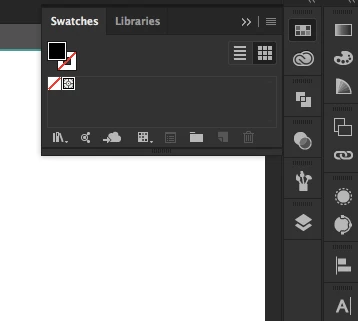
I Usually use my default color swatches that illustrator automatically gave me when I first downloaded it... but now when I open new documents, those don't show up anymore.. No my settings are not on greyscale. I did however catch it on greyscale when I first encountered this problem. The color swatches have been lost ever since then. How do I get my default Illustrator color library that Illustrator first starts you off with back in my color swatches and how do I keep it there??
Correct answer default5evlf4u15fda

This happens to me regularly where the default swatches will dissapear leaving just registration and no-color. Open the swatch library at the bottom left drop-down menu, then open the desired library (for me it is Art & Illustration in Default Swatches). Select all the colors you want (click + shift-click first and last), open the pallet options and select "Add to Swatches".

7 replies

RLChris121
Participating Frequently
November 12, 2024

Have also had similar issues with the color swatches going missing from my files for several months. One day a color Illustrator document may be open and being edited, the work is saved, and program is shut down for the day. With no changes being made to preferences.


The next day the same color drawing on the same computer is opened and now the color swatches are missing and color selection is limited to B/W. ??? Shouldn't color be a stactic menu item in a drawing software package? Resetting preferences and restoring missing color swatches prior to every editing session seems unproductive and repetitive. Why not have a program with menu items you need and use - predictably right there and ready to go every time? Saving a custom workspace sounds like a good idea to maintain often used menu items, if it was reliable - sadly this seldom ensures that a workspace will still be intact from day to day.


All too often the "correct answer" given is to simply reset preferences or select a standard workspace (like Essentials) and start over again.


My fastest workaround to restore colors and menus that have gone missing, is to open a NEW drawing, then copy and paste the corrupted drawing into it - and resave it.  This restores the color and other menu settings to the way they were set as defaults. The NEW drawing selection retains proper defaults, preferences and workspace settings. Seems a drawing may often lose those settings over time once it has been edited and saved. This is my method to get things back on track in the fastest way when colors and menu items go wonky on you.

Ton Frederiks
Community Expert
Community Expert
November 12, 2024

Are you opening an image version of your file?

default5evlf4u15fdaCorrect answer
Participant
February 6, 2023

This happens to me regularly where the default swatches will dissapear leaving just registration and no-color. Open the swatch library at the bottom left drop-down menu, then open the desired library (for me it is Art & Illustration in Default Swatches). Select all the colors you want (click + shift-click first and last), open the pallet options and select "Add to Swatches".

Participant
February 6, 2023

Thank you very much for your help!

peterj10925926
Participant
February 13, 2020

I see this is a really old post. Did you figure it out? I'm having the same problem and don't know what to do. I've tried everything that's been recommended here and nothing works.

Participant
May 10, 2020
Participant
November 27, 2020

I'm a AI beginner and came across the issue of missing swatches.  The problem is I was opening an image file (jpg) which 'disables' the swatch library from showing up.  I finally figured out this process that worked:


  1. Open your image file and do an Image Trace to convert the image to vector object
  2. Open a new file window (File / New / Create) which should display your default swatches
  3. Copy the vector object from the first window (the jpg file) into the new window by Direct Selecting all, then Edit / Copy / Paste into new file window
  4. The vector object will now be in the new window where the swatches are displayed


Hope this helps. 

c8minus
Participant
September 12, 2019

I have been having this issue for a few months now as well. Each time I open Illustrator my swatches window is missing, and I had to open the swatches window and re-load my swatches. I think I found the solution. Within the swatches window/panel click the upper right hamburger menu to reveal the swatches options - make sure persitent is checked. Checking that appears to be holding the swatch window/panel when I close then re-open illustrator.

Participant
October 17, 2019
I am also having this problem and can't work out how to get them back. I have so much work to do and now can't complete it 😞
Monika Gause
Community Expert
Community Expert
October 17, 2019
Your swatches are gone? Just create new ones. https://helpx.adobe.com/illustrator/using/using-creating-swatches.html If you want swatches in every new document, don't bypass the new document dialog box by opening a JPEG or the like.
DarcyElements
Inspiring
July 19, 2019

I just had this happen to me.  The default swatches no longer exist.  Is there a place one can download them?

Larry G. Schneider
Community Expert
Community Expert
July 19, 2019

What OS and version are you using? What version of AI? Have you tried the option from the marked answer? What type of file have you opened? If a raster file it will not show any swatches.

Participating Frequently
June 20, 2018

Also, at the bottom of the Swatches panel is the Show Swatch Kinds menu. I had Show Pattern Swatches selected by accident and thought all my document swatches were gone, but when selecting Show All Swatches they were back!

Simply Art Home
Participating Frequently
November 22, 2022

THANK YOU!!!!!

Ton Frederiks
Community Expert
Community Expert
August 27, 2017

Do you have this problem when you create a new file? File > New... ?

This problem normally happens when you open an image file.

1bandyAuthor
Participant
August 27, 2017

yes every time I create a new file or open a project from my creative cloud library. I have an iPad pro and i use sketch and draw

Ton Frederiks
Community Expert
Community Expert
August 27, 2017

You can always load the default swatches using the Swatches panel menu.

Did you try to reset  your preferences?

How to set preferences in Illustrator

To restore preferences quickly using a keyboard shortcut

Press and hold Alt+Control+Shift (Windows) or Option+Command+Shift (macOS) as you start