Participating Frequently
September 9, 2020
Answered

My gradient are changing appearance when I copy a rectangle

  • September 9, 2020
  • 8 replies
  • 1423 views

Hello,


I have come across this problem today, I havent had it before. I drew a simple rectangle and added a gradient fill, I then copied it but the appearance changed even though all the gradient setting are the same, exactly the same swatch etc Black 30% to white. I made a further copy and this also change again. I have looked in my setting but cant find anthing? I even tried drawing a new shape instead of copying but the same happend, also tried locking the first shape but same thing? Any help appreciated its driving me mad.


Thanks

 

This topic has been closed for replies.
Correct answer Ares Hovhannesyan

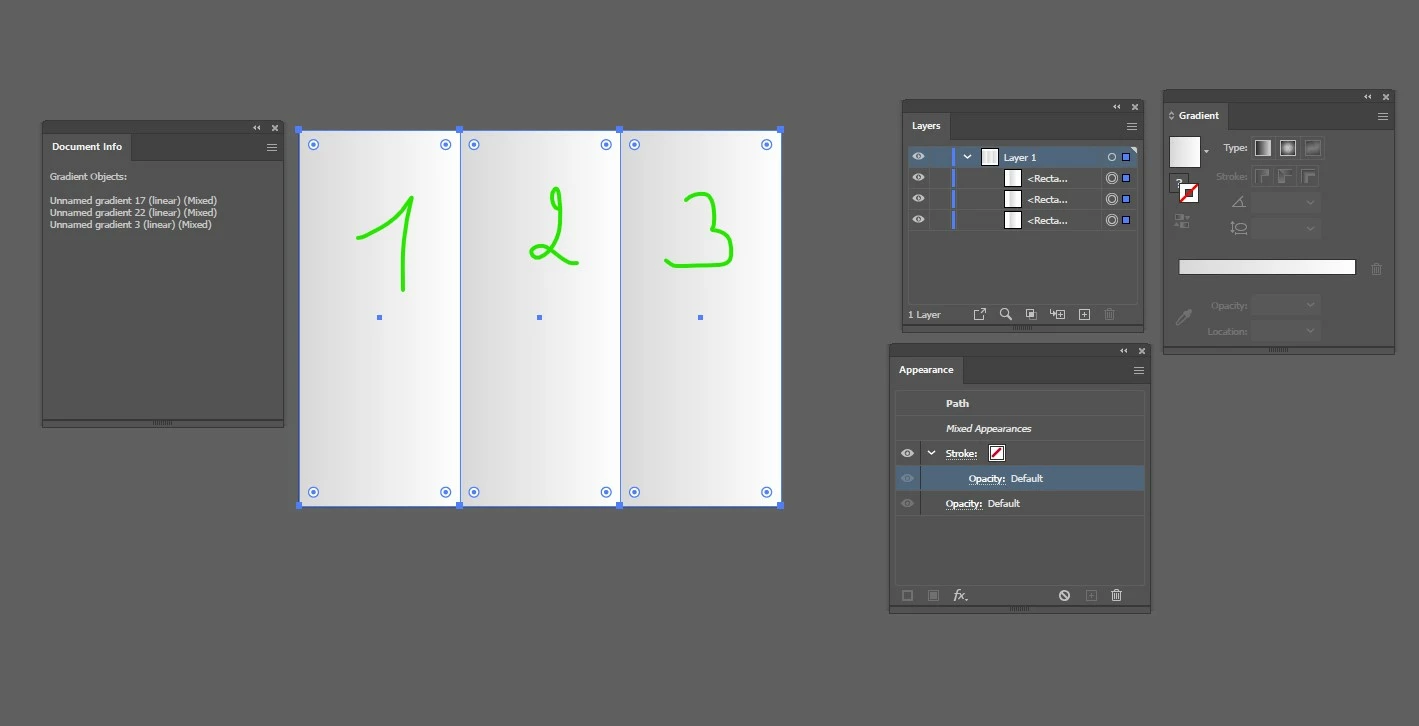
Here is what I see and Ai reports me about document info. I have selected all 3 rectangle object that you have created with help of Selection Tool - thats mean that I have mixed object. Each of your object content Liner Gadient Fill and "no stroke". 


Do I understand your problem correct? When you are drawing any new object it appears with gradient? If it so that means that Your Basic Appearance consist of Fill-Liner Gradient Fill and No Stroke that you have drawn previously.. 

If you open the context menu from the top left of Appearance Panel you will see commands "Clear Appearance" and "New Art Has Basic Appearance". "New Art Has Basic Appearance" allow you to draw the new object that has the last selected object. 

If you click on  "Clear Appearance" Ai will change you Fill and Stroke to "no color". Basic Appearance have white FIll and Black Stroke. There is shortcuts also "D" for reducing to Basic Appearance. If you will draw now a new object it will have standard basic appearance.


8 replies

Kurt Gold
Community Expert
Community Expert
September 11, 2020

I'm still pretty sure that you are just looking at an optical illusion.


Do the test that I've already suggested (vertical alignment) and you should see that all grads have the same appearance.


The greyscale world is very tricky. It sometimes shows the most astounding things of the world.

Ares Hovhannesyan
Community Expert
Ares HovhannesyanCommunity ExpertCorrect answer
Community Expert
September 10, 2020

Here is what I see and Ai reports me about document info. I have selected all 3 rectangle object that you have created with help of Selection Tool - thats mean that I have mixed object. Each of your object content Liner Gadient Fill and "no stroke". 


Do I understand your problem correct? When you are drawing any new object it appears with gradient? If it so that means that Your Basic Appearance consist of Fill-Liner Gradient Fill and No Stroke that you have drawn previously.. 

If you open the context menu from the top left of Appearance Panel you will see commands "Clear Appearance" and "New Art Has Basic Appearance". "New Art Has Basic Appearance" allow you to draw the new object that has the last selected object. 

If you click on  "Clear Appearance" Ai will change you Fill and Stroke to "no color". Basic Appearance have white FIll and Black Stroke. There is shortcuts also "D" for reducing to Basic Appearance. If you will draw now a new object it will have standard basic appearance.


Kurt Gold
Community Expert
Community Expert
September 9, 2020

What do you see on your screen if you arrange the rectangles vertically (perfectly aligned) instead of horizontally?

Kurt Gold
Community Expert
Community Expert
September 9, 2020

At what angle are you looking at your monitor?


Apart from that, it may just be an optical illusion.

Lou SharpAuthor
Participating Frequently
September 9, 2020

Pretty much straight on, but i dont think thats the problem as the original screen shot shows what is on my screen within Illustrator and thats the same file I shared?

Kurt Gold
Community Expert
Community Expert
September 9, 2020

Thanks for the sample file.


I cannot see any difference between the three rectangles. They have all the same appearance.


Am I overlooking something?

Lou SharpAuthor
Participating Frequently
September 9, 2020

On my screen they look as per the attached screen shot so the one on the right look darker? Is this a setting I have somewhere?


Thanks

Kurt Gold
Community Expert
Community Expert
September 9, 2020

Which version of Illustrator are you using?


Can you share a sample .ai file?

Lou SharpAuthor
Participating Frequently
September 9, 2020

CC 2020

Lou SharpAuthor
Participating Frequently
September 9, 2020

And on a MacBook Pro

Lou SharpAuthor
Participating Frequently
September 9, 2020

Thats just the screen shot there are exactly the same as i copied them (alt+drag, also tried copy/paste from menu)?

Myra Ferguson
Community Expert
Community Expert
September 9, 2020

It looks like your rectangles might be different sizes. That would expand or compress your gradient.

Ares Hovhannesyan
Community Expert
Community Expert
September 9, 2020

Are you able to correct gradient in copied files via gradient tool or gradient panel?

Lou SharpAuthor
Participating Frequently
September 9, 2020

Yes I have other downloaded files where i can easily change the gradients?