Exit
  • Global community
    • Language:
      • Deutsch
      • English
      • Español
      • Français
      • Português
  • 日本語コミュニティ
  • 한국 커뮤니티
Locked
0

Need non printing but visible objects in a PDF from a template.

New Here ,
Dec 08, 2018 Dec 08, 2018

I tried to make a template with some non-printing elements in it.

I put them on a separate layer and switched off the 'print' tick box.

This works fine when printing in Illustrator but the saved PDF is also missing the objects.

I tried to switch off printing of the layer in Acrobat (that works as well) but the re-opened and edited PDF file has it switched on again.
Any ideas anyone?

7.7K
Translate
Report
Community guidelines
Be kind and respectful, give credit to the original source of content, and search for duplicates before posting. Learn more
community guidelines

correct answers 1 Correct answer

Community Expert , Dec 08, 2018 Dec 08, 2018

https://forums.adobe.com/people/ivo+dielen  wrote

I tried to switch off printing of the layer in Acrobat (that works as well) but the re-opened and edited PDF file has it switched on again.

Hi Ivo,

To make sure I understand your workflow:

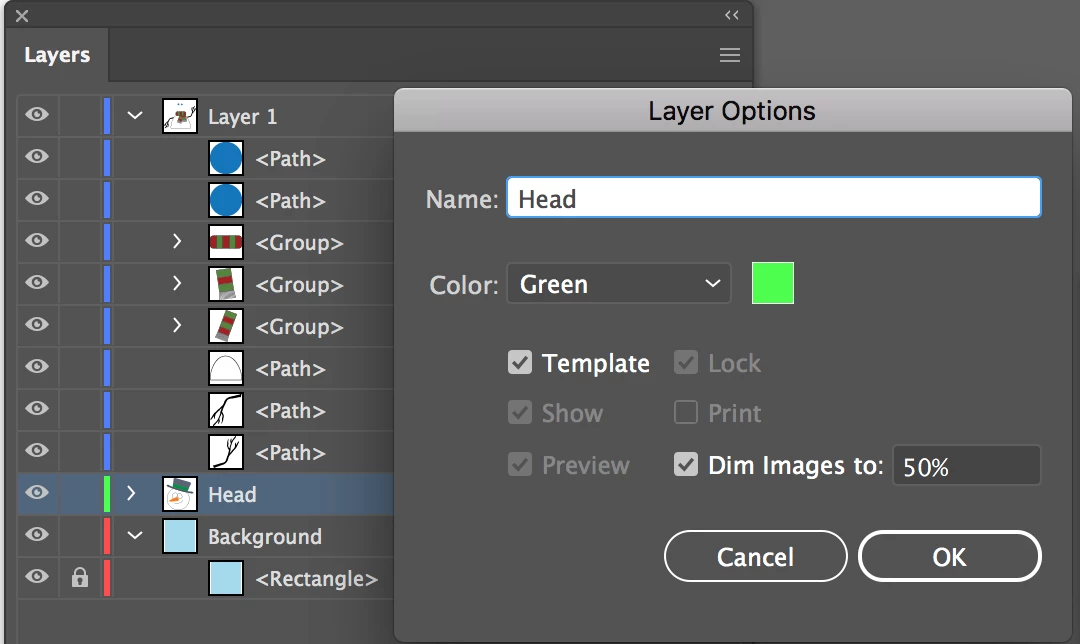
  • When you make the template, do you make a template layer by changing the Layer Options to make it a non-printing template layer?
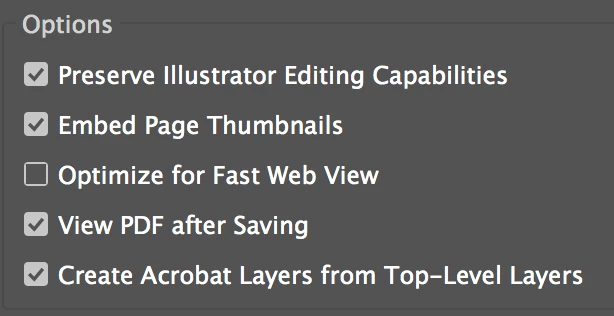
  • Then you make the PDF with the top level layers creating Acrobat layers

  • When you open the file in Acrobat, the hidden layer is hidden by d
...
Translate
Adobe
Community Expert ,
Dec 08, 2018 Dec 08, 2018

You want that some elements in your PDF don't print, but the others do?

I would guess that you need to ask this in the Acrobat forum.

Translate
Report
Community guidelines
Be kind and respectful, give credit to the original source of content, and search for duplicates before posting. Learn more
community guidelines
New Here ,
Dec 08, 2018 Dec 08, 2018

Elements or layers, either will do. But they must show in a PDF save out of Illustrator.
I posted it here because I don't really want to edit each and every PDF in Acrobat.

You can set a layer to not print in Acrobat but then I need to open them one by one which is what I am trying to avoid.

If you do that in Illustrator's layer settings, it does not show in the PDF.

Translate
Report
Community guidelines
Be kind and respectful, give credit to the original source of content, and search for duplicates before posting. Learn more
community guidelines
Community Expert ,
Dec 08, 2018 Dec 08, 2018

I'm sorry, but I still don't understand your goal? Every time I read your posts, I can interpret it multiple ways.

Are you using the workflow that I suggested or something else?

I tried to switch off printing of the layer in Acrobat (that works as well) but the re-opened and edited PDF file has it switched on again.

Any ideas anyone?

And what are you trying to do in Acrobat if not what you said above??

I apologize for not understanding, but can give a much better answer once I know what you want to do, so thanks. Screen shots are extremely helpful.

~ Jane

Translate
Report
Community guidelines
Be kind and respectful, give credit to the original source of content, and search for duplicates before posting. Learn more
community guidelines
New Here ,
Dec 08, 2018 Dec 08, 2018

Sorry Jane, the answer was to Monika's reply,
They are moderated so with a bit of delay.

If I understand it well, your solution will work but I need to open each file in Acrobat, which is what I hoped to avoid.

What I'm trying to do here is have a template file (either .ait or .ai or pdf) that I can edit in Illustrator.

I need a black background to present designs to the client but don't want to print that layer (it costs a ton in toner).

Unchecking the 'print' box in Illustrator is what I need but then in a PDF file I can send by email.

Ivo

Translate
Report
Community guidelines
Be kind and respectful, give credit to the original source of content, and search for duplicates before posting. Learn more
community guidelines
Community Expert ,
Dec 08, 2018 Dec 08, 2018

Hi Ivo,

I didn’t catch that the other reply was not in respose to me, so sorry!

Do you want the black box to show in both Acrobat and in Illustrator but not print in either?

In Illustrator, put it on a template layer and change the Dim setting so it doesn’t dim. Making it a template layer makes in non-printing.

In Acrobat, you need to change the options to show the layer every time the document is opened and make it non-printing.

This is a volunteer forum, and my accountant just called and is on her way over three hours early, so I can’t check this next part now, but in Acrobat, you can write Actions that can be applied to one or more documents at the same time. I know Layer visibility is actionable, I’m not sure about Layer options to make one layer non-printing. I can check this later, or you can try it yourself if you are good with Acrobat.

Action tool  > New Action > Select from the list on the left and move to the right. Once there, there is a checkbox for user input (or not) and an options button to choose settings.

I‘ll come back after this meeting and will look for your input. If it’s actionable in Acrobat, and I don’t know that it is, that would be a good option.

~ Jane

Translate
Report
Community guidelines
Be kind and respectful, give credit to the original source of content, and search for duplicates before posting. Learn more
community guidelines
Community Expert ,
Dec 08, 2018 Dec 08, 2018

Also, you can attach JavaScript to an Action. You might ask on the Acrobat forum if setting Layer Options is actionable or if it can be done with JavaScript. If so, I would go that way.

All the the Acrobat sub-forums are here: Acrobat

Translate
Report
Community guidelines
Be kind and respectful, give credit to the original source of content, and search for duplicates before posting. Learn more
community guidelines
Community Expert ,
Dec 08, 2018 Dec 08, 2018

https://forums.adobe.com/people/Ivo+Dielen  schrieb

If you do that in Illustrator's layer settings, it does not show in the PDF.

Then you want to post it on http://illustrator.uservoice.com as a feature request.

Translate
Report
Community guidelines
Be kind and respectful, give credit to the original source of content, and search for duplicates before posting. Learn more
community guidelines
Community Expert ,
Dec 08, 2018 Dec 08, 2018

https://forums.adobe.com/people/ivo+dielen  wrote

I tried to switch off printing of the layer in Acrobat (that works as well) but the re-opened and edited PDF file has it switched on again.

Hi Ivo,

To make sure I understand your workflow:

  • When you make the template, do you make a template layer by changing the Layer Options to make it a non-printing template layer?
  • Then you make the PDF with the top level layers creating Acrobat layers

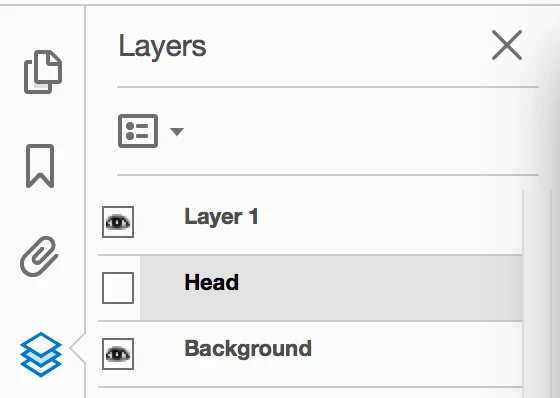
  • When you open the file in Acrobat, the hidden layer is hidden by default. The layers panel is showing in the left hand panels. Click to expand and turn on the hidden layer.
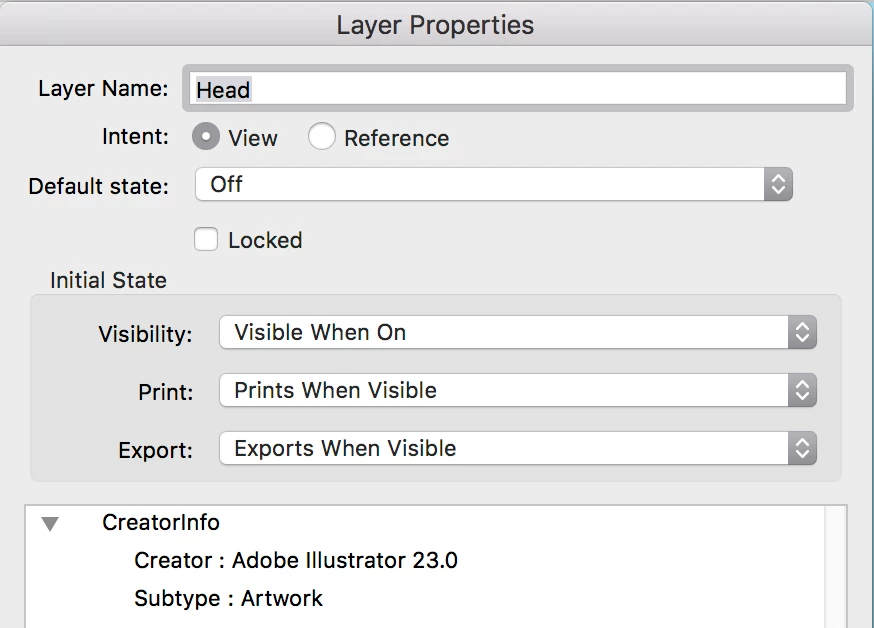
  • In Acrobat, you have more choices for the layer. Right click the layer to get Layer Properties. Right now my default state is Off, meaning that if I make the layer visible, then save, close, and reopen, it will be off again. That's what happened to you.

    If I set this control to On, the Visibility control says that because I chose On, it will be Visible by default when I reopen, but I have other choices. I also have choices for how this layer prints and exports. Play with these settings and see if that answers your question.

~ Jane

Translate
Report
Community guidelines
Be kind and respectful, give credit to the original source of content, and search for duplicates before posting. Learn more
community guidelines
New Here ,
Mar 30, 2023 Mar 30, 2023
LATEST

You can double-click - just to the right of the "layer name" of the layer that you do not want to print, and uncheck the "[   ] Print" box. Then all layers that you have the eyeball-icon turned on WILL SHOW, but the layer(s) that you have unchecked the "Print" box will NOT print. It works like magic!! 

Translate
Report
Community guidelines
Be kind and respectful, give credit to the original source of content, and search for duplicates before posting. Learn more
community guidelines