
resourceful_Crystal98A2
Participant
April 30, 2018
Answered

Object becomes pixelated when I apply grain texture

  • April 30, 2018
  • 4 replies
  • 26896 views

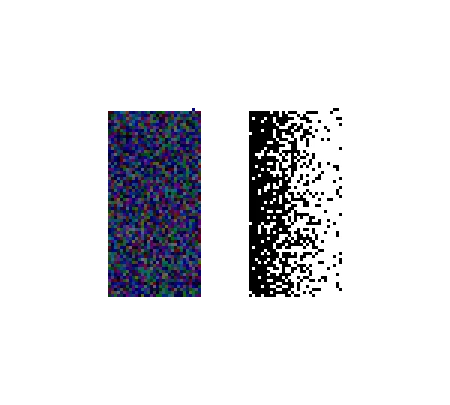
When I apply the grain texture effect, the objects are super pixelated. Whether it be a gradient mask or a regular object, they always turn out pixely and not that stippled look it should be.  Below is an example...the left image was originally a blue rectangle before the texture was applied, and the right is a gradient with the texture applied.

What am I doing wrong? These aren't zoomed in really far or anything either.
Correct answer Mohammad.Harb

check the resolustion if it is set to High from

Effect-> Document Raster effects settings

4 replies

Participant
February 13, 2024

Hello, I have no idea if people are still having this problem, but none of the solutions below worked entirely for me. What did work: still go to Effects > Document Raster Effects Settings and under Resolution, even if its already 300 ppi and you're still having the pixilation issue, change it to anything on the Other setting (bottom of drop down), like say type in 600 ppi, and now it will load correctly. Not sure if this is a graphics card issue on my computer, but I'm sure someone else will have the same problem. Hope this helps!

Monika Gause
Community Expert
Community Expert
February 13, 2024

@stephenb12860235  schrieb:

Hello, I have no idea if people are still having this problem, but none of the solutions below worked entirely for me. 


Everyone wrote the same as you did.

Participant
May 17, 2024

You could have Just asked me to show that if you actually wanted to help instead of being rude to me. Cheers for your help ...


Having the same issue as you Lily, and knew exactly what you were talking about before you posted the pictures.

Stephen B said earlier in this thread that switching the Resolution in the Document Raster Effects Settings to something other than 300 and then back worked for them, and it did for me as well - but only until I try to move or edit the affected layer/object again. Not a very useful workaround, unfortunately. 

[Edited by moderator for abusive content]

Would love to hear if you've found a permanent solution!

Participating Frequently
April 22, 2020

Thank you! It was driving me nuts until I found your post.

resourceful_Crystal98A2
Participant
April 30, 2018

thanks! the resolution was not set to high. when i changed to high, it fixed the problem.

Mohammad.Harb
Community Expert
Mohammad.HarbCommunity ExpertCorrect answer
Community Expert
April 30, 2018

check the resolustion if it is set to High from

Effect-> Document Raster effects settings

Ares Hovhannesyan
Community Expert
Community Expert
April 30, 2018

Any effects in AI from Effects Panel in below section are raster effects. Did you add that texture from Effects Panel?

resourceful_Crystal98A2
Participant
April 30, 2018

Yes I applied from textures panel