
Participant
April 30, 2020
Question

Outline Stroke not working as expected

  • April 30, 2020
  • 4 replies
  • 14288 views

Illustrator Version CS3 13.


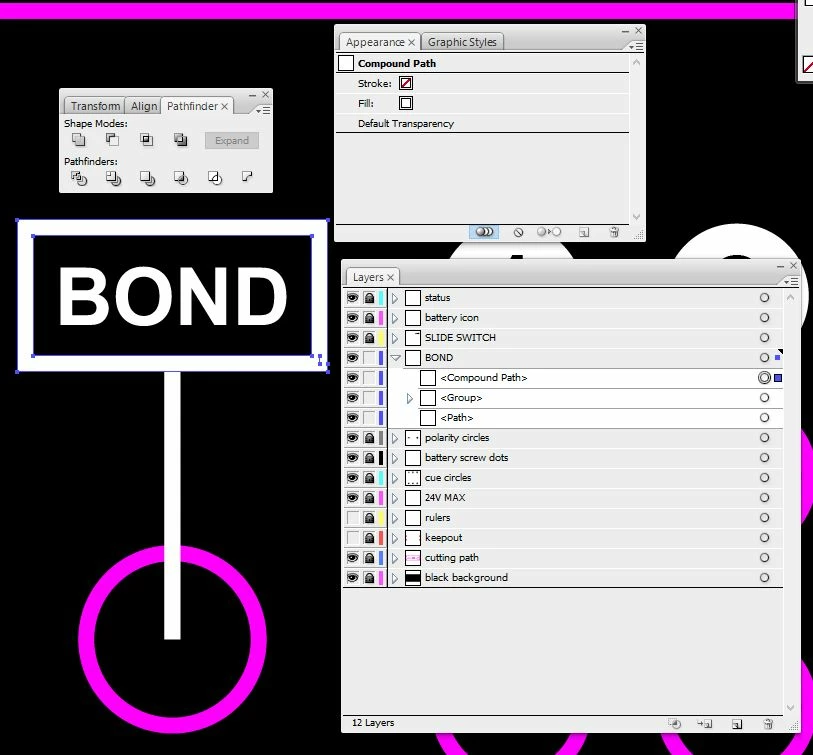
I have a rectangular path with rounded corners.

It has a stroke aligned to the inside of the path.

I wish to outline the stroke.

I would normally do this by selecting the object with the Direct Selection Tool and clicking Object > Path > Outline Stroke.

However, when I do this the Outline Stroke created is on the outside of the original path and also does not have the rounded corners.


What am I doing wrong?


Before

 

After
4 replies

Peter Villevoye
Community Expert
Community Expert
June 4, 2020

I'm not able to procuce the same incorrect outlines, based on either Outline Path and Expand. I even selected different instances of straight, rounded, and sqaure caps together, with or without stray anchor points (always a nice wrecker to test) to see if that caused any unexpected results. But all methods still work properly...

So there must be something else happening in your files.

Could you try creating a new sample, to verify whether it's a structural problem of your software version ? Or post a copy of your misbehaving file ?

Ronen Schmitz Even Zur
Known Participant
January 23, 2022

I have the same issues as @thralthamidor:

And I believe it is a bug, or rare use case that hasn't been addressed properly.


I have a path, at a width of 24pt, and rounded caps. Both end anchors are not smoth, i.e. they have no handles. 
In that case: No matter if I apply Object/ Expand or Object/ Path/ Outline Stroke, the rounded caps will not be transformed to a correct shape.


One workaround is:
Reduce the line width of the path, until any of the expand/ transform to shape methods work properly and render the rounded caps properly. (In my case, I had to reduce the line width of the path to 20pt.)

Afterwards apply Object/ Path/ Offset Path by a half of the amount you needed to reduce the line width, in order to get the correct shape thickness. (In my case then, I had to offset the path by 2pt, i.e. 24 - 20 / 2 = 2)


Another one – not recommended one – is: 
Convert the end anchors/ point to smoth points with at least one handle. 

I don't recommend it, because there is no specific command that will do this without altering the design. So you need to do it manually to perserve the original design. 


Attached is a file for anyone of you to try, and for the Adobe developers to reproduce the bug and fix it.
@Peter Villevoye I understood you couldn't reproduce the bug. Maybe this file will enable you.


If the upload feature would actually work for ai. files, I could upload the file, but the interface tells me the mime type is incorrect. These developers... 😉


Ronen Schmitz Even Zur
Known Participant
January 24, 2022

Please upload it to your Creative Cloud account (or Dropbox, Google Drive, OneCloud ... anything, unless it has pesky advertising) and post a link here. Thank you.


@thralthamidor@Peter Villevoye@Monika Gause 

So here's the link for you guys to try:
https://shared-assets.adobe.com/link/a48ad67d-f492-4701-4901-de9d8b5ed0b2

Known Participant
May 24, 2020

I am having this issue also.  The strokes with round caps are flattened. I have tried Outline Stroke and Object/Expand. Both fail to produce the expected results.  Using Illustrator 24.1.2.  Thanks.

Monika Gause
Community Expert
Community Expert
May 24, 2020

Does Flatten transparency work?

Known Participant
May 24, 2020

Yes, but does anyone know why the other methods no longer work.  Thanks.  

pixxxelschubser
Community Expert
Community Expert
May 24, 2020

Or menu: Object --> Expand Appearance

Monika Gause
Community Expert
Community Expert
May 24, 2020

Can you try if Object > Flatten transparency does it correctly? You will need to check the option "Outline stroke"

cjordanr
Participant
September 1, 2022

Thank you for this!