Participant
September 13, 2018
Answered

Paint & colour a hand drawn sketch

  • September 13, 2018
  • 3 replies
  • 2669 views

Hello SuperPeople,

I am just starting out with Adobe and really want to paint & colour my own hand drawn sketch. How do i go about it? Illustrator or ???? Layman terms will really help.

Thanks a doz.

    This topic has been closed for replies.
    Correct answer KShinabery212

    There are different ways to do this.

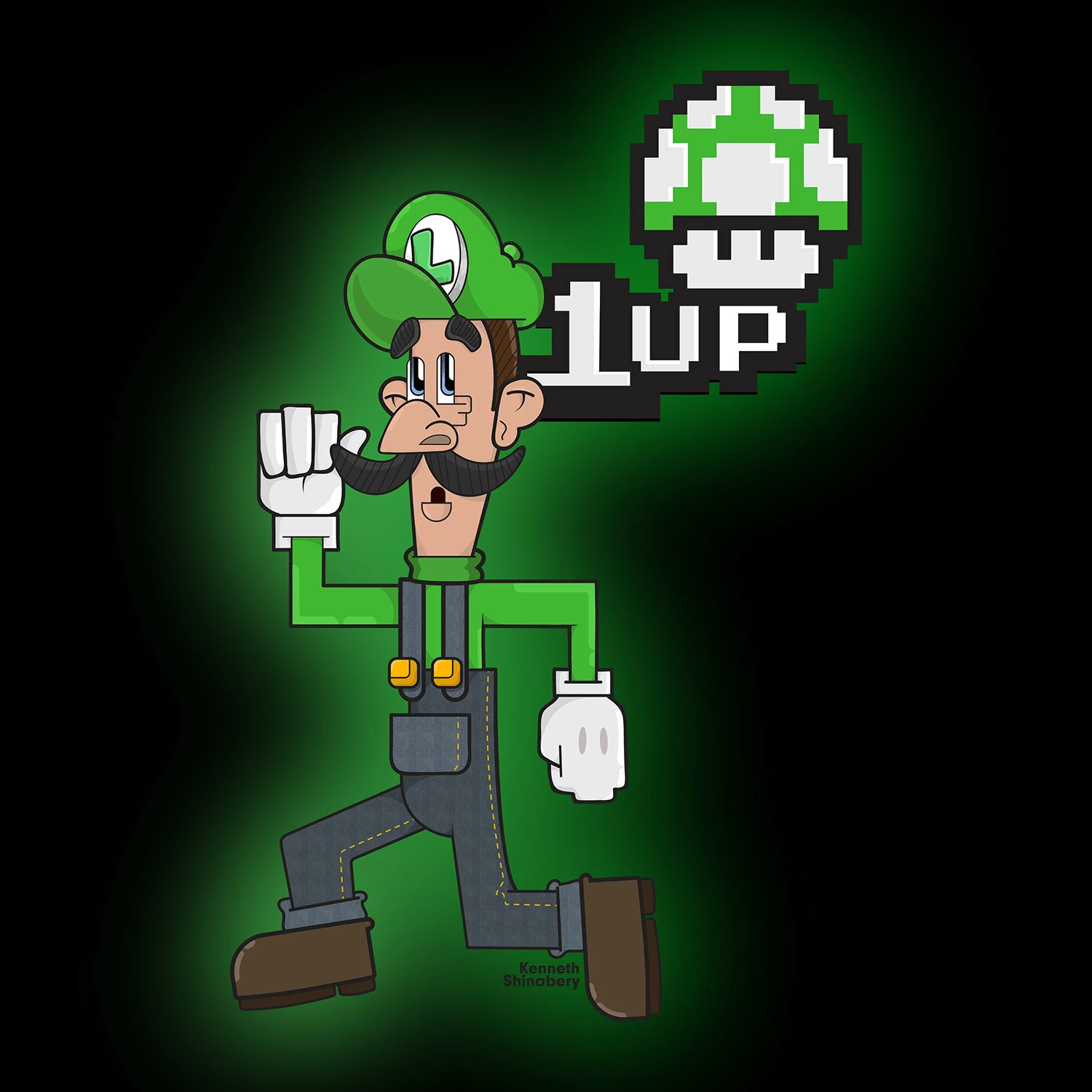
    As you master Illustrator you can really give things more depth with shading and highlights.  Example: I went from 2d flat characters in Illustrator to ones that have more natural shading.  See the following two images.

    Luigi is pretty flat.  I the shadows and highlights are hard.
    Snow White has more shading.  Granted now I can even do better shading and highlights... but it is a process to learn how to do it.

    Now if you look at artist Orlando Arocena's work on Behance you can see how he really mastered Illustrator.

    https://www.behance.net/orlandoarocena

    In fact, Orlando was commissioned by Adobe to create artwork for Illustrator 2014 CC.

    https://www.behance.net/gallery/20179137/Adobe-Illustrator-CC2014-VENUS-REVISITED

    The way I create is more like that of a graffiti artist.  I think in layers.

    First I create the line art.  Then I expand every line.  I make a copy of that group.  The original stays the top layer.  Then the copy becomes the bottom layer.  The copy/bottom layer is turned into Live Paint and becomes my solid fill layer.

    Now once the bottom layer is colored with flat colors.... between that bottom layer (the base colored layer) and the top layer (only line art) I start creating layers for shading and highlights.  So the top layer and bottom layer remain my main layers.

    Eventually you will want to learn how to use the Clipping Mask as that really helps out when using gradients and blurs.

    The cool thing is that since you are working in Illustrator... the image can be blown up big big big and there is no distortion!  I started using Illustrator simply because some people were asking to showcase my artwork in large printed format.  Well... my old designs in Photoshop obviously were not intended for that and would become pixelated.  But vectors in Illustrator do not.... so I began to master Illustrator so that I could print big images.  Not to say Illustratori is the perfect place to create characters or color sketches/doodles..... Photoshop is still a good place as  well.  It just depends what you want to do with the image after.  Now I know there is a possibility that my art might be shown in large format Illustrator is better for me. If that makes sense.

    3 replies

    KShinabery212
    Community Expert
    KShinabery212Community ExpertCorrect answer
    Community Expert
    October 2, 2018

    There are different ways to do this.

    As you master Illustrator you can really give things more depth with shading and highlights.  Example: I went from 2d flat characters in Illustrator to ones that have more natural shading.  See the following two images.

    Luigi is pretty flat.  I the shadows and highlights are hard.

    Snow White has more shading.  Granted now I can even do better shading and highlights... but it is a process to learn how to do it.

    Now if you look at artist Orlando Arocena's work on Behance you can see how he really mastered Illustrator.

    https://www.behance.net/orlandoarocena

    In fact, Orlando was commissioned by Adobe to create artwork for Illustrator 2014 CC.

    https://www.behance.net/gallery/20179137/Adobe-Illustrator-CC2014-VENUS-REVISITED

    The way I create is more like that of a graffiti artist.  I think in layers.

    First I create the line art.  Then I expand every line.  I make a copy of that group.  The original stays the top layer.  Then the copy becomes the bottom layer.  The copy/bottom layer is turned into Live Paint and becomes my solid fill layer.

    Now once the bottom layer is colored with flat colors.... between that bottom layer (the base colored layer) and the top layer (only line art) I start creating layers for shading and highlights.  So the top layer and bottom layer remain my main layers.

    Eventually you will want to learn how to use the Clipping Mask as that really helps out when using gradients and blurs.

    The cool thing is that since you are working in Illustrator... the image can be blown up big big big and there is no distortion!  I started using Illustrator simply because some people were asking to showcase my artwork in large printed format.  Well... my old designs in Photoshop obviously were not intended for that and would become pixelated.  But vectors in Illustrator do not.... so I began to master Illustrator so that I could print big images.  Not to say Illustratori is the perfect place to create characters or color sketches/doodles..... Photoshop is still a good place as  well.  It just depends what you want to do with the image after.  Now I know there is a possibility that my art might be shown in large format Illustrator is better for me. If that makes sense.

    Let's connect on LinkedIn. https://www.linkedin.com/in/kshinabery/
    lo21
    Community Expert
    Community Expert
    October 1, 2018

    File > Place your sketch into IL. choose your sketch and click on the page.

    Note-Scan your sketch and save as a JPG or PSD format - doesn't really matter. You can also copy and paste. You just need the scan on the page in IL

    Select the sketch, choose the IMAGE TRACE button at the top of the IL window.

    This will turn the sketch into a vector (shapes) drawing.

    Now, choose Window > Image Trace and change the MODE to something that looks good, depending on the sketch this could be anything.

    Click the EXPAND button at the top (make sure it's still selected)

    Hit K key on the keyboard, this will select the Live Paint Bucket Tool in the Tools Panel

    (I would double click on the actual Live Paint Bucket tool, in the tools panel, and check mark the setting that says "CURSOR SWATCH PREVIEW")

    Choose a color in your swatches panel. You'll see three little squares above the tool, (if you turned on cursor swatch preview) representing the colors in the swatches panel. Click on an area in your sketch. The entire area will fill with chosen color.

    Hit the arrow keys on your keyboard to move to another color in the swatches panel.

    click again, on another shape with a new color.

    Continue coloring your sketch.

    Once you're finished coloring, You can choose Object > Expand... to take it from "live paint  mode" to actual objects so you can modify each object. 

    Hope this helps!

    Monika Gause
    Community Expert
    Community Expert
    October 1, 2018

    Is your sketch a vector file?

    Can you show a screenshot?