
Participant
November 9, 2018
Answered

Part of a shape won't delete out

  • November 9, 2018
  • 8 replies
  • 4223 views

I'm having a weird issue with deleting some text out of a shape in Illustrator.

I didn't create this and I'm not sure how it was built and can even find an easy enough work around but I'm curious about why this is happening.

I have a some pretty standard vector text over a shape.
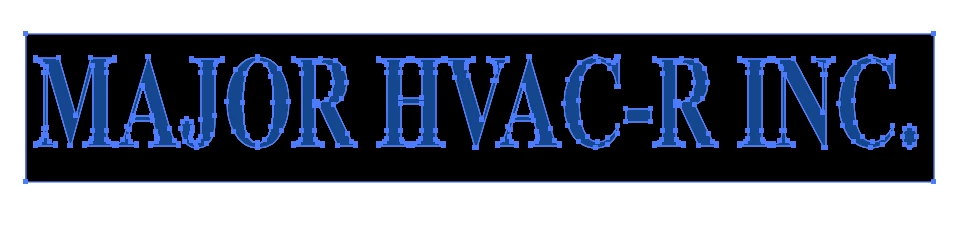
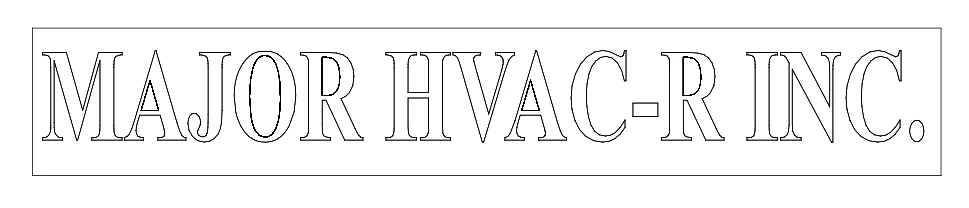
You can see all the expected paths are there.

But what I go to delete the blue parts out of the black shape I encounter the issue.

Close up:
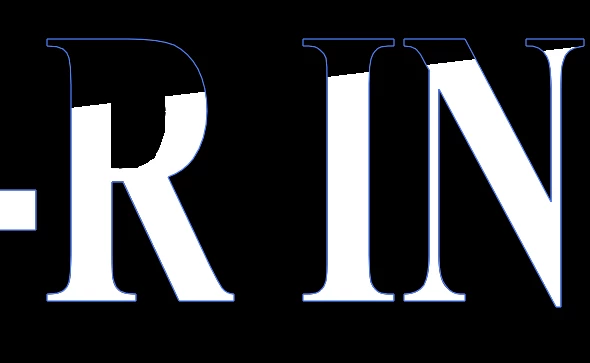
I can't get rid of that part in the R I N!

I've tried using merge, flatten transparency, expand, etc. but nothing seems to do it. Illustrator doesn't identify it as a path. It looks raster but there's no raster graphics in the file. Anyone know what could be going on here?

This topic has been closed for replies.
Correct answer robertCmullins

I had a similar weird issue where there was a rectangle that would kinda 'highlight' but I couldn't seem to actually 'SELECT' it because it wasn't an object.  Somehow I had created an artboard on top of my working artboard.  Go to the artboards and delete the one you don't want if someone is having this issue as well.

8 replies

robertCmullinsCorrect answer
Participant
November 8, 2022

I had a similar weird issue where there was a rectangle that would kinda 'highlight' but I couldn't seem to actually 'SELECT' it because it wasn't an object.  Somehow I had created an artboard on top of my working artboard.  Go to the artboards and delete the one you don't want if someone is having this issue as well.

Jacob Bugge
Community Expert
Community Expert
November 13, 2018

Samantha,

Whichever the (non) reason, you may consider your getting round it with Live Paint.

How to create and work with Live Paint groups in Illustrator

Ares Hovhannesyan
Community Expert
Community Expert
November 11, 2018

Screenshot of Appearance Panel can be helpful. Select text,open Appearance Panel and make a capture.

May be should be  easier to uncolor stroke? Did you try that?

Anna Lander
Inspiring
November 11, 2018

what is there in the black-white object? Looks like a raster-filled letter forms or a damaged vector form.

The first case might appear if the original was created, for example, in Corel Draw or another third-side vector editor and exported into adobe-compatible format. Then you can use the Clipping Mask > Release command to extract and delete this fill.

In case of the damaged path, just use the blue item and fill it like you wish.

Inspiring
November 10, 2018

I wonder if there is an open path somewhere in the "N"?  Did you try Pathfinder > Minus Front ( or Divide )?

Inspiring
November 10, 2018

I just recreated the artwork and had no problem using Pathfinder > Divide and then deleting the text.  Make sure that rectangle is a closed path, too.  If you have to, delete the rectangle and create a new one.  See if that solves it.  Do you have a file with live text?  Always create copies along the way so you can easily revert back to a previous version.

Inspiring
November 10, 2018

I think this is what you are after...

The light blue text is "live", the white text was outlined, the Red rectangle shows visually the text has been removed.

jane-e
Community Expert
Community Expert
November 10, 2018

Check for a locked object or a locked layer in the Layers panel. Show a screen shot if you need to.

tromboniator
Community Expert
Community Expert
November 10, 2018

This looks like the graphics card glitch. Press cmd/ctrl-E to switch from GPU to CPU preview. You can also go to Preferences > Performance io turn off GPU Performance. Then check for updates to your graphics card.

Peter.

barbara_a7746676
Community Expert
Community Expert
November 9, 2018

I'd have to see the actual file to know what's going on. You can post a link to it if you like.

What does it look like in Outline view?