Exit
  • Global community
    • Language:
      • Deutsch
      • English
      • Español
      • Français
      • Português
  • 日本語コミュニティ
  • 한국 커뮤니티
0

Pathfinder divide problem

Community Beginner ,
Jan 18, 2017 Jan 18, 2017

I have problems with Pathfinder.

I use Illustrator CC 2017 0.2 for Mac (Swedish version) (MacOS Sierra 10.12.2)

When I divide an item there will be lot of lines and other stuff (02). When I look in preview mode, it looks OK out (06).

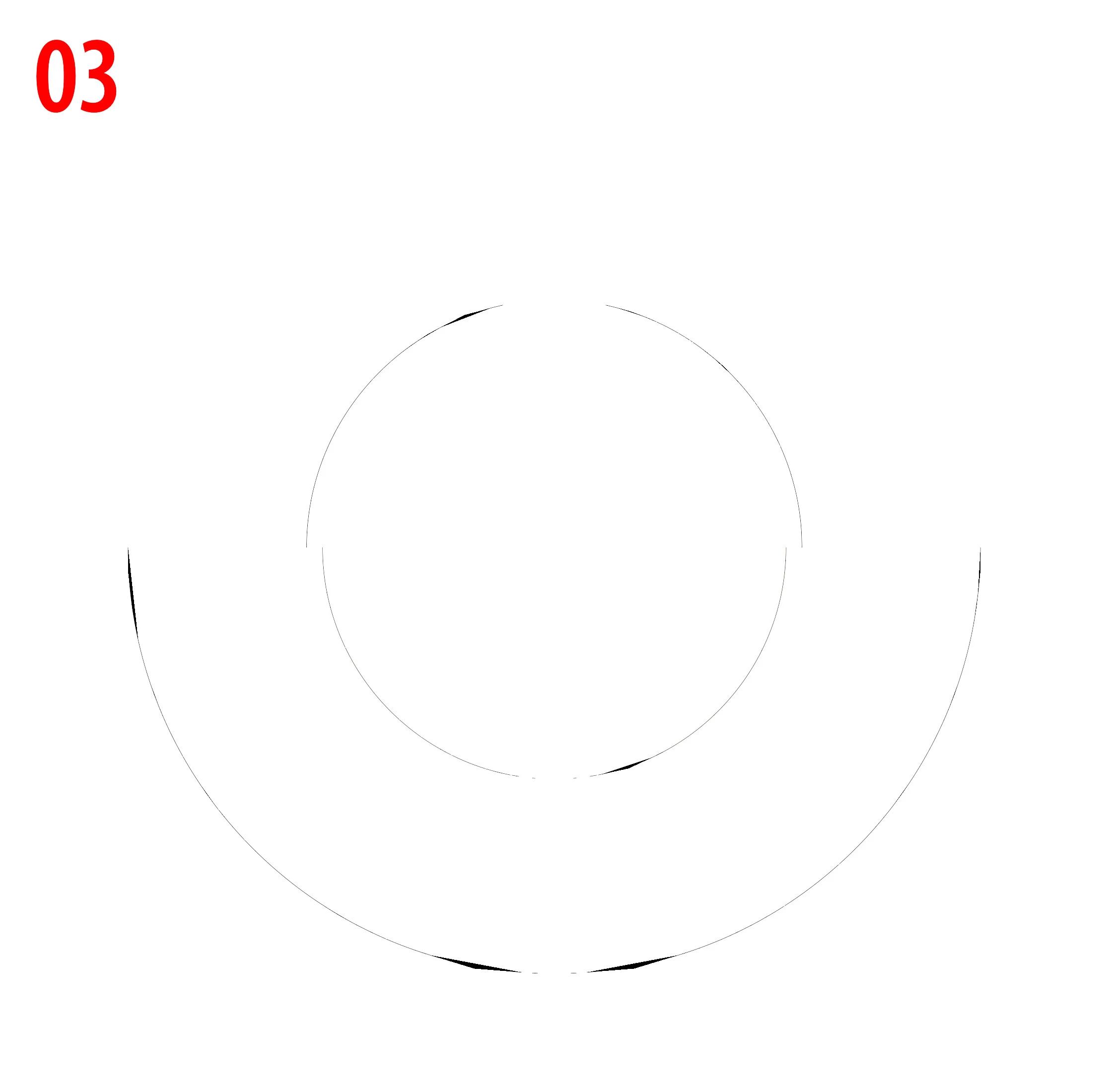
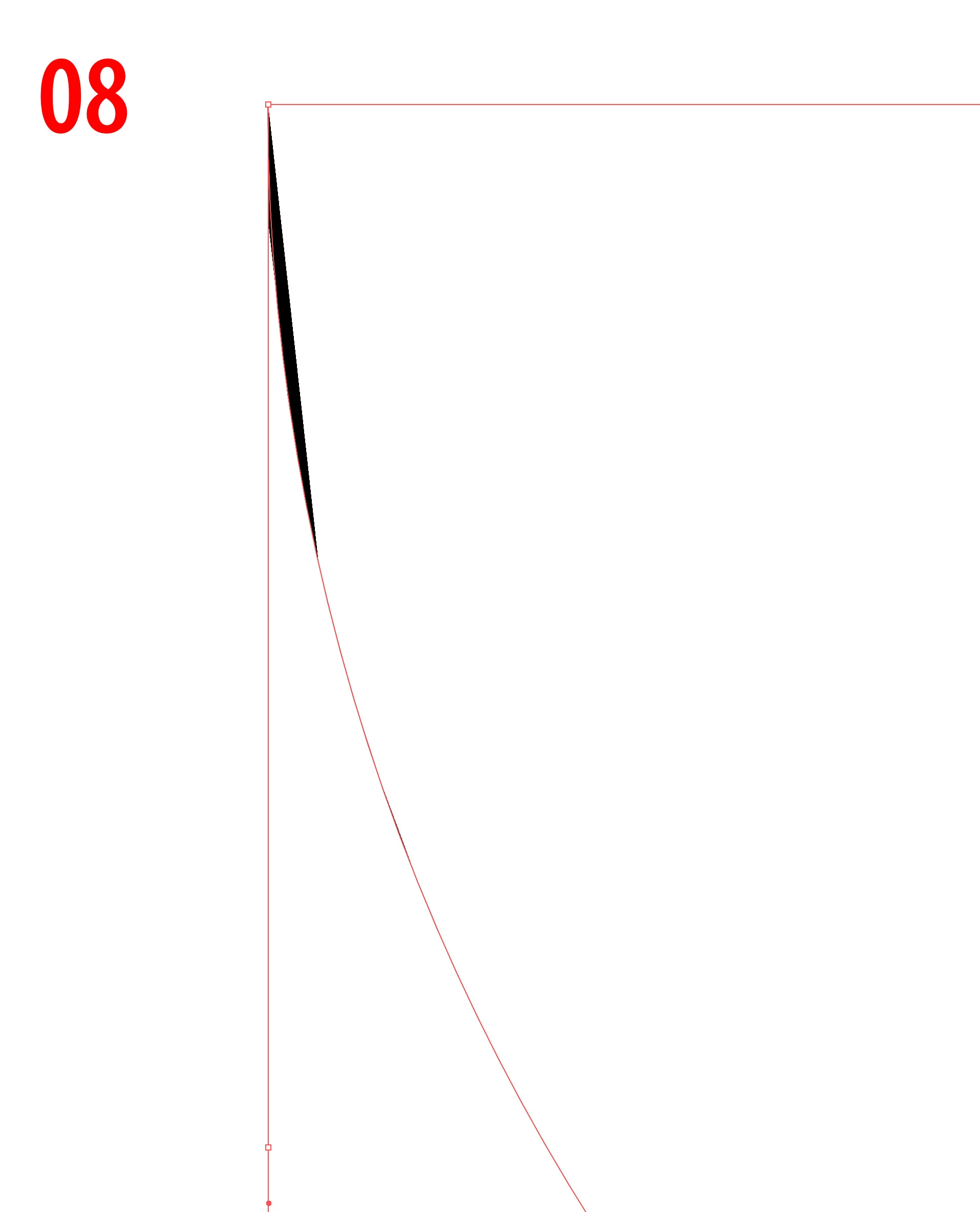
But in normal mode, it's wrong. The objects that´s been added are (some kind of) lines (03+08).

Problem number 2: the objects that is below the text does not disappear as it should, but remains (04) So there is double objects (one black and one blue). Pathfinder has divided the item but not deleted it (as it has always done in the past).

I have worked a long time with Illustrator and have always used the Pathfinder without problems. But now something has happened and I can not find fault. I have unchecked "Snap to Grid". I have also tried to change the Pathfinder setting "Precision" to 0.001 pt. It got a little better but not enough.

(I refer to the images below in the text with parentheses)

Original image(01)

Any ideas?

(Pardon my English ...)

01.jpg02.jpg

06.jpg03.jpg08.jpg04.jpg

4.6K
Translate
Report
Community guidelines
Be kind and respectful, give credit to the original source of content, and search for duplicates before posting. Learn more
community guidelines

correct answers 1 Correct answer

Community Expert , Jan 19, 2017 Jan 19, 2017

The black fill is set to overprint in the Attribute panel. You want to uncheck this.

Translate
Adobe
Community Expert ,
Jan 18, 2017 Jan 18, 2017

Does this get better with View > Preview on CPU?

Translate
Report
Community guidelines
Be kind and respectful, give credit to the original source of content, and search for duplicates before posting. Learn more
community guidelines
Community Beginner ,
Jan 18, 2017 Jan 18, 2017

Well, a little bit better. There´s still some lines but not like before.

Skärmavbild 2017-01-18 kl. 16.50.24.png

Translate
Report
Community guidelines
Be kind and respectful, give credit to the original source of content, and search for duplicates before posting. Learn more
community guidelines
Community Beginner ,
Jan 18, 2017 Jan 18, 2017

Althought, problem nr2 still remains...

Translate
Report
Community guidelines
Be kind and respectful, give credit to the original source of content, and search for duplicates before posting. Learn more
community guidelines
Community Expert ,
Jan 18, 2017 Jan 18, 2017

I don't quite understand issue nr. 2

Can you post a screenshot that shows which objects exactly are there before dividng and which ones after using it?

Translate
Report
Community guidelines
Be kind and respectful, give credit to the original source of content, and search for duplicates before posting. Learn more
community guidelines
Community Expert ,
Jan 18, 2017 Jan 18, 2017

I'd also like to see that screenshot. But oddly, to me it looks like either of 2 things are happening:
Please check the layers for the affected objects. To me, it almost looks like you have some kind of compound path being made, where they aren't lining up perfectly with each other - and so it looks like we're seeing a partial fill on the back-most shape.

OR, please check the profile for the path, itself. Particularly for the shapes in #3, it looks like some kind of stroke profile is being applied.

Of course, these are just preliminary guesses from what we're seeing here, so fuller screenshots may help a lot.


Adobe Community Expert / Adobe Certified Instructor
Translate
Report
Community guidelines
Be kind and respectful, give credit to the original source of content, and search for duplicates before posting. Learn more
community guidelines
Community Beginner ,
Jan 18, 2017 Jan 18, 2017

OK. Here´s some screenshots.

1. This is whats happens when I click "divide" and move the black letter "A". There is another letter "A" behind (blue)

2. When I move the blue letter "A" theres nothing under

3. This is the way I want it from the start (nothing under the black letter)

It has always worked before...

1.jpg2.jpg3.jpg

Translate
Report
Community guidelines
Be kind and respectful, give credit to the original source of content, and search for duplicates before posting. Learn more
community guidelines
Community Beginner ,
Jan 18, 2017 Jan 18, 2017

I have not added anything to the path... It´s just appeared...

Translate
Report
Community guidelines
Be kind and respectful, give credit to the original source of content, and search for duplicates before posting. Learn more
community guidelines
Community Expert ,
Jan 19, 2017 Jan 19, 2017

You want that only with the A? Or with all of the letters?

Which objects are selected when you apply the patfinder Divide?

Translate
Report
Community guidelines
Be kind and respectful, give credit to the original source of content, and search for duplicates before posting. Learn more
community guidelines
Community Beginner ,
Jan 19, 2017 Jan 19, 2017

All objects are selected when I apply Divide.

It´s the same with all letters and objects...

I want it to be like in image 3.

Translate
Report
Community guidelines
Be kind and respectful, give credit to the original source of content, and search for duplicates before posting. Learn more
community guidelines
Community Expert ,
Jan 19, 2017 Jan 19, 2017

Can you share the file to see if it's possible to replicate the problem?

Translate
Report
Community guidelines
Be kind and respectful, give credit to the original source of content, and search for duplicates before posting. Learn more
community guidelines
Community Beginner ,
Jan 19, 2017 Jan 19, 2017

Dropbox - hds.ai

See if this works...

Translate
Report
Community guidelines
Be kind and respectful, give credit to the original source of content, and search for duplicates before posting. Learn more
community guidelines
Community Expert ,
Jan 19, 2017 Jan 19, 2017

The black fill is set to overprint in the Attribute panel. You want to uncheck this.

Translate
Report
Community guidelines
Be kind and respectful, give credit to the original source of content, and search for duplicates before posting. Learn more
community guidelines
Community Beginner ,
Jan 19, 2017 Jan 19, 2017

Translate
Report
Community guidelines
Be kind and respectful, give credit to the original source of content, and search for duplicates before posting. Learn more
community guidelines
Community Beginner ,
Jan 19, 2017 Jan 19, 2017

Thanks! I tried this on another file and it worked there too!

Translate
Report
Community guidelines
Be kind and respectful, give credit to the original source of content, and search for duplicates before posting. Learn more
community guidelines
Community Expert ,
Jan 19, 2017 Jan 19, 2017
LATEST

You're welcome.

Translate
Report
Community guidelines
Be kind and respectful, give credit to the original source of content, and search for duplicates before posting. Learn more
community guidelines
Advisor ,
Jan 19, 2017 Jan 19, 2017

So I'm gonna jump the gun having tried to make a quick version of your design the way you specify and say that it seems that somehow illy is corrupted/glitched? My pathfinder divide gave the exact desired outcome of image 3.

Try resetting preferences and see if that helps.

Translate
Report
Community guidelines
Be kind and respectful, give credit to the original source of content, and search for duplicates before posting. Learn more
community guidelines