
Known Participant
September 28, 2019
Question

Pathfinder not Uniting two shapes in Illustrator CC

  • September 28, 2019
  • 7 replies
  • 2974 views

I am absolutely FUMING with this software. 


I am trying to follow this tutirial below:

https://www.youtube.com/watch?v=W-p3MojvdBA&list=PLMg--LMGA9rTvbCqbFafRqBBRYFksl7EZ&index=10&t=0s


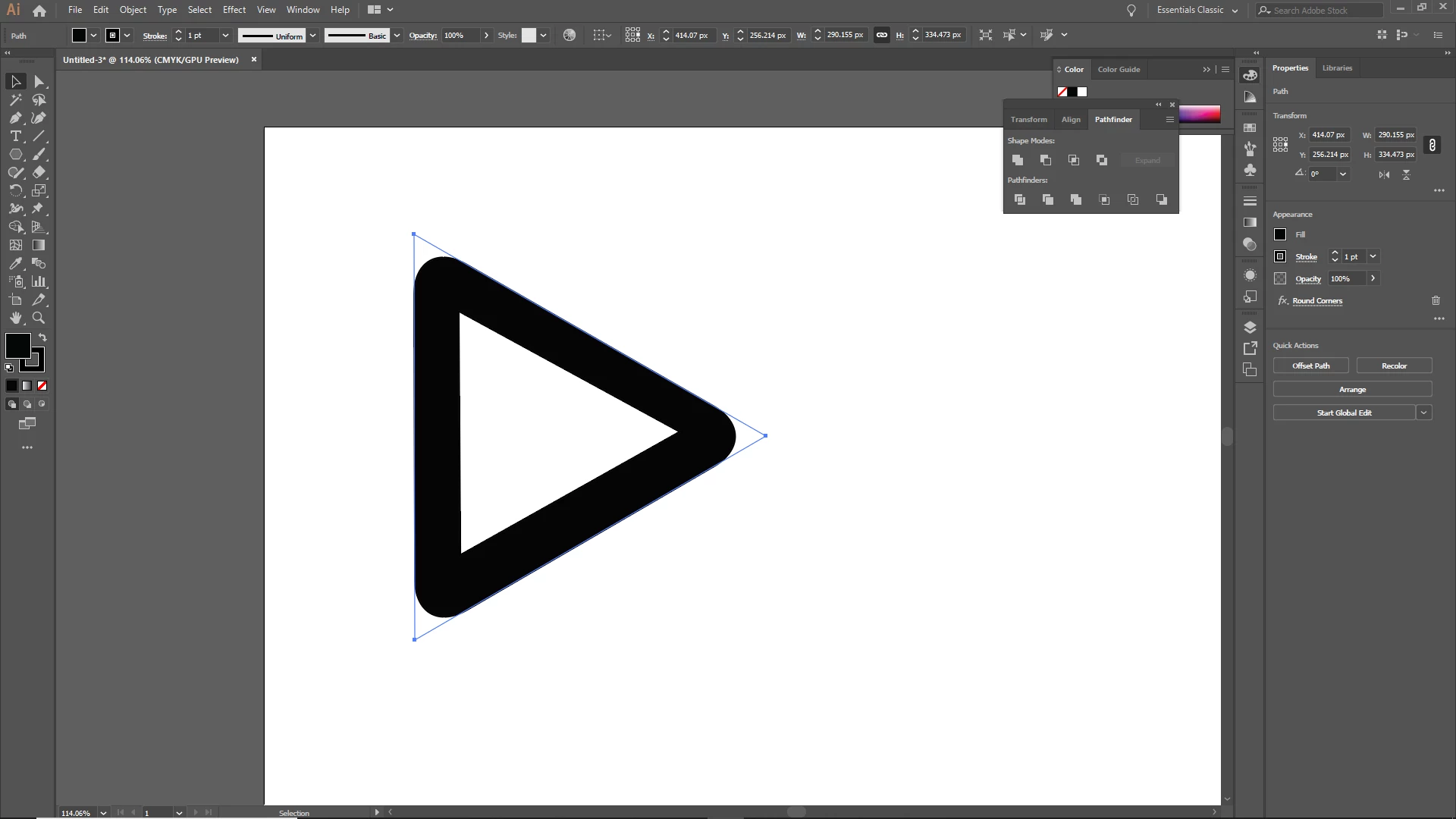
Shckingly enough, everythings find until 2.50 when I just cannot Unite the two shapes in Pathfinder. 

  • I select the bottom layered back triangle and click "United" - nothing.
  • I select both triangles and it gets rid of the white triangle and turns the back triangle into a white one. Neither result is the same as in the tutorial!


I am getting really angry and frustrated that I try to follow a set of  simple instructions TO THE LETTER & NOTHING WORKS!


Is there a bug in this software or simething because I'm really losing my temper with this piece of crap.


Can somebody please explain why I try everyting, every work-around, every other solution and nothing bloody works? Why is it when I follow a simple set of Insutrction, Illustrator decides to do someting completey different?!

Sick to the back teeth of this! I am going to get so angry that I'm going to scream. I am the user, it is the software. The software does what the user tells it do.


If I tell it to "Unite", it "Unites". It's that simple. I should not have to go on these forums and ask why it works for everybody else and not for me!
This topic has been closed for replies.

7 replies

Anna Lander
Inspiring
September 29, 2019

Please, be careful looking at the tutorial.

He does not select 2 objects that moment. He's selecting 1 black triangle and unites it with itself to decrease the bounding box size. 

Then he draws the lines for flaps (the black triangle is still solid). 

After drawing the form for a bottom gap — and just this moment, not earlier! — he takes 2 objects (white triangle and gap form) and unites them for further work.


In terms of drawing, it's not the best tutorial, and I would suggest get it mainly in coloring part, with some prior practicing drawing tools (geometry shapes, Pen, Pathfinder panel etc.) like Monika advices you in your next discussion.

Ton Frederiks
Community Expert
Community Expert
September 28, 2019

Sorry, I give up.

Stop blaming Illustrator, relax, take a deep breath, start again and follow very carefully the tutorial.

Known Participant
September 28, 2019
Excuse me?! Don't start give me attitude matey, there is a bug with Illustrator. It happens all the time with software. Stop assuming everytings my fault! If a piece of software isnt doing what the user tells it to do then there is a poblem with the programming!
Participating Frequently
September 28, 2019
No problem with the software, he is only selecting the black shape and then using Unite. Therefore, there are still two shapes.Later on in the video he talks about selecting the white shape.
Ton Frederiks
Community Expert
Community Expert
September 28, 2019

It shockingly works when the two shapes are the same colour but on mine when the colours are differnt, the "Unite" button decides it's going to have a mind of it's own.

There are no two shapes, he just unites a single black triangle.

Known Participant
September 28, 2019

Yes there are two shapes. The black triangle and the white triangle which should be merged into one layer. I click on the "Unite" button but the white triangle doest move with the black triangle and vice-versa.


I am following this tutorial to the letter. I'm sorry but this is getting geyond a joke. When I follow a set of instructions I expect those instruction to result in exactely the same way as the tutorial. Of course, that would make my life so much easier though, wouldnt it? Heaven forbod should I go an entire day without screaming and ripping my hair out becuase a product just doesnt work!

Ton Frederiks
Community Expert
Community Expert
September 28, 2019

clearly the button is just for cosmetic purposes because it doesnt ot a damned thing!

Like I said it is a weird way to expand the Polygon and it does reset the bouning box.

Left: before Unite, right: after.

Known Participant
September 28, 2019

So why does it work for you and not for me? I''m just going to start screaming soon.

I click on the black triangle - pathfinder > "Unite". Why does this have to be so impossible when it works for everybody else. I am going to completely lose it, if this continues to not do as its told! I am sick to the back teeth of ripping my hair out just because my particular Illustrator decides it's going to behave like a disobedient child and not like a piece of software!


UPDATE: It shockingly works when the two shapes are the same colour but on mine when the colours are differnt, the "Unite" button decides it's going to have a mind of it's own.


Ton Frederiks
Community Expert
Community Expert
September 28, 2019

Shckingly enough, everythings find until 2.50 when I just cannot Unite the two shapes in Pathfinder. 

He does not unite 2 shapes, he only selects the black shape and unites that (a weird way to expand the polygon)

Known Participant
September 28, 2019
Yes, that's what I've done, clicked the black shape and clicked "Unite"- except clearly the button is just for cosmetic purposes because it doesnt ot a damned thing!
Ton Frederiks
Community Expert
Community Expert
September 28, 2019

Try again with the way it was shown with the corner widgets (don't use the effect).

Known Participant
September 28, 2019

Right, I have rounded the corners with the Direct Selection Tool ( Not used the Effect) - What a Shocker, the unit button still doesnt work. Oh no wait, thats normal for Illustrator CC to clearly have a mind of its own.


Are you aware of any known bug around this "feature" becase right now this is really making my blood boil.

Ton Frederiks
Community Expert
Community Expert
September 28, 2019

Which version are you using?

He showed 2 ways of rounding corners Corner widgets in CC and Round Corners Effect from older versions. He used the CC one, which one did you use?

Known Participant
September 28, 2019

The rounding of the corners isnt the issue, the issue is the two shapes not merging when I tell them to. But to answer your questions: I'm using Illustrator CC 2019 and for the "Round Corners" effect I went to Effect > Stylize > Round Corners. Thank you