
Hibiscus9
Participant
December 8, 2017
Question

Paths going invisible in Illustrator?

  • December 8, 2017
  • 2 replies
  • 4209 views

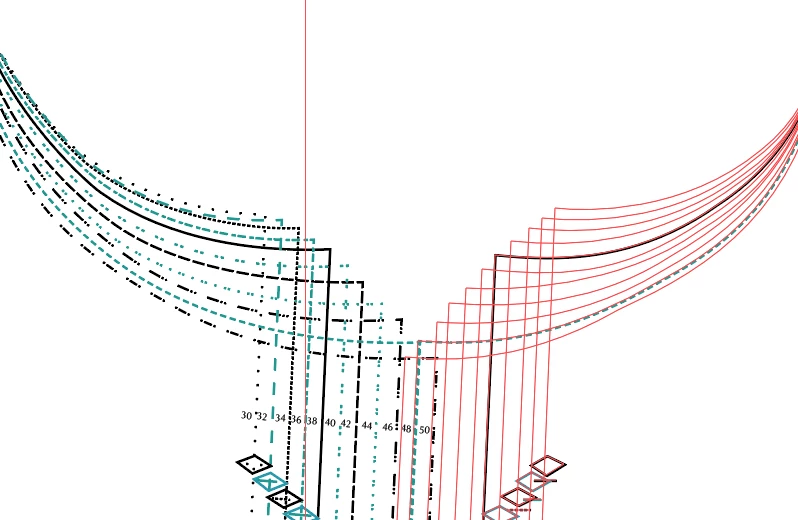
I'm working with objects with multiple paths in Illustrator.  I selected all my paths in one object, moved them slightly, and most of the paths went invisible.  They still exist: I can select them, but not see them except for the selected outlines. 

Command Z reverts the last step, but does not reverse the invizibility

I reverted to my most recent saved version, tried manipulating those paths - no problem.  Then I transform>reflected the whole object, and whoosh, most of the paths are gone again. 

Reverted and tried again, could manipulate for a while, and then was changing one path's shape, and it disappeared. 

Any idea what's going on, how I fix it and get my visible paths back, and avoid causing this problem in the future? 
This topic has been closed for replies.

2 replies

Participant
December 1, 2020

Any solutions found to this issue?


Monika Gause
Community Expert
Community Expert
December 1, 2020

We don't even fully understand what the issue is.

So maybe you can answer the questions asked 3 years ago?


And maybe you want to create a new thread?

Participant
August 5, 2022

Without starting a new thread - I got the same issue on a project today. I have been editing an Adobe Stock AI file - rearranging and naming the layers so I can flatten them in Photoshop and then animate them in After Effects. At one point the tip of the water pail went invisible. I have selected it in the screenshot so that you can see what I mean - I believe the OP had the same issue with their project.


The water pail is above the background, which is locked. I even tried moving it to the foreground and no change. Unlike the OP, I didn't manage to restore the path's visibility as I thought it was just a gra[hical glitch and saved the project to re-open it.


If needed I don't mind starting a new thread for this.


Thanks in advance,

Mateja

Mylenium
Legend
December 8, 2017

Start by turninmg off GPU acceleration in the preferences and then take the usual steps - updating the graphics driver etc..

Mylenium

Hibiscus9
Hibiscus9Author
Participant
December 12, 2017

No dice.  I'm on a Mac and have the latest OS, so the graphics drivers should be up to date.   I've tried turning off GPU acceleration, and the problem still happens whenever I reflect the object - always the same lines going invisible.  So I don't think it's the graphics driver. 

Monika Gause
Community Expert
Community Expert
December 13, 2017

Please show a screenshot of layers and appearance panel with thw objects selected.

Also it will help to see a screenshot of the whole artwork with selected invisible objects.

Can you also try and copy them to a new file and do the reflection there? Does that work?

Do you know how to use the layers panel to inspect your file?