
Participant
September 22, 2021
Answered

Pattern - Minimum Tile Size?

  • September 22, 2021
  • 2 replies
  • 1745 views

I'm making pattern swatches of very small objects.  If I make the tile size too small I can't get the spacing close enough.


For instance, these dots are Ø0.1mm and the desired tile size is 0.4 x 0.4mm.  However, the pattern wizard won't let me size the tile any less than 0.7056mm. 
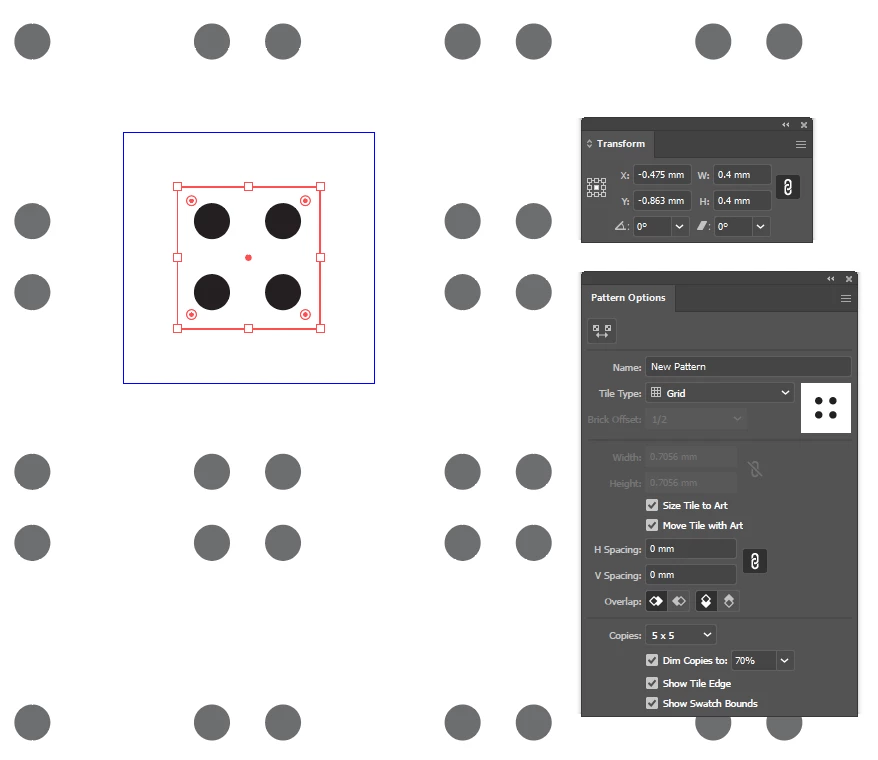


I realize that I can achieve what I want if I start with more opjects and a larger tile size.  I'm wondering why there's a minimum tile size and if there are any other rules to consider.


Thanks


Correct answer Ton Frederiks

Good to hear that helped.

You can also try this to take advantage of the Pattern Maker options.

Create a pattern with the Pattern Maker at 200% using options like hex or brick.

When done, drag the pattern swatch from the Swatches panel onto the artboard.

Scale 50% and drag it back to the Swatches panel. 

If you hold down the Alt key and drag the scaled pattern on top of the old one it will replace it.


2 replies

Ton Frederiks
Community Expert
Community Expert
September 22, 2021

Looks like a limitation of the pattern maker.

If you create a 0.4 x 0.4mm rectangle with dots that are Ø0.1mm and drag it into the swatches panel it will create a pattern swatch of that size that works just fine.

But if you double click that swatch to open the pattern maker you will see the minimum tile size of 2 pixels/points (or 0,7056 mm).

To work around the limitation you could use the Drag and Drop method or create the pattern at 200% and scale them when used to fill an object with the option Transform Patterns.

Participant
September 23, 2021

That's interesting about the drag-and-drop into the swatch panel.  You're correct.  I just tried and it produced the desired result.


However, this only seems to work if the tile shape is rectiliner and using the default grid pattern.  I won't be able to adjust to the brick pattern, or use a hexagonal tile shape, or be able to overlap tile shapes. 


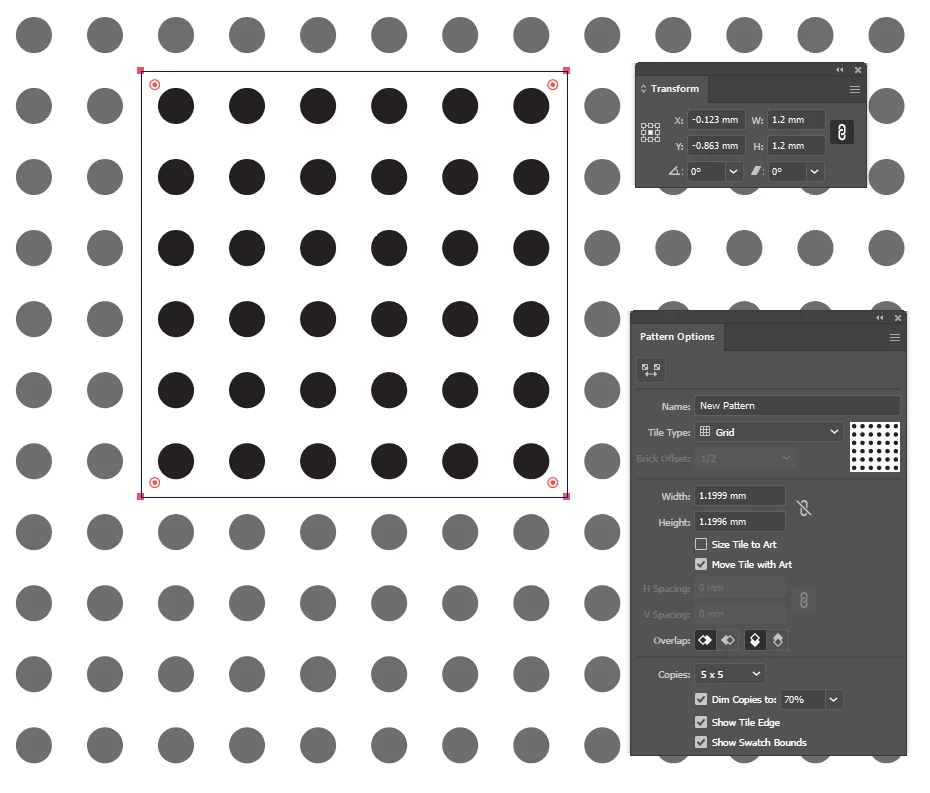
  • For instance, here's another small pattern I'm working on.  The red edges are the desired tile size, and the black background is slightly larger so that the tiles will overlap and hide any tile witness lines:


Scaling these patterns is a good suggestion, and is already part of my work flow.  I've been setting up these patterns to serve as the smallest instance, which could then be scaled larger; however, starting large and scaling smaller might just have to do.


Many thanks!

Participant
September 23, 2021

Good to hear that helped.

You can also try this to take advantage of the Pattern Maker options.

Create a pattern with the Pattern Maker at 200% using options like hex or brick.

When done, drag the pattern swatch from the Swatches panel onto the artboard.

Scale 50% and drag it back to the Swatches panel. 

If you hold down the Alt key and drag the scaled pattern on top of the old one it will replace it.


Great suggestion!  I've confirmed that this achives my desired results.  I will have to save some explanatory notes with my control artwork, but I think this is a superior method than working with more objects in a larger tile size.  Thanks again!!!

Anshul_Saini
Community Manager
Community Manager
September 22, 2021

Hi there,


Thank you for reaching out. If you select "Size Tile to Art" and input 0.4 x 0.4 in spacing. You should be able to get the desired result. Please correct me if I misunderstood the query.


Regards,

Anshul Saini