
Participant
January 12, 2025
Question

Photo to dots composition - halftone efect but with separate circles

  • January 12, 2025
  • 3 replies
  • 1941 views

Hi!


Could you please help me with one topic - I need composition from photo that is made with dots. But the dots can't touch. I mean it couldn't be half tone effect but something like that:
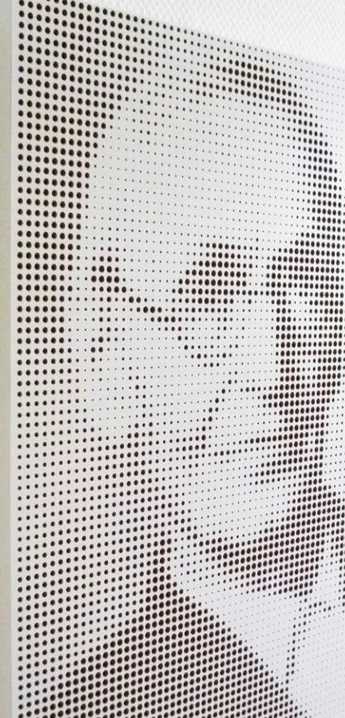
 

I need it for laser cutting, so as you can imagine the little dots should be vectors. I've been trying to make composition with dots (PS) and after trace image (AI) but the points was irregular 😞

3 replies

Brad @ Roaring Mouse
Community Expert
Community Expert
January 12, 2025

In addition to the other excellent approaches, Another way is to use Inkscape. It's Create Tiled Clones has the ability to do what you want, in perfect vector circles (or any shape you might want, e.g. hexagons), then import the result into illustrator:

Here's an example i just made; took less than a few minutes.

Participant
January 13, 2025

Could you please show me your steps in Inkscape? I have photo which is black and white and what should I do? 🙂

Brad @ Roaring Mouse
Community Expert
Community Expert
January 13, 2025

@defaultvzcl5dtuczux : basically, place your picture in the back, then draw one circle up in the top left corner (doesn't matter what colour: I used pink so it was easy to see against the b&w photo. You can change this later)

You might want to do some planning as to what size circle to draw: In my case I planned on 40 circles of 15pt diameter across a 600pt document, and 50 down.

Select the circle and Edit > Clone > Create Clone Tiles.

In that dialog, you have a bunch of options as to spacing etc, but the main one is the Trace tab;

In there select "Trace the drawing under...."

Next: pick what to sample. In my case, the luminance of the photo as it's grayscale, so "L"

Under apply the value, pick Size, so each circle will resize proportionally to the grey value below it.

Set your columns and rows numbers.

Create!

Export as PDF and open in Illustrator. You can delete the photo, of course.

Also, you will have a duplicate circle at top left (the original). you can delete that too.


As far as making sure the circles don't touch, i would manipulate your picture in PS to make sure your darkest grey is not 100% Black; maybe go 90% and see what happens.

You can also adjust Gamma in the above Clone dialog.


Ton Frederiks
Community Expert
Community Expert
January 12, 2025

Use a grayscale image or convert to grascale using Edit > Edit Colors...

Convert the image to a vector mosaic:
Object menu > Create Object Mosaic...

Ungroup the Mosaic.
Select the Mosaic and use the Size by Luminance script to create different sized rectangles.
Fill them with black.
Use Effect > Convert to Shape > Ellipse with 0 extra width.
If the shapes still touch:
Ungroup All and use Object > Transform > Transform Each to scale them a little.
Be careful, both the Object Mosaic as well as the Size by Luminance script are computing intensive, either use a low number for the mosaic or work in parts.
For the script and a detailed description by the creator John Wundes:
http://js4ai.blogspot.com/2009/04/size-by-luminance-aka-halftones.html

Participant
January 12, 2025

Thank you so much for you help!

Community Expert
January 12, 2025

Adobe Illustrator doesn't have that kind of an effect built-in. Astute Graphics' Phantasm plugin can generate vector-based halftones from photos. You can get a free trial of the plugins from Astute Graphics' web site.


The plugin can generate vector halftones using circles, squares and a few other shapes. I wish the plugin could use custom shapes like the Pointillizer effect in CorelDRAW. On the other hand Phantasm has some other unique controls not found in Corel's Pointillizer.


In order to make halftone circles/dots that don't touch you'll have to experiment with the width and height percentage values of the dots. The example I attached uses a 50% value. The default is 100% and dots will overlap at that setting.