
Inspiring
January 22, 2024
Answered

Pixel grid work flow question

  • January 22, 2024
  • 3 replies
  • 497 views

Hi community.

I'd like some insight on how it's best to work in Illustrator to get accurate pixel perfect work flow. 

For example, I noticed that depending on the stroke of an object, if its not set to inside or outside, and is centre, it causes an issue not sitting within the grid. And when copy-pasting into PS there is also Aliasing issues. 


For my future projects, I'm told to keep all my artwork 100% intact making sure snapping within the pixels.


Any insight and information much appreciated as always.


Kind regards.
This topic has been closed for replies.
Correct answer Ton Frederiks

Hi Stefan,

The Rasterize Effect can be helpful, it will let you preview in Illustrator how artwork will look in Photoshop when copied and pasted. Because it is an effect you can always change the artwork and even turn it off.

You can make a Graphic style that can be applied to your artwork.

To setup a flexible Graphic style, create a rectangle with no fill and no stroke.

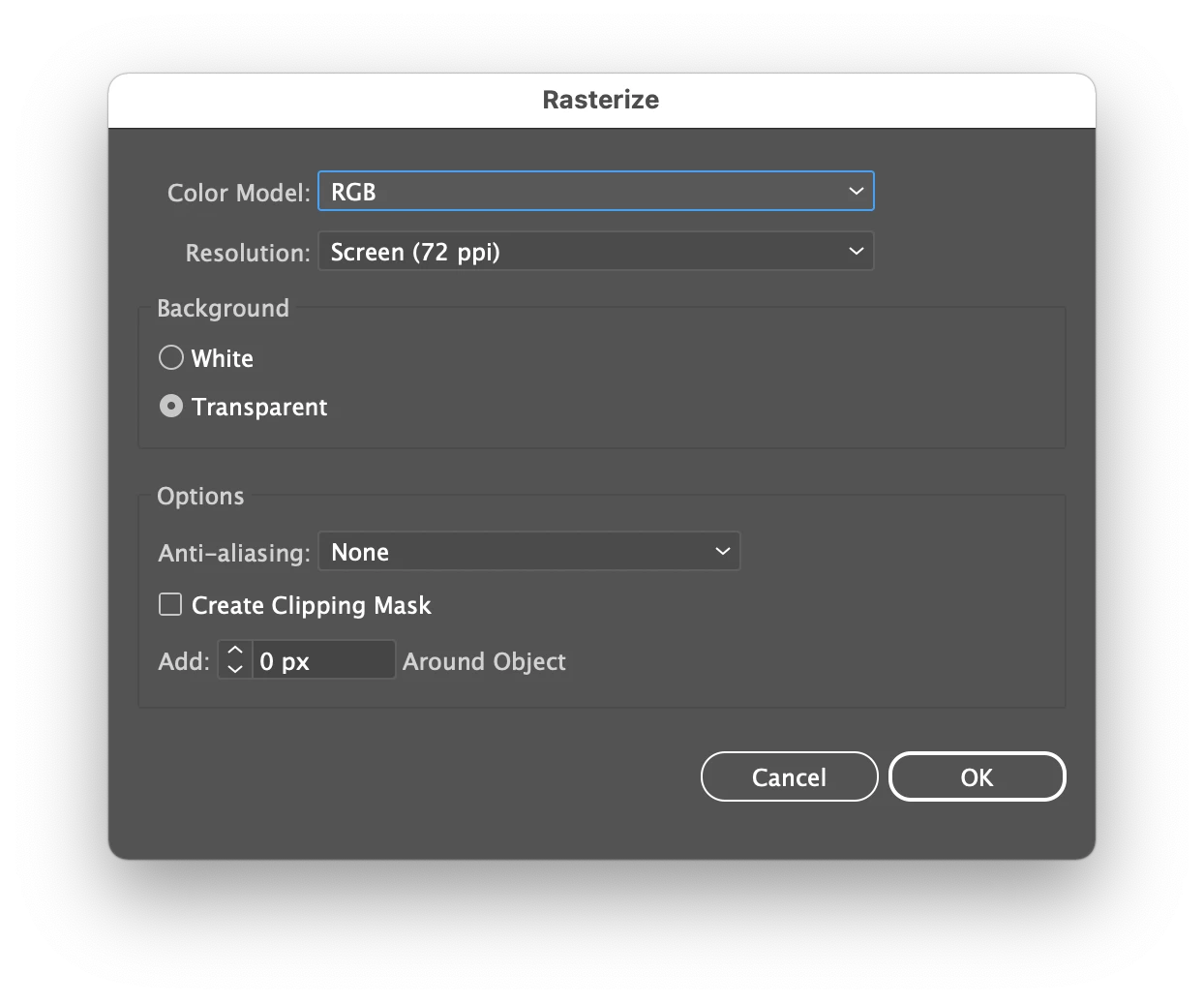
Apply a Rasterize effect and use these settings:

Create a Graphic Style with the rectangle selected.

To apply the Rasterize Graphic Style select one or more objects, hold down the Alt key and click the Graphic Style. This will add the Rasterize effect to the artwork and leave the fill and stroke unchanged.

3 replies

Community Expert
January 25, 2024

When creating artwork for pixel grid purposes I recommend not using any live line strokes on objects, at least not unless those line strokes are carrying whole pixel values that align with the grid.

Ton Frederiks
Community Expert
Ton FrederiksCommunity ExpertCorrect answer
Community Expert
January 22, 2024

Hi Stefan,

The Rasterize Effect can be helpful, it will let you preview in Illustrator how artwork will look in Photoshop when copied and pasted. Because it is an effect you can always change the artwork and even turn it off.

You can make a Graphic style that can be applied to your artwork.

To setup a flexible Graphic style, create a rectangle with no fill and no stroke.

Apply a Rasterize effect and use these settings:

Create a Graphic Style with the rectangle selected.

To apply the Rasterize Graphic Style select one or more objects, hold down the Alt key and click the Graphic Style. This will add the Rasterize effect to the artwork and leave the fill and stroke unchanged.

Inspiring
January 25, 2024

Nice feature, never seen this posted before on the forum.


Kind regards.

Ton Frederiks
Community Expert
Community Expert
January 25, 2024

Thanks, good to hear you liked the approach.

Monika Gause
Community Expert
Community Expert
January 22, 2024

Artboards need to be aligned to pixels exactly.

When exporting do not resample.