
Pixelation display on fills
Hi everyone,
The fills on my images have recently begun appearing grainy for no reason. This seems to only be a visual thing on the one device, I drew the lines below with the blob paintbrush and are complete fills but show on the screen as below:
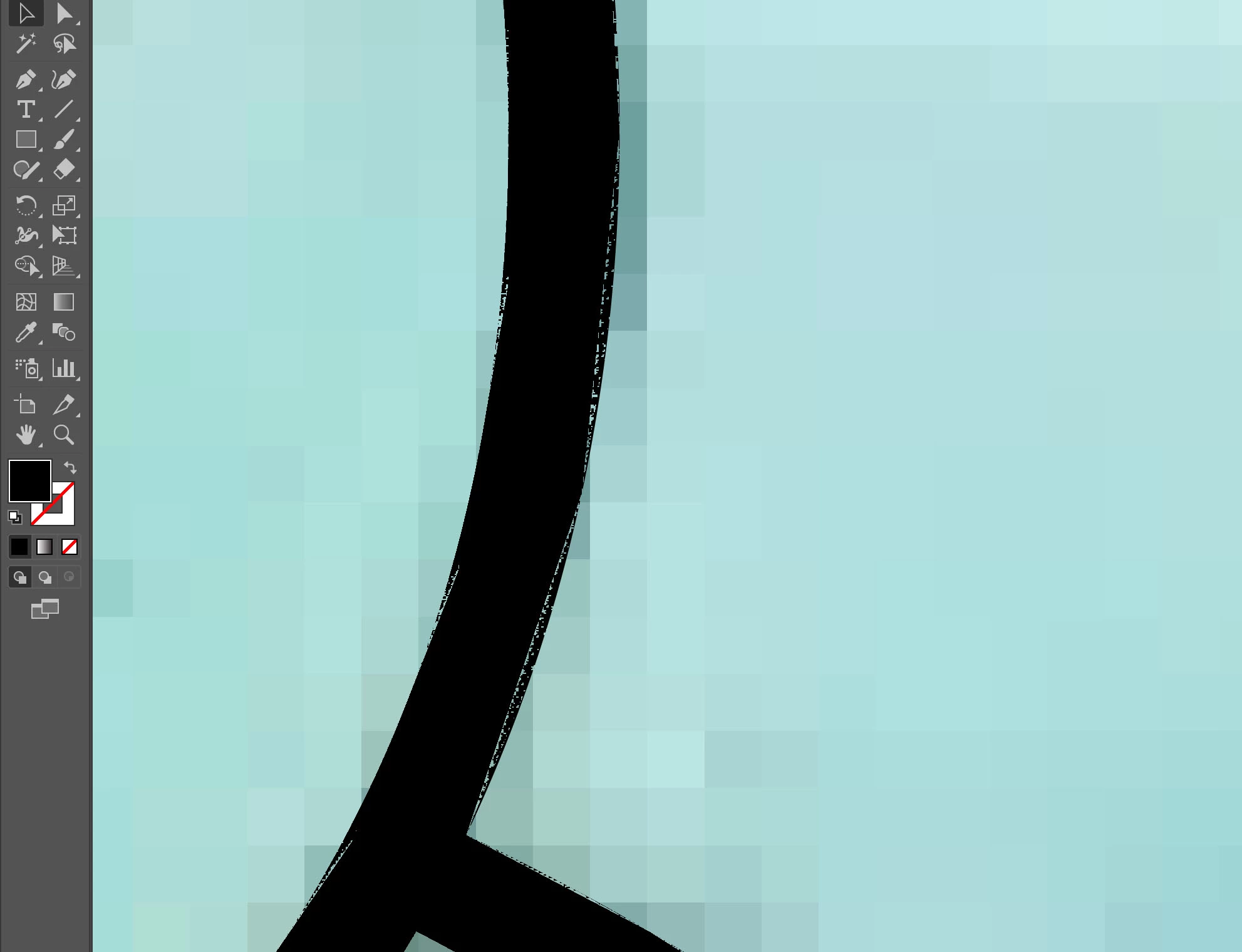
I've been working on illustrator quite a bit on my Surface for the last few months and this issue has only been happening since yesterday with no changes made to display settings either to the tablet or the program.
The issue is not on any one file and appears with all fills. The lines are fine and so far it has not displayed on any images in print but it is difficult to work with and I just want my complete fills. It is only on the Surface and the files seem to display just fine on my work computer. I don't know what could be causing this as it's not a performance or display issue with the Surface itself and I have had no issues up until now.
I have switched on the anti-aliasing following some advice but it made no difference and as I said I had made no changes to the display settings when this started happening. I updated Illustrator after this started happening, reset and updated my tablet, left it turned off for an hour etc, most of the usual simple solutions but so far I'm still having this issue with any fills. Any advice would be greatly appreciated!
Cheers
 AdChoices