
Participant
August 29, 2012
Answered

Placing Images In Illustrator Are Blurry.

  • August 29, 2012
  • 1 reply
  • 36905 views

Hello I have this problem in CS5 that any type of image or line art are always blurry. All my work is for print and perhaps just the preview is blurry but I am afraid that printing will be bad.

Most graphics I bring in are from Photoshop CS5. I make sure they are 300DPI to start and recently learned they should not be in RGB mode but CMYK.

The images I should also mention when placed are very small and I have to scale them to be the correct size. I do not know why they do not place as their original size. So basically it is small size and blurriness.


Any help regarding this matter is appreciative. I am new at Illustrator and want to learn more from it since it seems like a great tool to use for printing.

Thanks,

Victor
This topic has been closed for replies.
Correct answer Mike_Gondek10189183

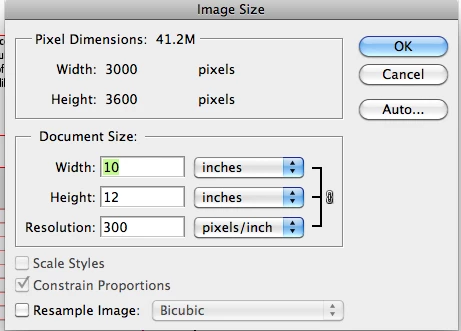
I believe the solution to your problem starts in photoshop. Most printers require resolution to be 2X the lpi (lines per inch) and the most common line screen is 150 lpi (133 or 175 are the next most common), so hence 300 dpi (dots per inch) standard resolution requirement. Open your image in photoshop >> Image >> image size >> uncheck resample image >> change your resolution to 300 dpi if it is not and save. I bolded that cause thath setting is very important, and you will need to become intimately familiar with hwo everthing in image size works. This unchecking will not add or remove pixels, but will adjust the size of your image if you change to 300 dpi.

Now when you place the imahe in ilustrator, you will know that your image is exactly 300 dpi. If you scale your image smaller, no problem your effective resolution will be >300dpi adn that never hurts. If you scale your image larger in Illustrator, then you know that your resolution will be less than 300 dpi. You can now better assess the quality of your image reproduction.

1 reply

Mike_Gondek10189183
Community Expert
Mike_Gondek10189183Community ExpertCorrect answer
Community Expert
August 29, 2012

I believe the solution to your problem starts in photoshop. Most printers require resolution to be 2X the lpi (lines per inch) and the most common line screen is 150 lpi (133 or 175 are the next most common), so hence 300 dpi (dots per inch) standard resolution requirement. Open your image in photoshop >> Image >> image size >> uncheck resample image >> change your resolution to 300 dpi if it is not and save. I bolded that cause thath setting is very important, and you will need to become intimately familiar with hwo everthing in image size works. This unchecking will not add or remove pixels, but will adjust the size of your image if you change to 300 dpi.

Now when you place the imahe in ilustrator, you will know that your image is exactly 300 dpi. If you scale your image smaller, no problem your effective resolution will be >300dpi adn that never hurts. If you scale your image larger in Illustrator, then you know that your resolution will be less than 300 dpi. You can now better assess the quality of your image reproduction.

sw05Author
Participant
August 29, 2012

Thank you Mike I will do that. Just to follow up can this be done to already existing images?

Also since I changed to CMYK mode I should just leave it there right?

Inspiring
August 29, 2012

Thanks for all your help. Did not know about the control bar. I just looked and all images are under 300 PPI. Some high 200's and others low 100's. Does this mean these images are not at 300DPI?


sw05 wrote:

Thanks for all your help. Did not know about the control bar. I just looked and all images are under 300 PPI. Some high 200's and others low 100's. Does this mean these images are not at 300DPI?

It means that the images will print with the ppi reported on the control bar. The original images themselves outside of Illustrator may be different ppi if you scale them in Illustrator. To understand this, just experiment with scaling an image up or down and check how the ppi on the control bar are affected. Think of the resolution as number of pixels per side divided by the unit of measure (it is inches when reported as ppi (pixels per inch). Scaling the image smaller in Illustrator, lets more pixels from the original image to  fit in a physical unit of measure (inch in this case) resulting in more detailed and sharper images and vice versa.

Basically scaling in Illustrator is the same as changing the image size or resolution (ppi)  in Photoshop with the "Resample Image" option unchecked. This doesn't change the number of pixels in the image at all but just its physical dimensions. In Photoshop the only difference will be in the ruler showing new physical size.