
vendelas29966503
Participating Frequently
March 22, 2018
Question

Print company's fault or my fault?

  • March 22, 2018
  • 8 replies
  • 1622 views

Hello,

I recently designed a brochure for my camera rental company and sent the complete file to a small local printing company.

The colors came out completely wrong, like some green tint laying on top of it, the bubbles looks green and it looks like the fish is in a swamp.

We ordered the nicest of them all, satin finish, 5000 of them for $600 (about $500 USD)

I have the file in CMYK format, which is the color that they should be printed in.  And it looks way better. That's how i expected it to print.

Now, was there a mistake that I have done during the process of making the brochure or is it the company that made a printing mistake?

Im uploading a picture of the complete file in CMYK color format and a picture of the complete brochure.

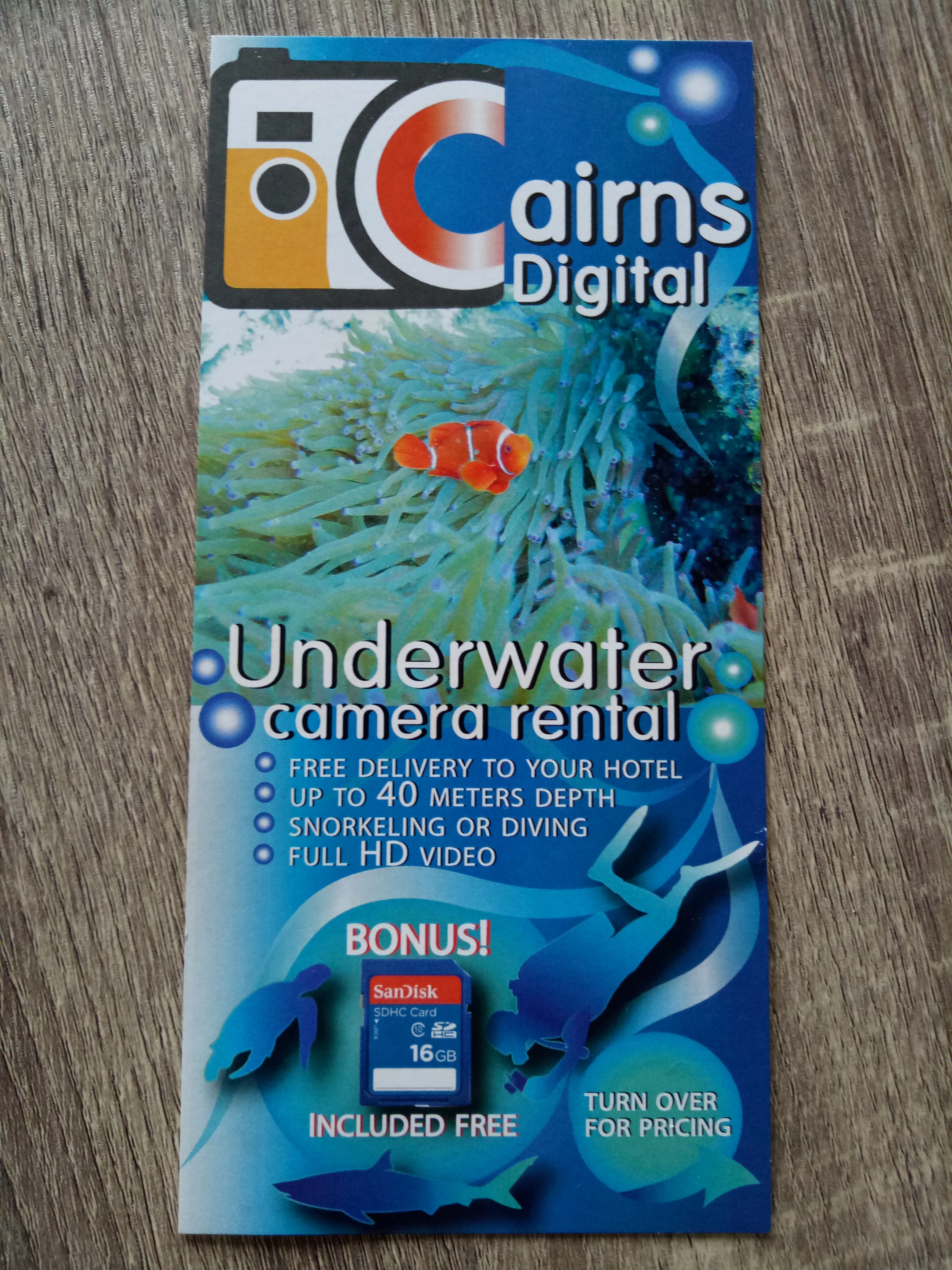
It even looks greener in real life.

I put some links here to more pictures.
https://cdn3.cdnme.se/1260216/8-3/img20180322124859_5ab31dc59606ee7c3513d7bb.jpg

https://cdn3.cdnme.se/1260216/8-3/img20180322124841_5ab31d9f2a6b22a308ecca61.jpg

Thankful for any feedback!

This topic has been closed for replies.

8 replies

vendelas29966503
Participating Frequently
March 29, 2018

Hello again!

I went to the print company and they sorted it out by re-printing it.

They said that it was one of those things that they couldn't explain what happened.

Now the brochure look fantastic! Thanks for all the help, otherwise I would probably just have to accept the first printed one.

Now I know the importance of using print-ready colors and to make sure to pre-print one as well to avoid these things to happen.

Inspiring
March 29, 2018

Good to hear that your problem is solved!

barbara_a7746676
Community Expert
Community Expert
March 23, 2018

Any colors that look brilliant, almost flourescent, on the monitor will usually not print accurately. Bright blues are particularly difficult to reproduce in CMYK. As I mentioned, in Photoshop, use View > Proof Colors to get some idea of what the print will look like. Proof Colors is taking the information from whatever is chosen for your color settings.

The Color panel can display in several color modes, including both RGB and CMYK. If you set the Color panel to RGB and use the Eyedropper tool to click on a bright pure color in your image, if that color is outside the CMYK color gamut an exclamation mark will appear. The color swatch next the the exclamation mark more or less represents what the color will look like when printed,

vendelas29966503
Participating Frequently
March 23, 2018

I submitted better pictures of the PDF file with the real brochures to the right. I'm gonna send an email today and ask if they can help me somehow to correct this. I'll update the answer.

barbara_a7746676
Community Expert
Community Expert
March 23, 2018

That is an interesting comparison. Way too much yellow in the printed brochure. Even the whites are turning yellow. Thanks for keeping us updated.

Inspiring
March 22, 2018

Did I miss what file type you gave them for print? If I get an ai file I either make it a pdf for print or if I have problems opening the file I'm forced to open it in photoshop, flatten and save as a tiff either 24bit or 32 depending on original colors used.

Actually the first thing I do is see if I can work with it in the more superior program.

barbara_a7746676
Community Expert
Community Expert
March 22, 2018

I agree with CHMprepress to help prevent this from happening in the future a printed color reference is a good idea. A color proof can be helpful, but some proofing systems are more accurate than others.

As I mentioned, when color is critical, good idea to go for a press check.

Inspiring
March 22, 2018

Did you provide them with a printed color reference?

If your not in the possibility to make one, you could ask for a color proof at the printer before it gets printed for real.

gökhanyaka
Participating Frequently
March 22, 2018

Hi, it looks like Printing House's fault. it is clear. Have a look at the attached screenshot.

it is related to the yellow color's unbalanced printing. the left one is your artwork as you can see there is little yellow color in there and the right image that you have physical cardboard has got too much yellow in the same area. hope this is useful.

barbara_a7746676
Community Expert
Community Expert
March 22, 2018

Since you do not have a link to the Illustrator file, I can't tell which colors were in the original Illustrator file.

From the information you provided, seems like your monitor is not color calibrated correctly.

vendelas29966503
Participating Frequently
March 22, 2018

I'll send you the Illustrator file. My computer monitor is calibrated and I have seen the file on other computer screens as well, also my phone screen and it looked fine there.

https://ufile.io/nt6ax

Thank you for your comment

vendelas29966503
Participating Frequently
March 23, 2018

The printer should have commented on the border if it was incorrect. But keep in mind that the printer is busy with many jobs and doesn't always comment on each unless asked. When someone communicates with them they are usually very pleased to help.

I've thought in terms of inches all my life, so harder for me to relate to mm. But 2mm is the equivalent of 1/16th of an inch. If you wanted a white border around the design (instead of a bleed), that is too small for most printers. Most would want at least 1/8 inch or even 1/4 inch.


Thanks for the reply again,

The bleeding was supposed to be the white border around it that i added, since they are a small local company I wish the communication could have been better.

I went there in person first and they had a look at the product on their screen, but i wanted to make some minor touch-ups so I went home and sent it trough email instead with a white border that I thought was the bleeding they where after.

No comments about it so I assumed it would be all good.