
gregmaletic
Inspiring
June 7, 2021
Answered

Print single sided?

  • June 7, 2021
  • 3 replies
  • 9286 views

I can't belive I have to ask this question, but… how do I print single-sided from Adobe Illustrator 25.2.3?


Every time I print, it prints double-sided. The print dialog doesn't seem to mention a single-sided option.


What can I do?


Thanks.
 

Correct answer Bill Silbert

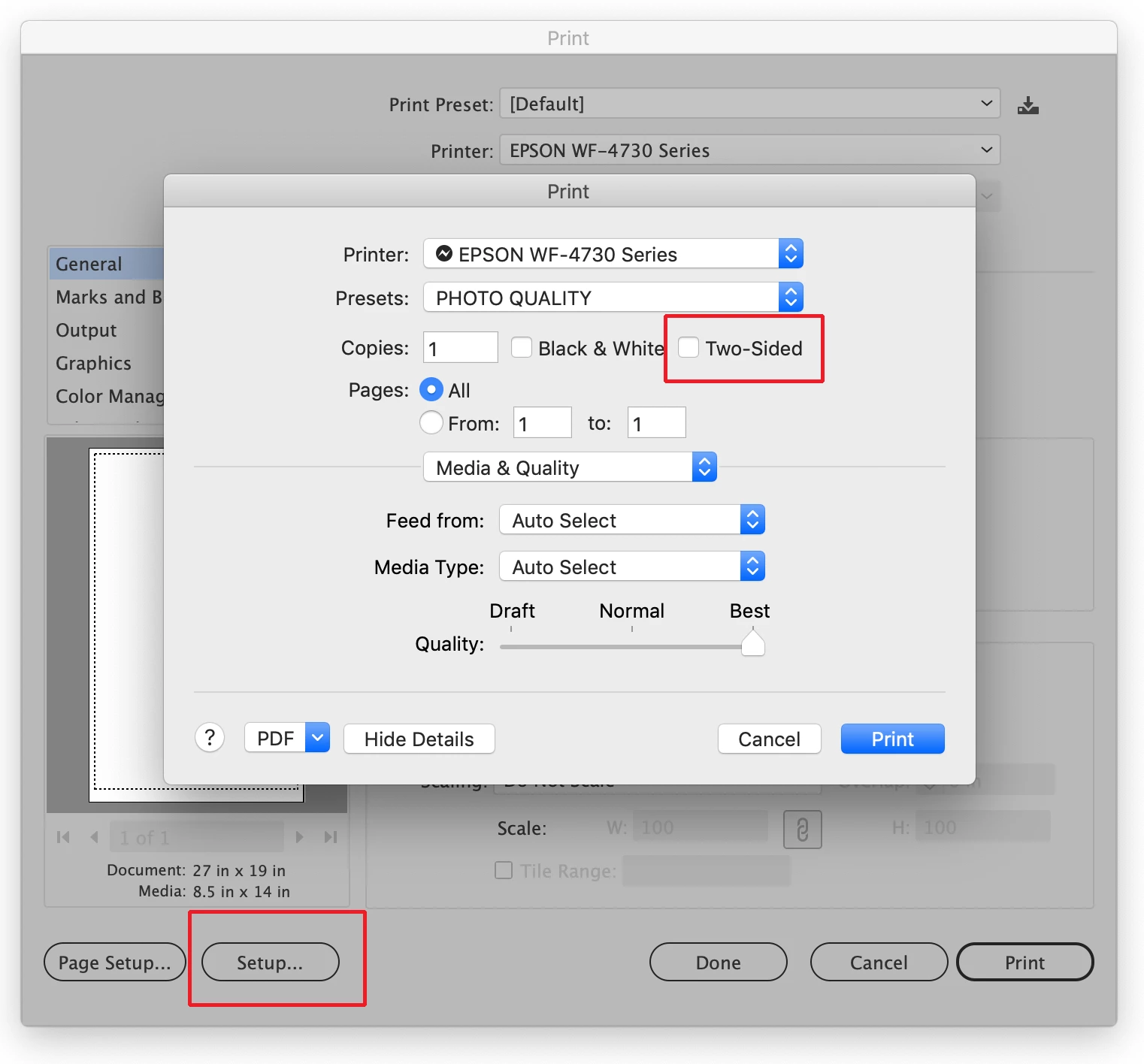
Double sided printing is controlled through your specific printer's Print dialog window. If you're on a Mac then you would click on the "Setup" button at the bottom of Illustrator's Print dialog window which will bring up your printer's dialog window. There is usually an option showing for two-sided printing in full view in this window. Make sure that it is deslected and the problem should be solved. 

3 replies

Known Participant
August 21, 2022

I followed Bill Silbert's answer, and saw that "Two-Sided" was NOT checked in the Print dialog box shown in the example, but it still printed double sided. I tested something multiple times. Even when the box for "Two-Sided" showed unchecked, I can only get it to print single sided by checking the "Two-Sided" box to turn it on, then immediately unchecking it. Only after that would it print one-sided.

Also, even after the document has been saved with that unchecked print option, the next time I open it I had to go through this illogical step again to assure single-sided printing. (Illustrator 25.4.1)

Conrad_C
Community Expert
Community Expert
August 21, 2022

Which printer are you using, and which operating system (macOS or Windows)?

The reason for the questions is that the Two-Sided option is actually outside of Illustrator. Bill Silber’s screen shot shows it in the Print dialog box provided by macOS, and the Two-Sided option is put there by the specific driver software for that printer. Just wondering it it’s more of a printer driver issue.


Now, if Two-Sided works in all other applications and does not work properly only in Illutrator, then maybe there is a problem with the way Illustrator interprets that option. But first we have to positively isolate this to Illustrator.

Known Participant
August 21, 2022

I'm on a Mac OS Catalina 10.15.7 printing to a HP LaserJet Pro 400. This is only happening in the most recently updated Illustrator. The dialog I'm offered is the same as the "Setup" example in the mentioned Bill Silbert post above. Like his sample screenshot, the "Two-sided" box was still unchecked when I looked at it following the unwanted two-sided print job. I always have to check that box and then UNcheck it for every one-sided print job I try. 

KShinabery212
Community Expert
Community Expert
June 7, 2021

As Bill mentioned..... It has to be in our printer settings.

Now, the look of printer settings could vary if you are using a Mac or PC or even if a different type of printer.

But do what Bill said.

Let's connect on LinkedIn. https://www.linkedin.com/in/kshinabery/
Bill Silbert
Community Expert
Bill SilbertCommunity ExpertCorrect answer
Community Expert
June 7, 2021

Double sided printing is controlled through your specific printer's Print dialog window. If you're on a Mac then you would click on the "Setup" button at the bottom of Illustrator's Print dialog window which will bring up your printer's dialog window. There is usually an option showing for two-sided printing in full view in this window. Make sure that it is deslected and the problem should be solved. 

gregmaletic
Inspiring
June 7, 2021

Thank you. It's been years since I've tried to print from Illustrator, so I'd forgotten that was down there.