Follow the below steps if you want to remove the existing copy of Illustrator from your machine and download a fresh one with Arabic support…
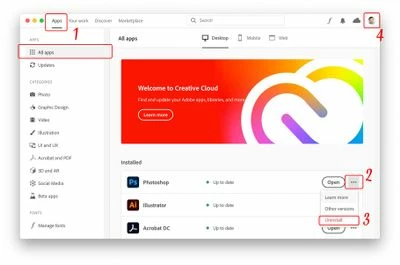
- From the Adobe Creative Cloud Desktop menu, click on All Apps to view a list of installed Adobe applications
- Click the three ellipses shown beside each installed application
- Choose Uninstall to remove the non-Arabic application
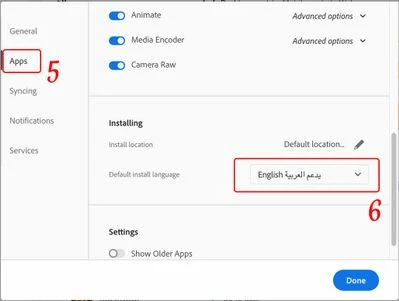
- Once ALL installed applications have been uninstalled/removed, click on the “Account” icon found on the top right corner of the Creative Cloud desktop application and choose “Preferences”
- In the newly opened Preferences dialogue window, click on “Apps” in the left pane
- Scroll down to the bottom of the window, from the “Default install Language” drop menu choose English يدعم العربية in order to have Arabic support in Adobe applications, then click the “Done” button.
Now you may proceed to install Adobe applications once again.
• Alternatively, you may download another copy of Illustrator that supports Arabic besides the existing copy…
Follow steps 4,5, & 6 as in above to change the language for the application(s) you're going to install now, then
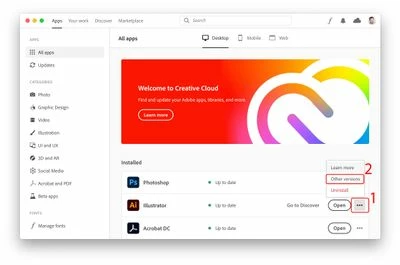
1. Click on the three ellipses on the right most of the Illustrator application
2. Choose "Other versions"
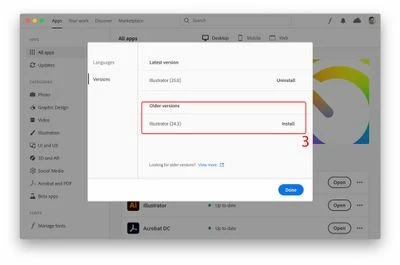
3. From the small pop up window, choose an older copy of Illustrator since you cannot have two copies of the same version,

 AdChoices