Participant
February 18, 2020
Question

Punching out offset text

  • February 18, 2020
  • 3 replies
  • 600 views

I have looked high and low...this tutorial does NOT exist. Maybe i'm wording it wrong.


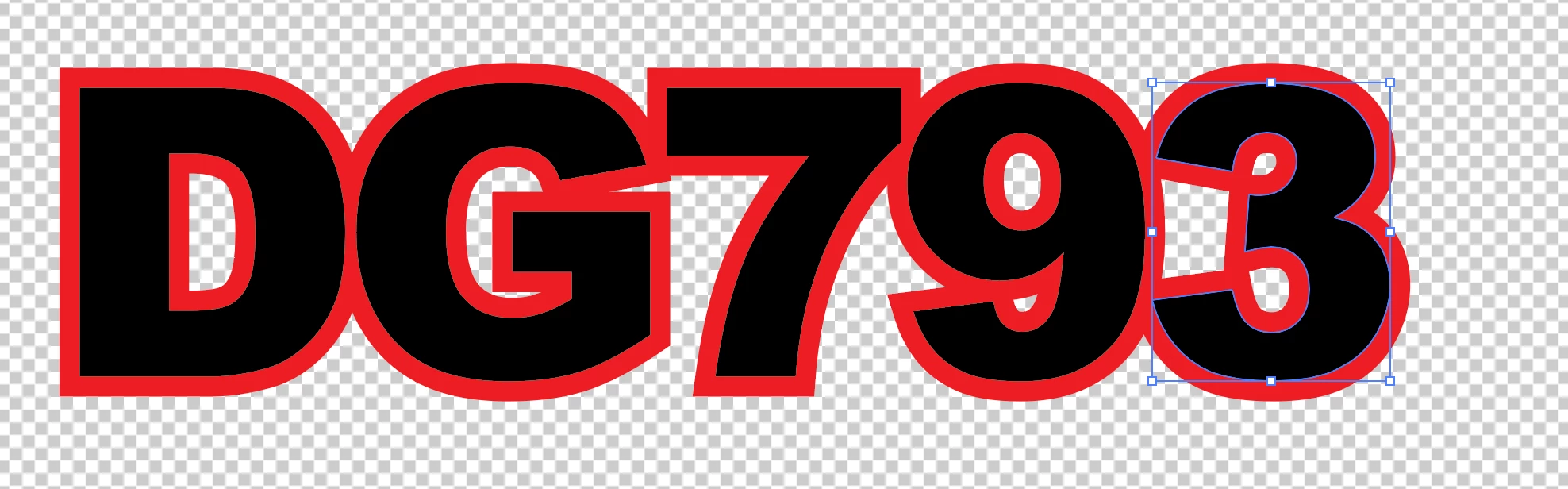
Basically I'm trying to create a 3D effect of the outline of some text. First, I do not like how the outline looks when I simply outline the text, it closes in to tight and I like the way offset outline looks. 


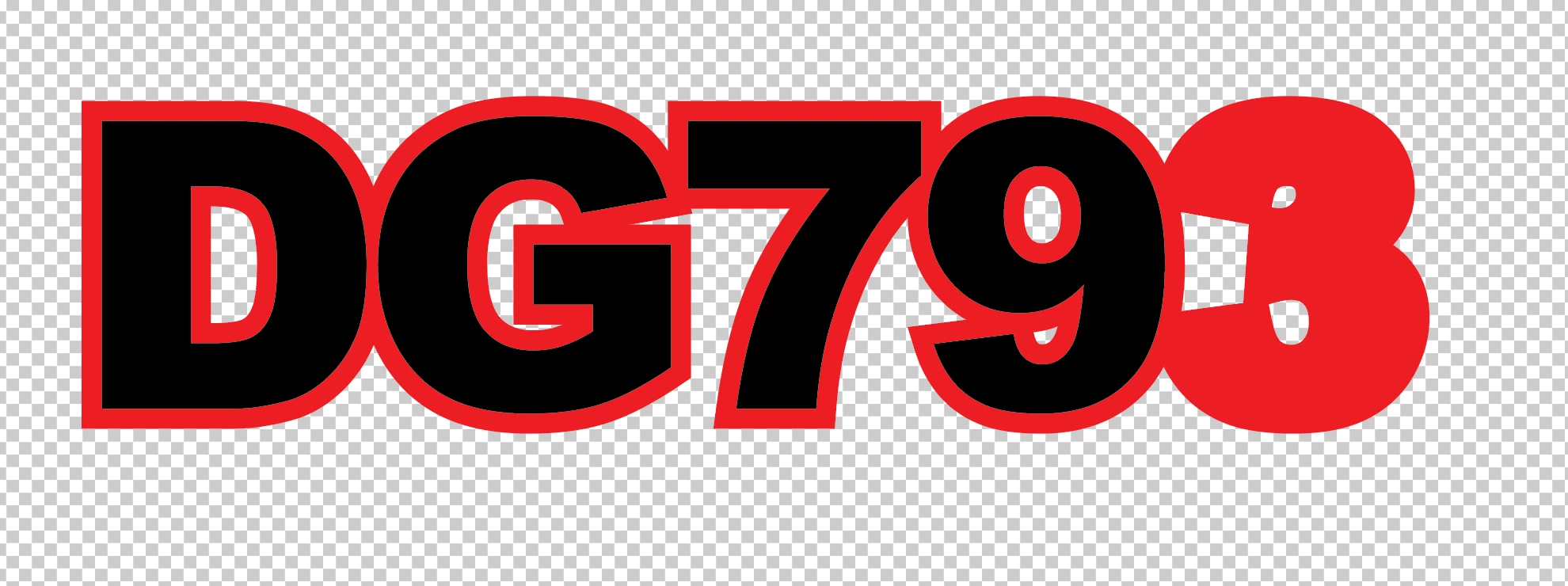
So I've offset and like where I am, now I want to punch out the black part of the text and leave the outline. But when I delete the black part it just shows the full offset....I hope i'm making sense. 


What am I missing?
 

This topic has been closed for replies.

3 replies

Jacob Bugge
Community Expert
Community Expert
February 18, 2020

j,


"Can you walk me through that process?"


Just do what Megan said.


Monika Gause
Community Expert
Community Expert
February 18, 2020

So after you're done with the outline you want to apply a 3D effect to it?

Select all your objects and Object > Compount path > Make

If it doesn't punch, open Window > Attributes. Go into the panel menu and "Show options". Then on the right side there are the fill rules. Select Even-Odd


Jacob Bugge
Community Expert
Community Expert
February 18, 2020

j,


As I (mis)understand it, you can just select both the original and the offset paths and then in the Transparency palette (flyout) click Make Opacity) Mask with both Clip and Invert Mask unticked (in the main Transparency window).


Participant
February 18, 2020

I should have mentioned i'm SUPER new to AI..... Can you walk me through that process?

meganchi
Legend
February 18, 2020

You can view your transparency panel by going to Window menu, then selecting "Transparency".

As Jacob suggeste;

1) select your red and black text

2) in the Transparency window panel click the button "Make Mask".

3) in the transparency panel make sure the checkboxes are unchecked next to "Clip" and "Invert Mask".